![Untitled design (1)-Aug-01-2022-12-37-27-80-PM.png]](https://help.syscloud.com/hs-fs/hubfs/Untitled%20design%20(1)-Aug-01-2022-12-37-27-80-PM.png?height=40&name=Untitled%20design%20(1)-Aug-01-2022-12-37-27-80-PM.png)
Yes, SysCloud gives administrators complete control to include or exclude specific file types when configuring backups. This flexibility helps reduce unnecessary storage usage by excluding non-critical or large media files.
Below is a detailed overview of what can be included or excluded during backup configuration:
Google Workspace
Gmail
- You can exclude certain categories of emails from being backed up.
- Supported exclusions:
- Junk emails
- Deleted items
Google Drive
- Choose to include either all Drive documents or only files from My Drive.
- You can include:
- Files from the Recycle Bin
- Specific folder types such as Videos, Audio, and Images
- You can exclude specific file types (especially large media files) to optimize storage:
- mp4, avi, wmv, mov, flv, vmdk, iso
Shared Drives
- You can include:
- Items from the Recycle Bin
- Specific folder types such as Videos, Audio, and Images
- You can exclude large media files such as:
- mp4, avi, wmv, mov, flv, vmdk, iso
How to configure include or exclude settings for a new backup job?
Step 1: Log in to the SysCloud backup application using your admin credentials.
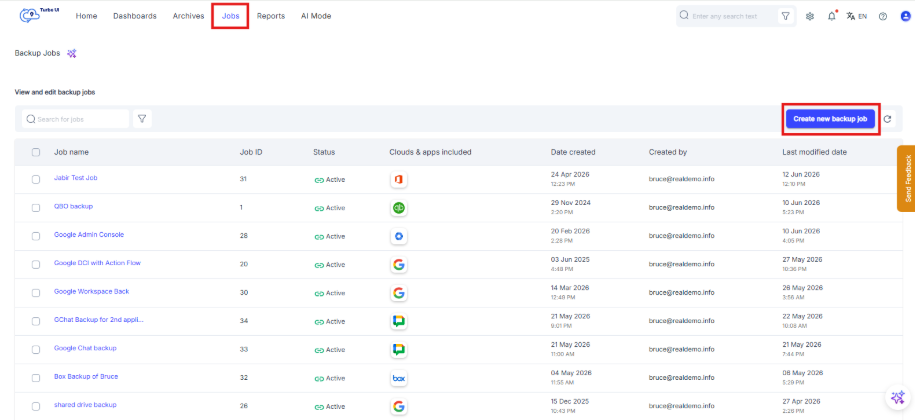
Step 2: Go to Jobs and click Create new backup job.
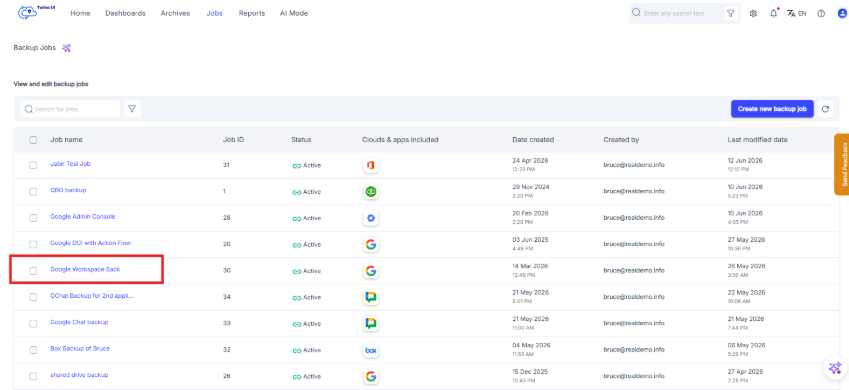
In case you want to edit an existing job,
- Select the Google Workspace backup job you want to update.
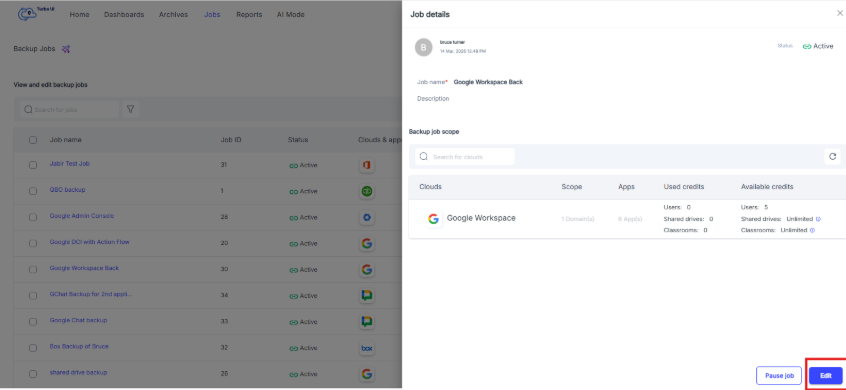
- From the side tray, click Edit.
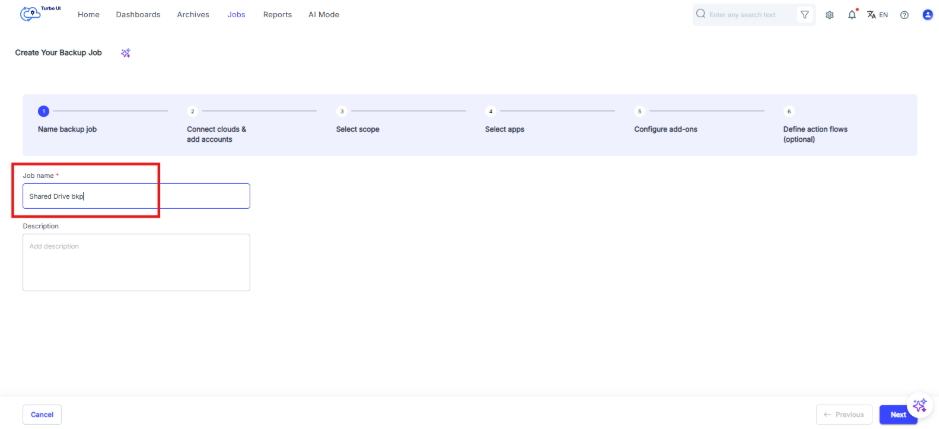
Step 3: Enter a name and description for the backup job and click Next.
Step 4: Select the cloud account you want to back up and click Next.
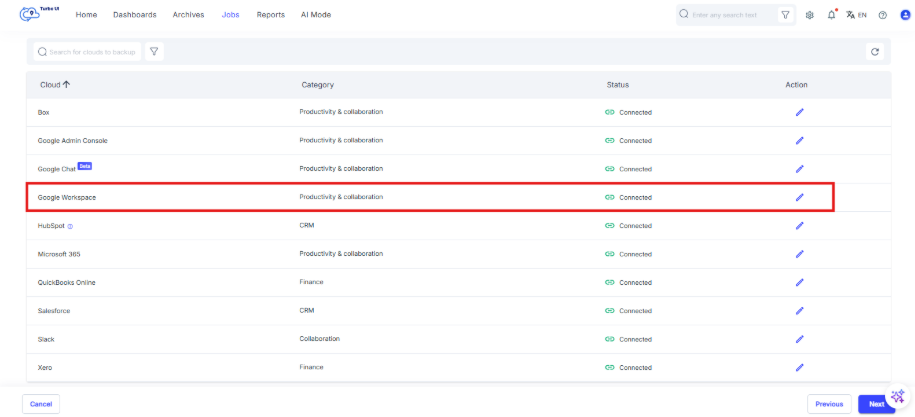
Step 5: Complete Step 3: Select the scope of the job.
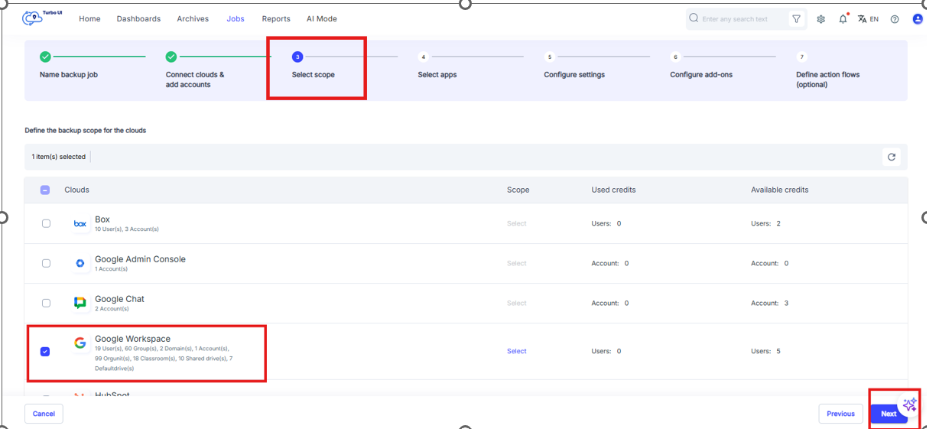
Step 6: Go to Step 4: Select apps. In the Apps column, click Select apps & retention option.
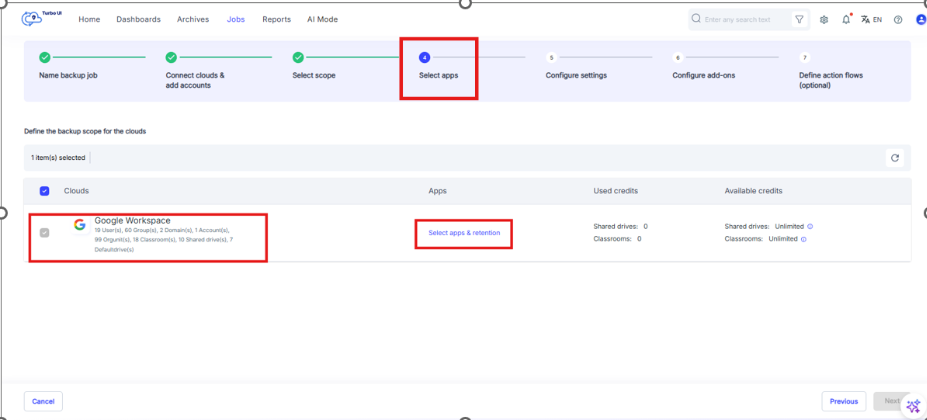
Step 7: Select the app you want to configure.
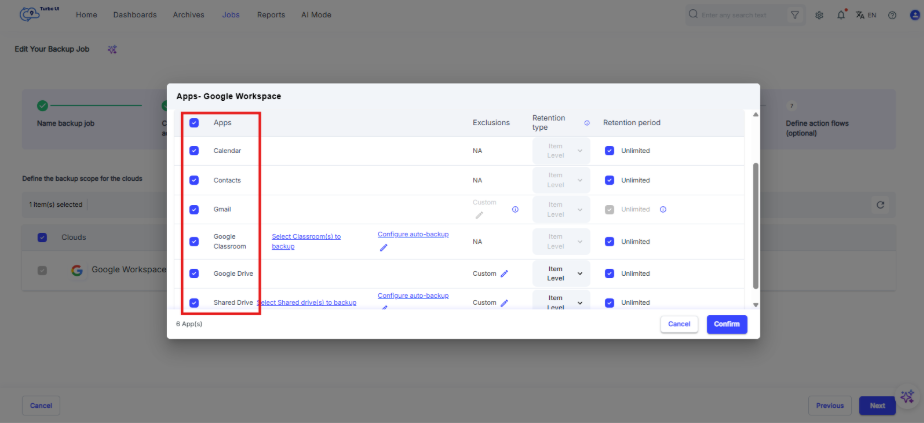
Step 8: In the selected app row, click the custom edit icon under Exclusions.
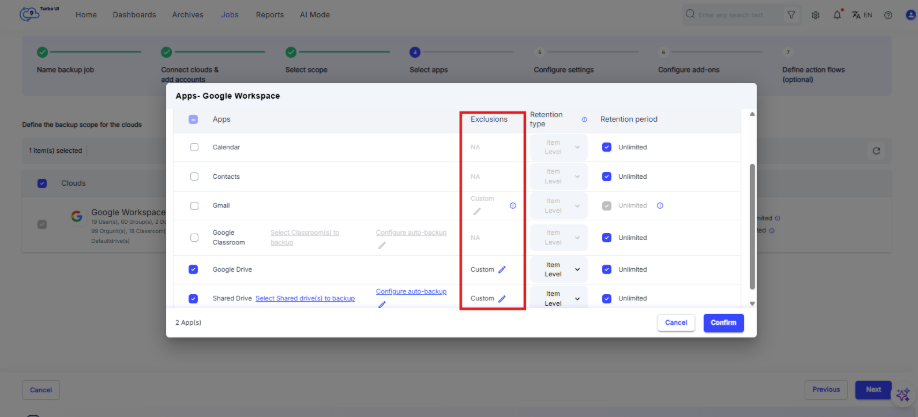
Step 9: Configure the exclusion options as per your requirements for a particular app.
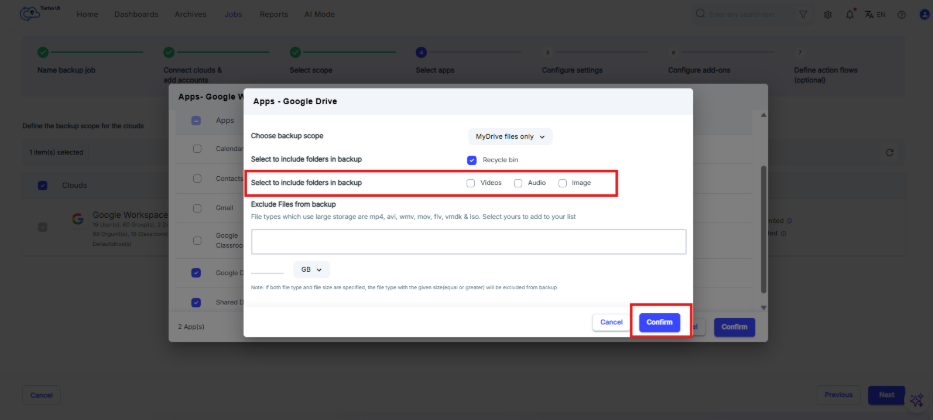
Step 10: Click Confirm.
Step 11: Click Next to skip and go to the Configure settings step.
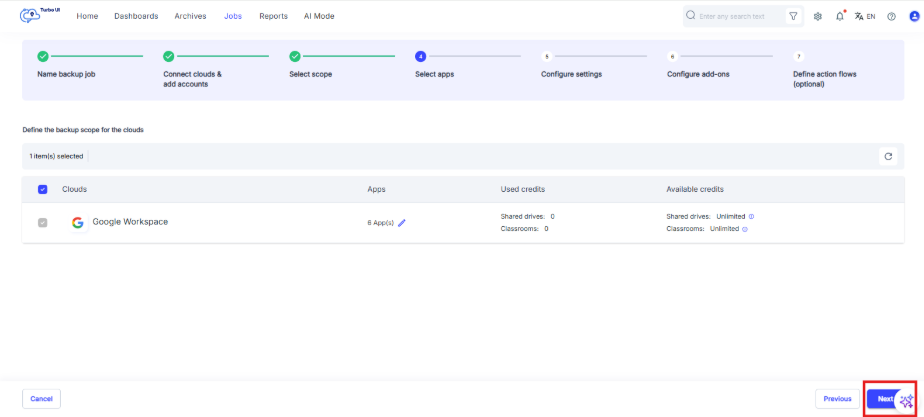
Step 12: Click Next to skip and go to the Configure add-ons step.
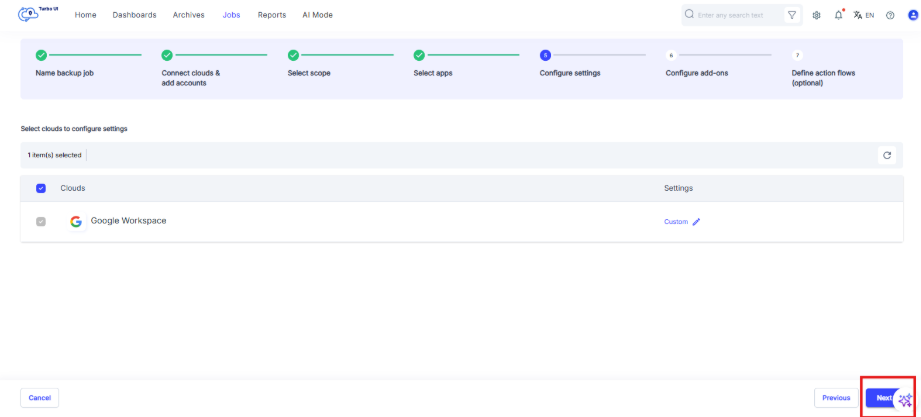
Step 13: Click Next to skip and go to the Define action flows step.
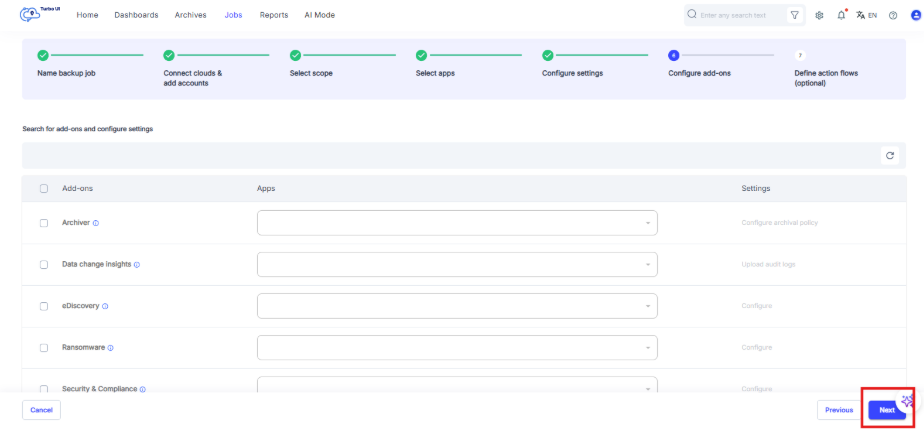
Step 14: On the Define action flows step, Click Start Backup to save the job and start backup.
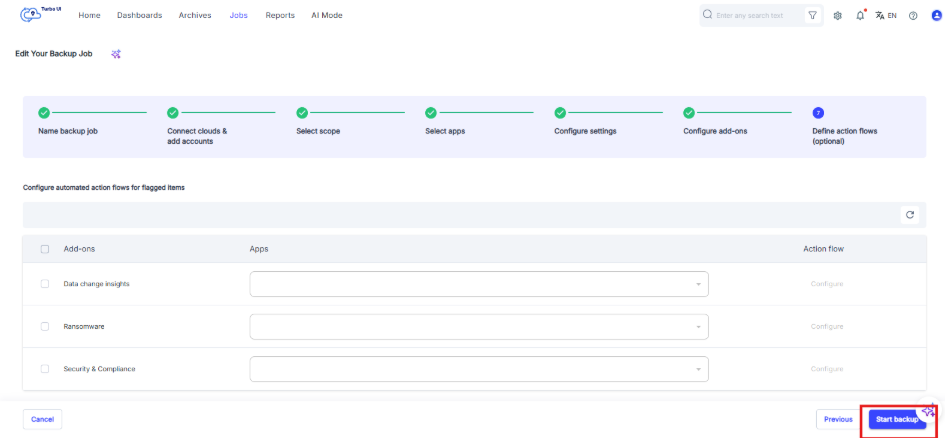
The available include and exclude options vary by cloud application and app. Updated settings apply after the backup job is started.