![Untitled design (1)-Aug-01-2022-12-37-27-80-PM.png]](https://help.syscloud.com/hs-fs/hubfs/Untitled%20design%20(1)-Aug-01-2022-12-37-27-80-PM.png?height=40&name=Untitled%20design%20(1)-Aug-01-2022-12-37-27-80-PM.png)
If you are a Legacy UI user, read How to enable image backup for Google Drive for multiple domains? (Legacy UI)
To enable image backup for Google Drive across multiple Google Workspace domains, select the required domains in the backup job scope and enable the Image file type for Google Drive backup.
For Turbo UI users || For Legacy UI users
Steps for Turbo UI users:
For a new backup job
Step 1: Log in to the SysCloud backup application using your admin credentials.
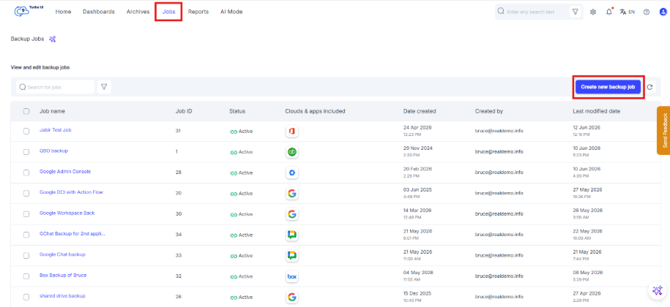
Step 2: Go to Jobs and click Create new backup job.
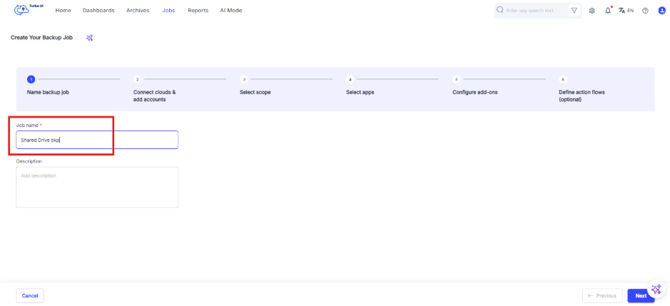
Step 3: Enter a name and description for the backup job and click Next.
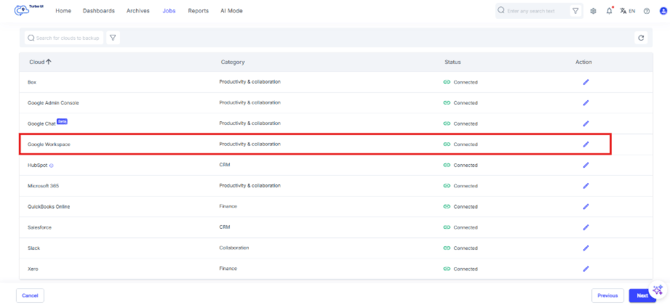
Step 4: In Step 2: Connect clouds & add accounts, make sure that the status is “Connected”. Click on the Edit pencil icon under the Action column to check the accounts added.
- Verify if the required Google account is added.
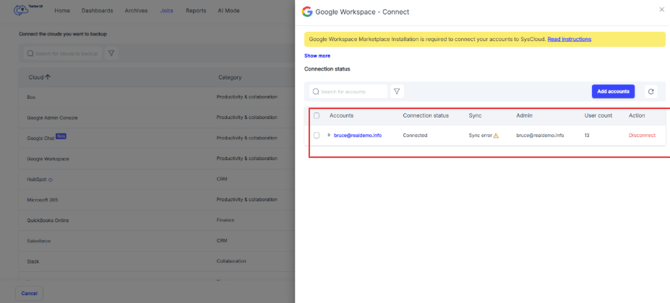
- If the Google Workspace account is not connected, connect and add account before continuing. Refer How can I connect my Google Workspace account to the SysCloud backup application?
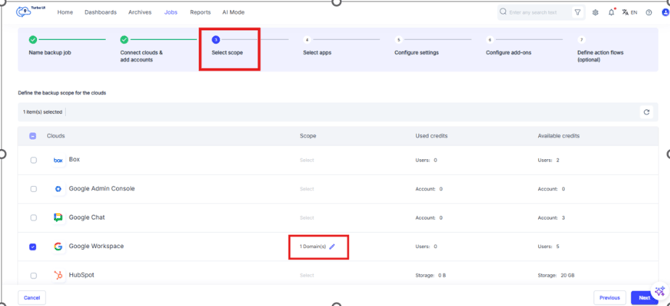
Step 5: Go to Step 3: Select the scope of the job. In the Google Workspace domain selection column, click the edit icon.
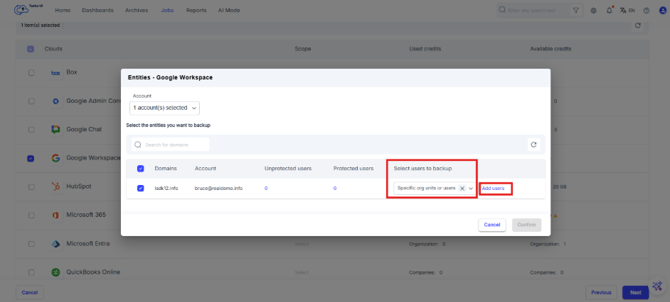
Step 6: In the Select users to backup column, from the drop-down select Specific org units or users. Click Add Users.
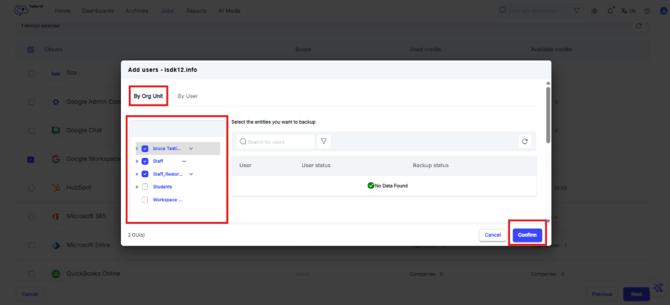
Step 7: From the Add Users menu, under the By Org Unit tab, only select the OU(s) you want to include in the backup. Then click Confirm.
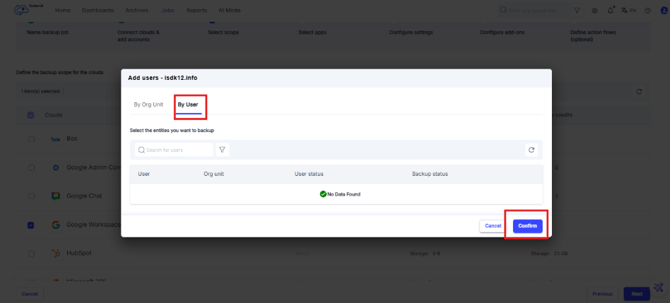
Step 8: From the Add Users menu, under the By User tab, uncheck the users you want to remove from backup. Then click Confirm.
Step 9: Go to Step 4: Select apps. In the Apps column, click the edit icon.
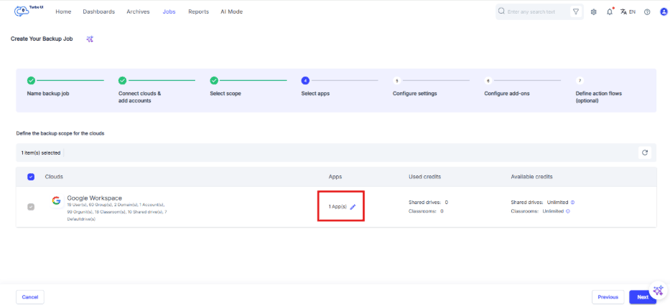
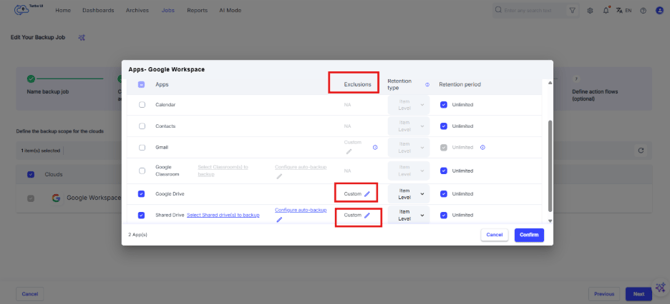
Step 10: In the Google Drive/ Shared drive row, click the custom edit icon under Exclusions.
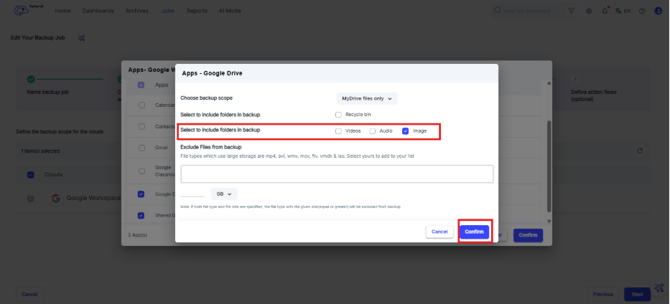
Step 11: Select the checkbox for Image for including the desired file types in backup. Click Confirm.
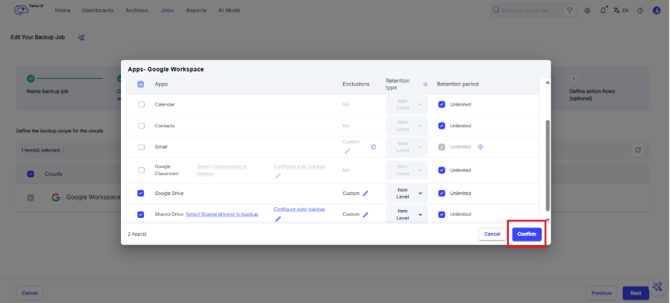
Step 12: On the Apps – Google workspace window, click Confirm to save the settings.
Step 13: Click Next to go to the Configure settings step.
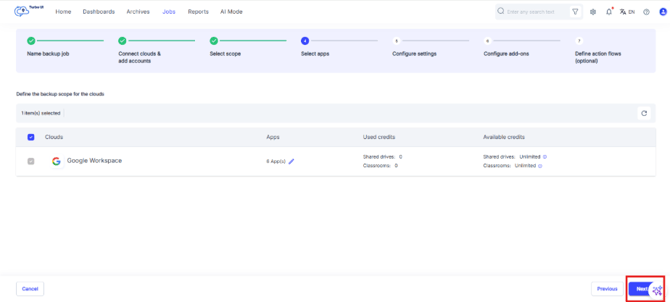
Step 14: Click Next to skip and go to the Configure add-ons step.
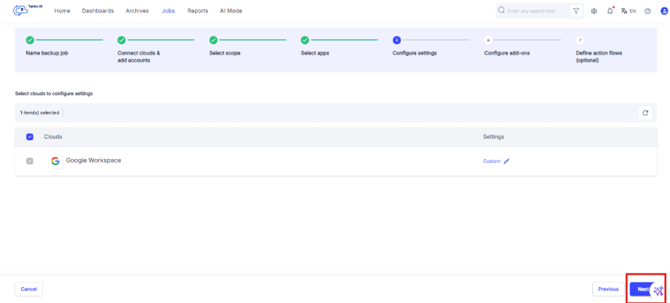
Step 15: Click Next to skip and go to the Define action flows step.
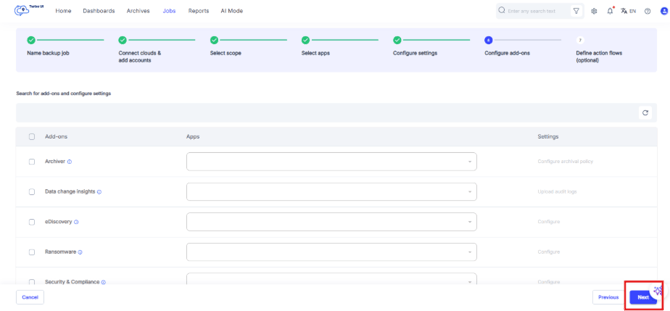
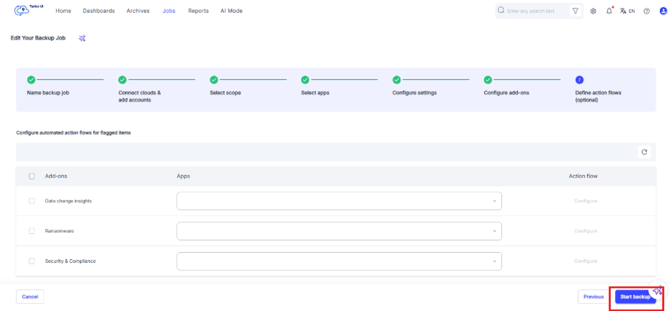
Step 16: On the Define action flows step, Click on Start Backup to save the job and start the backup.
For an existing backup job
Step 1: Log in to the SysCloud backup application using your admin credentials.
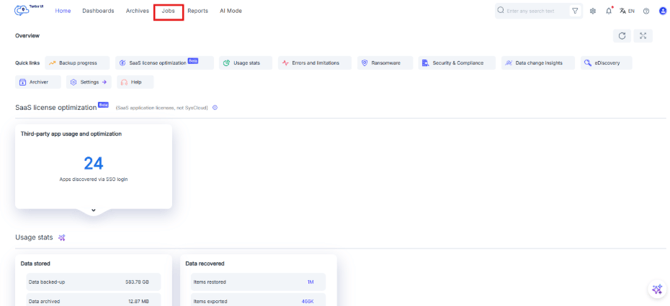
Step 2: Go to Jobs.
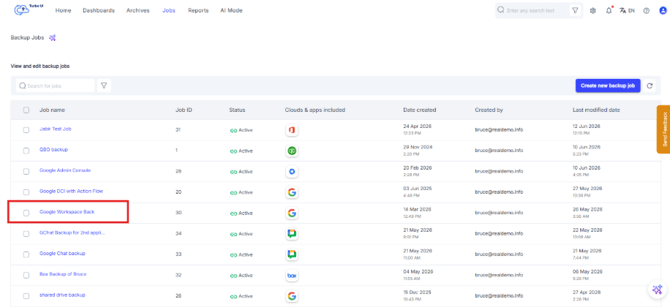
Step 3: Open the Google Workspace backup job you want to update.
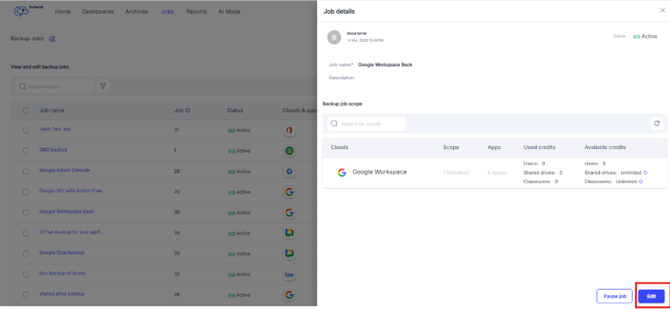
Step 4: From the side tray, click Edit.
Step 5: If the job already contains the required users, go to Step 4: Select apps and follow steps 9-12 in the section above.
Step 6: If the job contains multiple users, update the job scope first so that only the required users are selected. Follow steps 5 -12 from the section above.