![Untitled design (1)-Aug-01-2022-12-37-27-80-PM.png]](https://help.syscloud.com/hs-fs/hubfs/Untitled%20design%20(1)-Aug-01-2022-12-37-27-80-PM.png?height=40&name=Untitled%20design%20(1)-Aug-01-2022-12-37-27-80-PM.png)
If you are a Legacy UI user, read How to enable the image backup for Google Drive in the SysCloud application for a single user? (Legacy UI)
To enable image backup for a single Google Workspace user, configure a backup job that includes only that user and enable the Image file type for Google Drive backup.
For Turbo UI Customers:
For a new backup job
Step 1: Log in to the SysCloud backup application using your admin credentials.
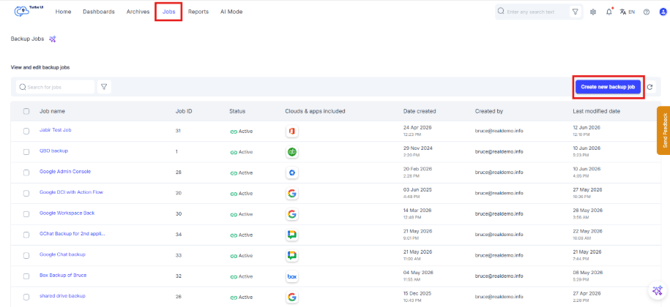
Step 2: Go to Jobs and click Create new backup job.
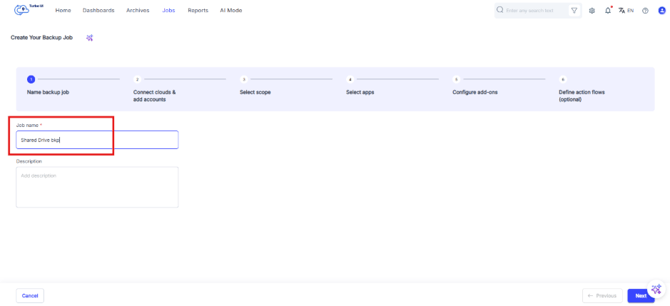
Step 3: Enter a name and description for the backup job and click Next.
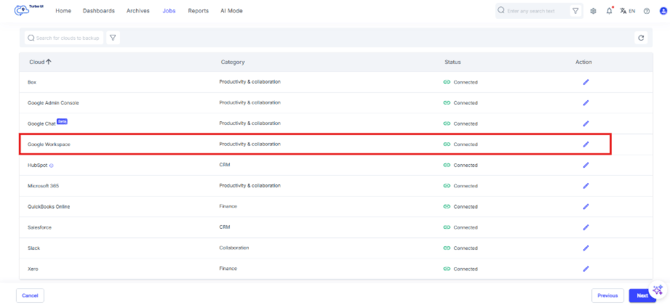
Step 4: In Step 2: Connect clouds & add accounts, make sure that the status is “Connected”. Click on the Edit pencil icon under the Action column to check the accounts added.
- Verify if the required Google account is added.
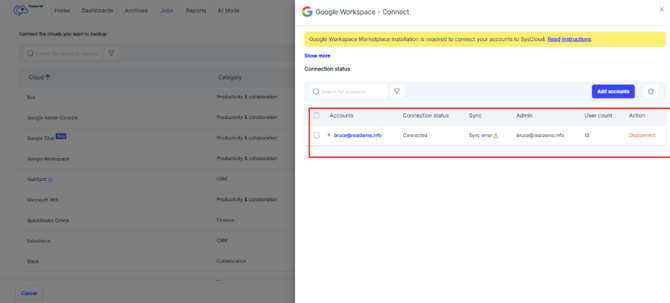
- If the Google Workspace account is not connected, connect and add account before continuing. Refer How can I connect my Google Workspace account to the SysCloud backup application?
Step 5: Go to Step 3: Select the scope of the job. In the Google Workspace domain selection column, click the edit icon.
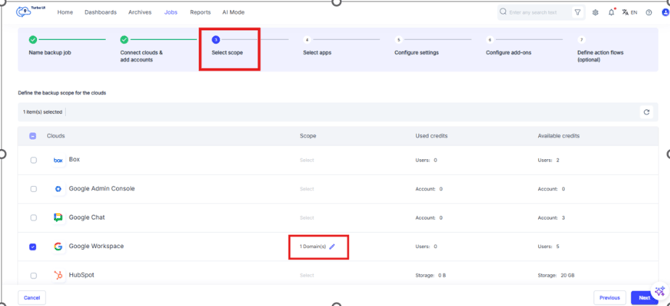
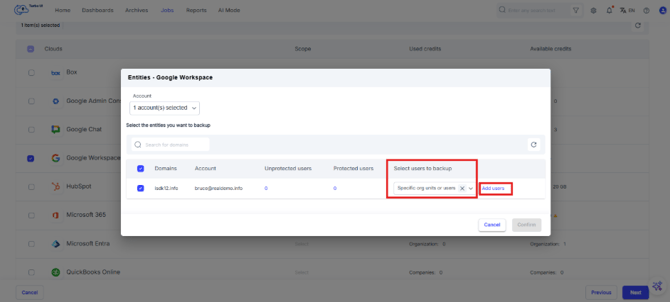
Step 6: In the Select users to backup column, from the drop-down select Specific org units or users. Click Add Users.
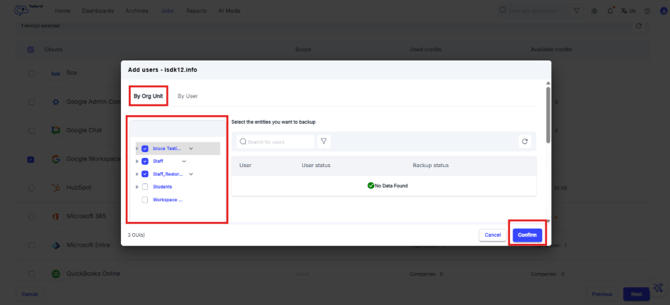
Step 7: From the Add Users menu, under the By Org Unit tab, check only the OU(s) you want to include in the backup. Then click Confirm.
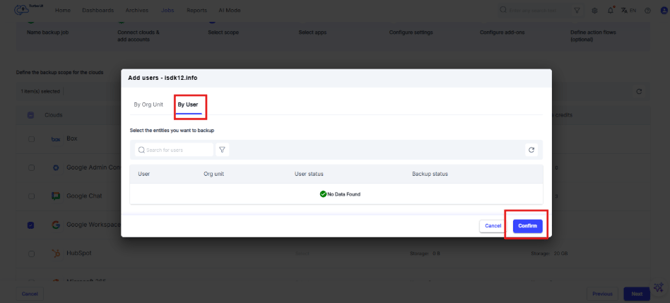
Step 8: From the Add Users menu, under the By User tab, check only the user(s) you want to keep in the backup. Then click Confirm.
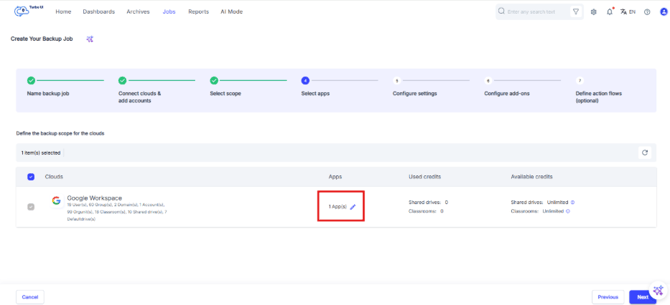
Step 9: Go to Step 4: Select apps. In the Apps column, click the edit icon.
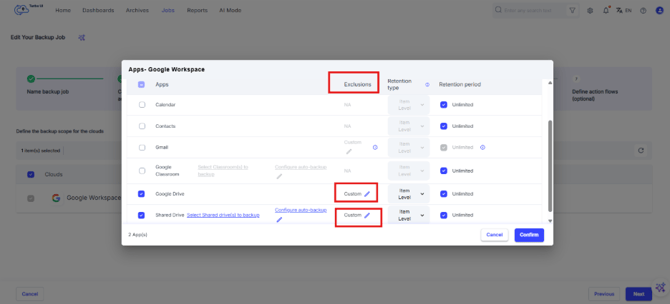
Step 10: In the Google Drive/ Shared drive row, click the custom edit icon under Exclusions.
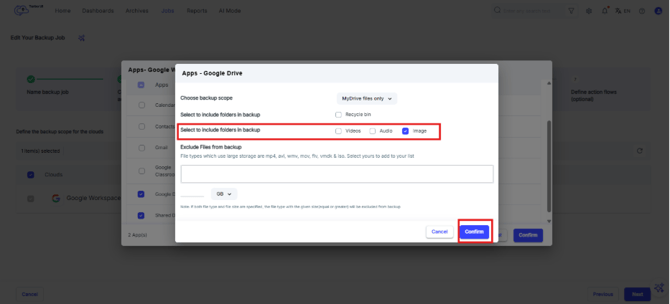
Step 11: Select the checkbox for Image for including the desired file types in backup. Click Confirm.
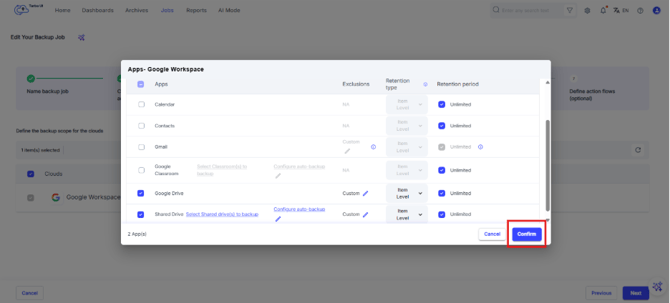
Step 12: On the Apps – Google workspace window, click Confirm to save the settings.
Step 13: Click Next to go to the Configure settings step.
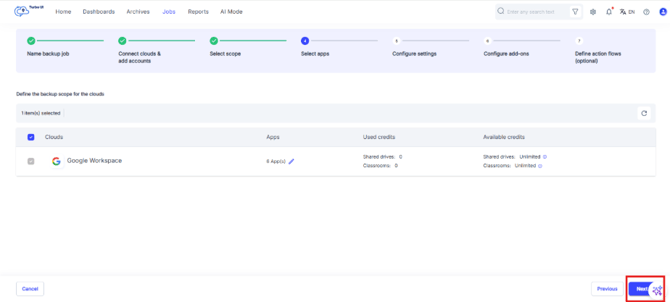
Step 14: Click Next to skip and go to the Configure add-ons step.
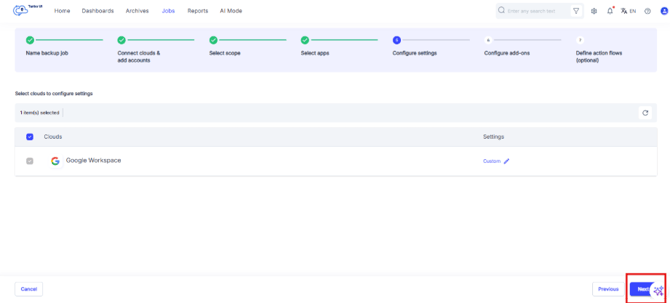
Step 15: Click Next to skip and go to the Define action flows step.
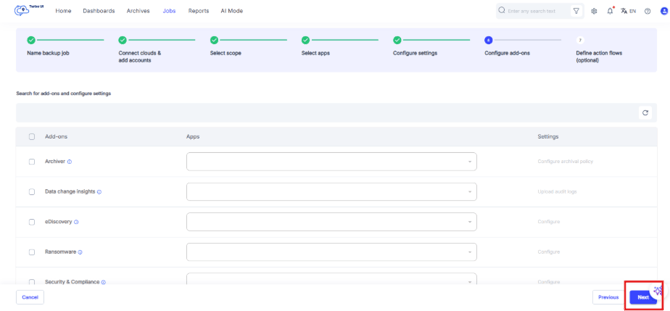
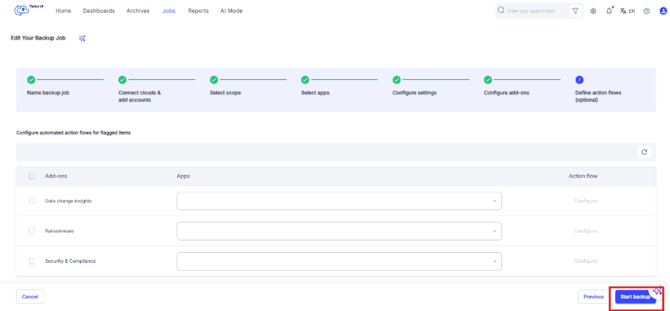
Step 16: On the Define action flows step, Click on Start Backup to save the job and start the backup.
For an existing backup job
Step 1: Log in to the SysCloud backup application using your admin credentials.
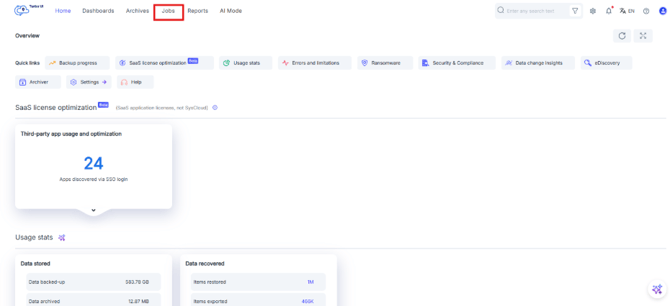
Step 2: Go to Jobs.
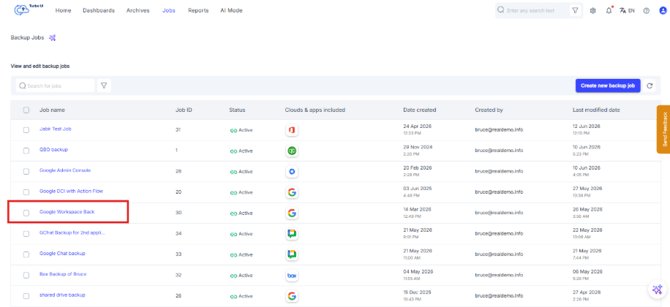
Step 3: Open the Google Workspace backup job you want to update.
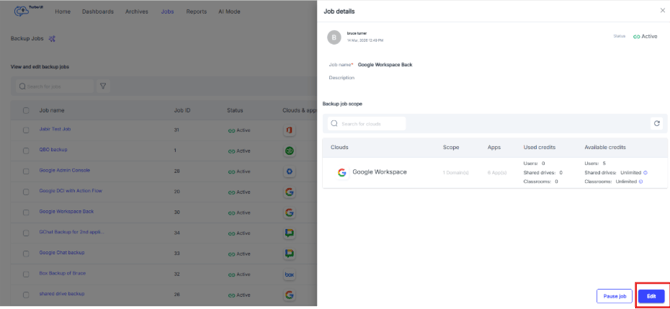
Step 4: From the side tray, click Edit.
Step 5: If the job already contains only the required user, go to Step 4: Select apps and follow steps 9-12 in the section above.
Step 6: If the job contains multiple users, update the job scope first so that only the required user is selected. Follow steps 5 -12 from the section above.