![Untitled design (1)-Aug-01-2022-12-37-27-80-PM.png]](https://help.syscloud.com/hs-fs/hubfs/Untitled%20design%20(1)-Aug-01-2022-12-37-27-80-PM.png?height=40&name=Untitled%20design%20(1)-Aug-01-2022-12-37-27-80-PM.png)
Follow the steps below to restore files or folders backed up from a user’s Google Drive to a Shared Drive using the SysCloud backup application.
Step 1: Log in to SysCloud using your admin credentials.
Step: Click Archive, and then choose Google Drive from the left sidebar.
Step 3: Navigate to the required user archive, select the files or folders that you want to restore, and click Restore.
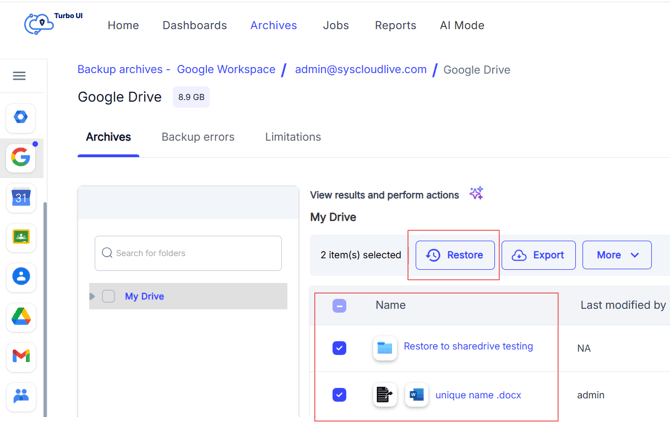
Step 4: In the restore pop-up, go to the Restore to section and select Shared Drive.
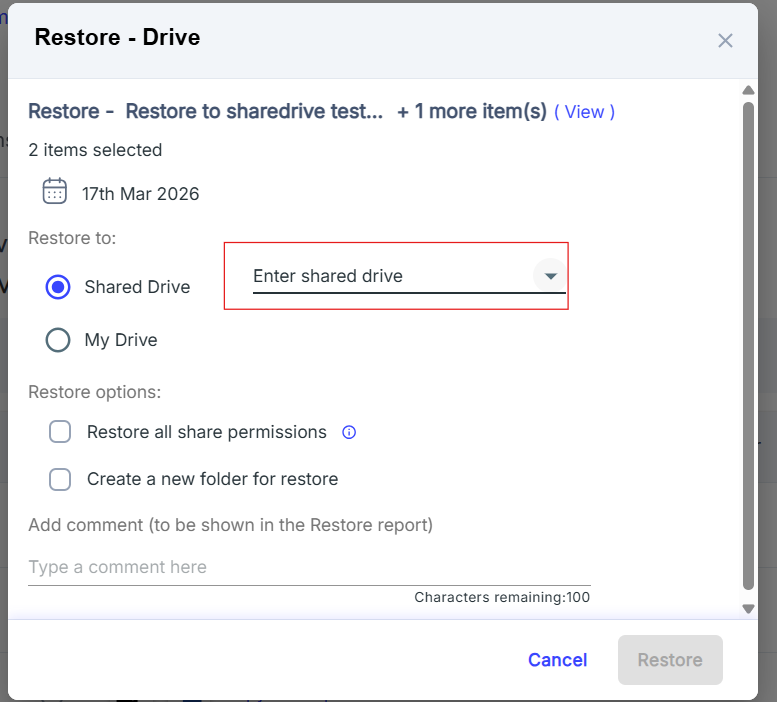
Step 5: Click on the drop-down field and choose the Shared Drive where you want to restore the selected files or folders.
Step 6: Select the restore options as required:
-
Restore all share permissions – restores the files with their sharing permissions.
-
Create a new folder for restore – creates a new folder in the destination Shared Drive and restores the selected data into it.
-
Add comment – adds an optional comment that will be shown in the Restore Report.
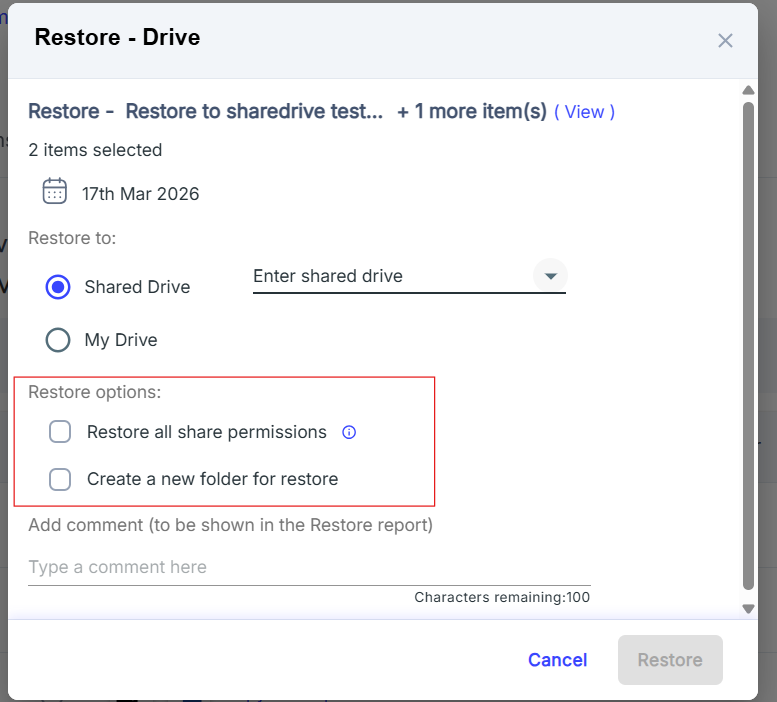
Step 7: Click Restore to confirm the restore.
Note:
-
The Shared Drive option is available only for restores from Google Drive archives, and only active Shared Drives are listed.
-
You must have admin permissions to access and restore data to the destination Shared Drive.
-
If the selected Shared Drive no longer exists, SysCloud creates a new Shared Drive and restores the data with the same structure and permissions.