![Untitled design (1)-Aug-01-2022-12-37-27-80-PM.png]](https://help.syscloud.com/hs-fs/hubfs/Untitled%20design%20(1)-Aug-01-2022-12-37-27-80-PM.png?height=40&name=Untitled%20design%20(1)-Aug-01-2022-12-37-27-80-PM.png)
Follow these steps to enable and configure the Ransomware protection add-on:
Step 1: Log in to the SysCloud backup application using your admin credentials.
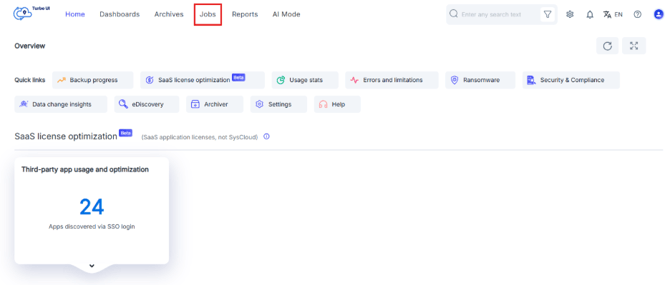
Step 2: Click on Jobs from the navigation bar.
Step 3: Create or edit a backup job
Create a new backup job or edit an existing one that includes Google Workspace as the selected cloud.
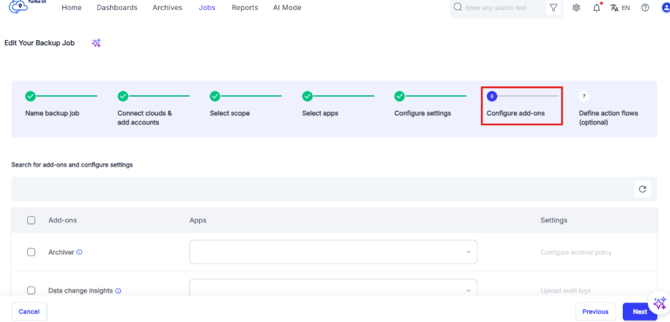
Step 4: Navigate to add-ons
In the Configure add-ons section of the backup job setup, locate the Ransomware add-on.
Step 5: Enable ransomware protection
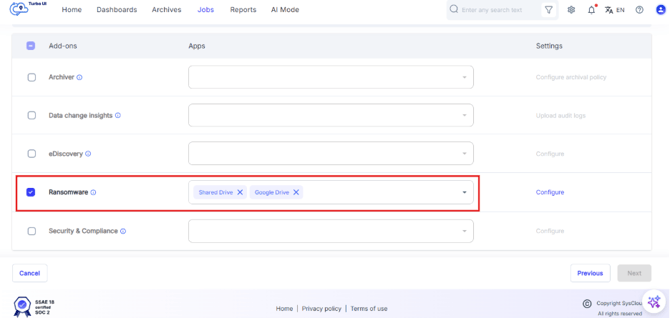
Select the Ransomware checkbox.
The list of available clouds for that backup job will be auto populated
Step 6: Configure ransomware settings
Click on Configure next to the Ransomware add-on.
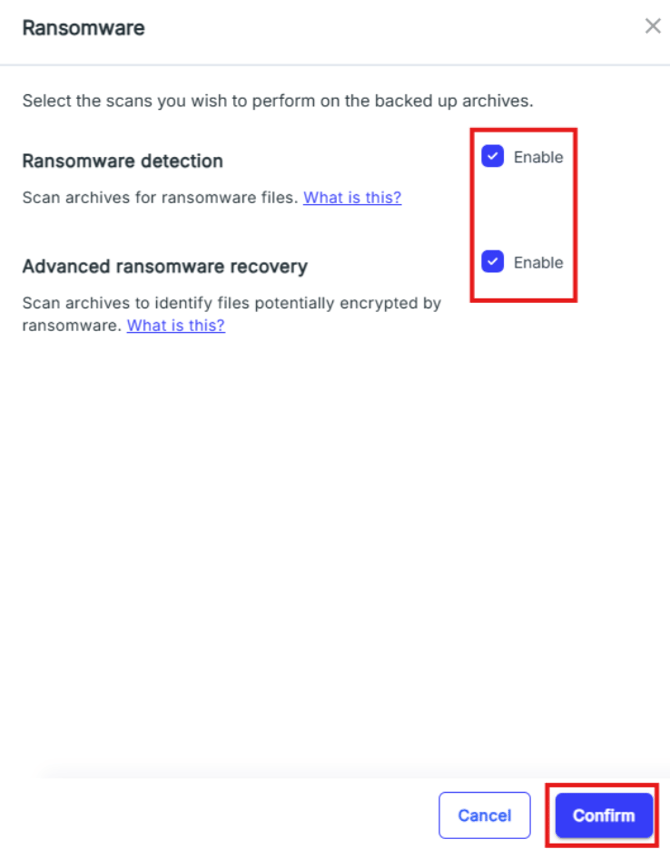
A side tray will open with the following options:
- Ransomware detection: Enable this to scan backup archives for the presence of known ransomware and malicious files before the attacker encrypts the file(s) or activates the ransomware. SysCloud can identify batch programs, executables, and macro-enabled ransomware in the data you back up.
- Advanced ransomware recovery: Enable this to scan your backups to detect files that have been potentially encrypted by ransomware and provide options to recover from the attack unharmed.

Step 7: After reviewing and confirming the settings, click Next to proceed to the final step, where you can configure action flows if required. For instructions on setting up action flows for ransomware alerts, refer to this article.
Step 8: Start backup
Once the required settings are enabled, click Start backup to begin the process.
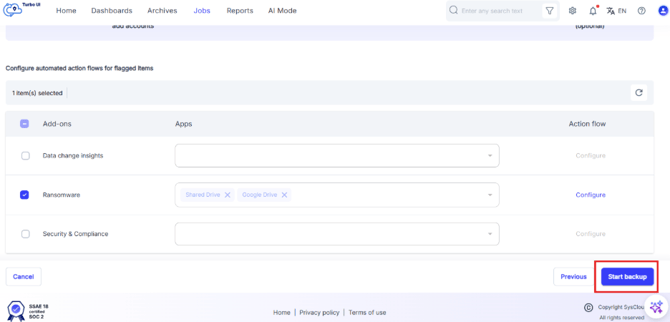
Your backup will now be protected with ransomware detection and recovery capabilities.