![Untitled design (1)-Aug-01-2022-12-37-27-80-PM.png]](https://help.syscloud.com/hs-fs/hubfs/Untitled%20design%20(1)-Aug-01-2022-12-37-27-80-PM.png?height=40&name=Untitled%20design%20(1)-Aug-01-2022-12-37-27-80-PM.png)
Follow these steps to install the SysCloud app for your Google Workspace domain.
You must be signed in to the Google Admin console using a super administrator account.
Step 1: Sign in to the Google Admin console.
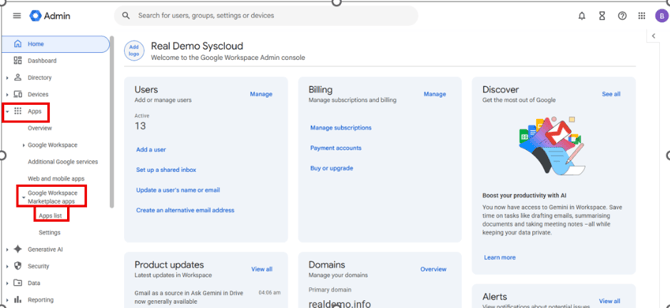
Step 2: Go to Apps > Google Workspace Marketplace apps > Apps list.
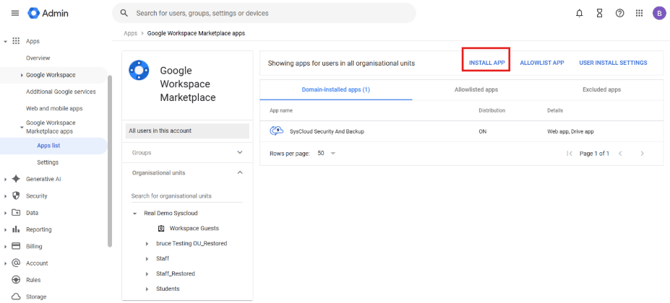
Step 3: Click Install app.
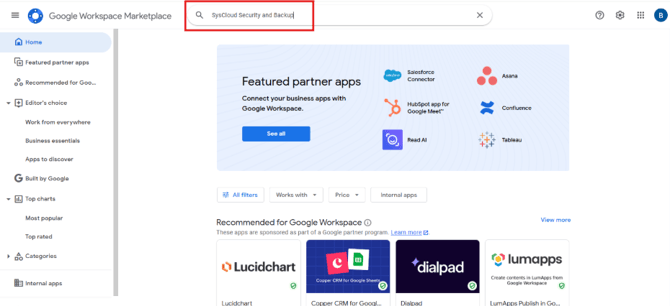
Step 4: In Google Workspace Marketplace, search for SysCloud Security and Backup.
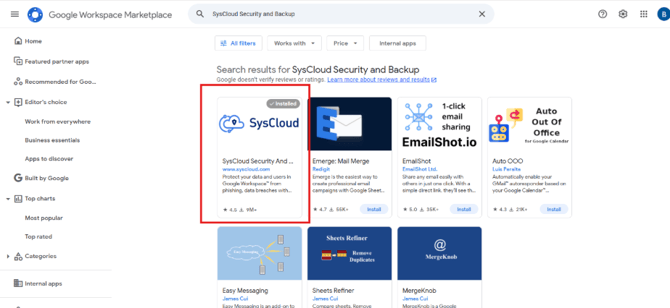
Step 5: Select the app published by SysCloud.
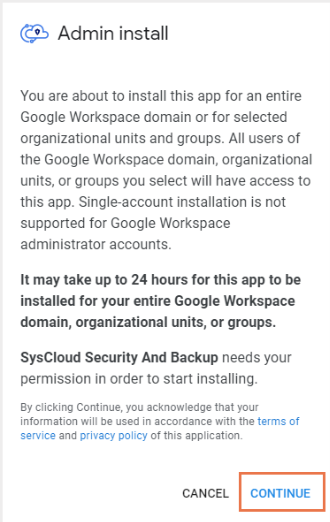
Step 6: Click Admin install, and then click Continue.
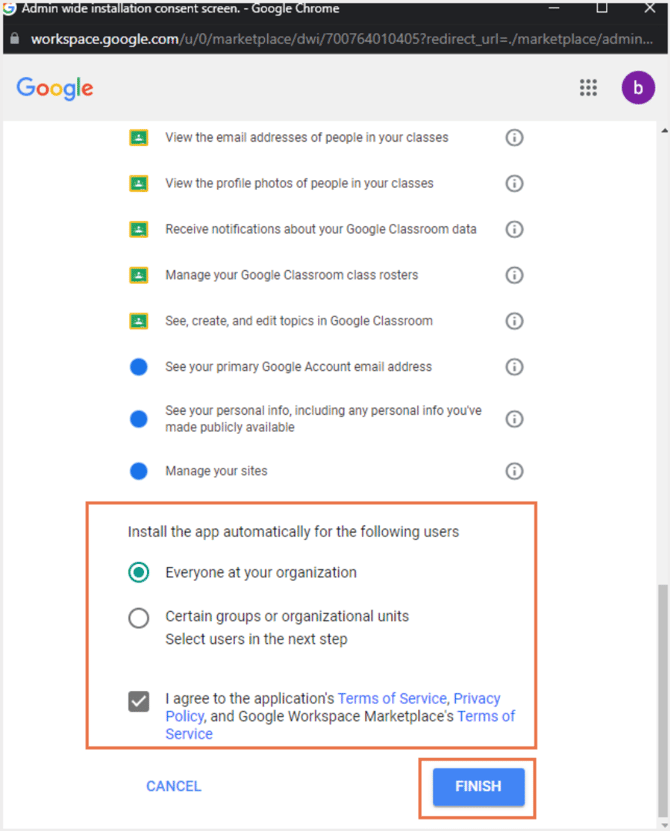
Step 7: Review the requested permissions, developer terms, and policies. Select Everyone at your organisation, and click Finish.
Step 8: Once the installation is complete, click "Done" to close the pop-up box.
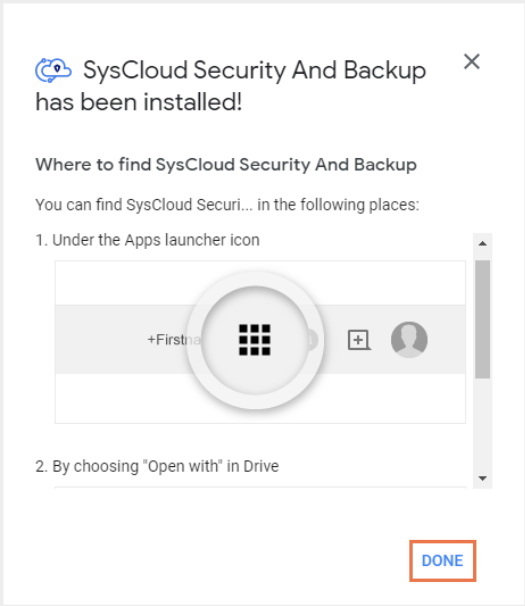
This will connect your Google Workspace account to the SysCloud backup application.
To learn how to create and start a backup job for Google Workspace, read How to set up Google Workspace backup in the SysCloud backup application?
If your organization restricts user-installed Marketplace apps, you can still install the SysCloud app for users as an administrator. To review Marketplace installation settings, go to Apps > Google Workspace Marketplace apps > Apps list > User Install Settings.