![Untitled design (1)-Aug-01-2022-12-37-27-80-PM.png]](https://help.syscloud.com/hs-fs/hubfs/Untitled%20design%20(1)-Aug-01-2022-12-37-27-80-PM.png?height=40&name=Untitled%20design%20(1)-Aug-01-2022-12-37-27-80-PM.png)
If Google Admin Console backup stops with the error code BGOOGAP981, the OAuth Client ID/Client Secret configured in SysCloud is no longer valid (for example, the OAuth app was deleted in Google Cloud or the Client Secret was rotated). Generate new OAuth credentials in Google Cloud and update them in SysCloud Cloud Connections.
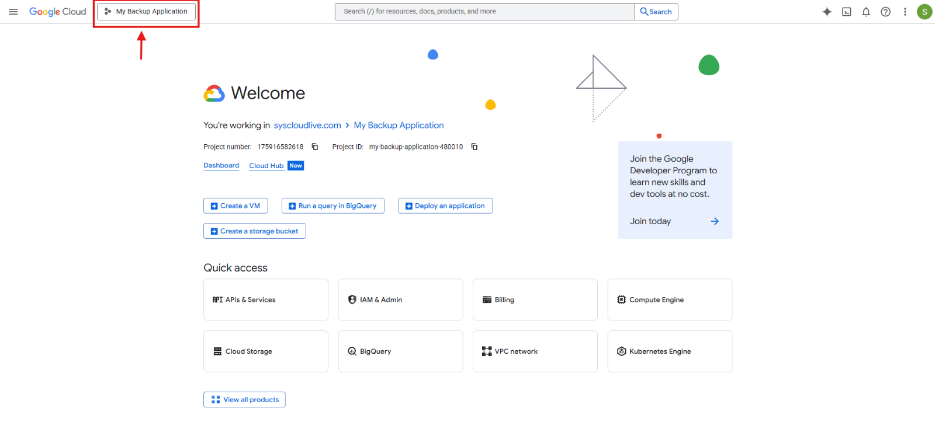
Step 1: Sign in to Google Cloud Console and select the project used for your OAuth app.
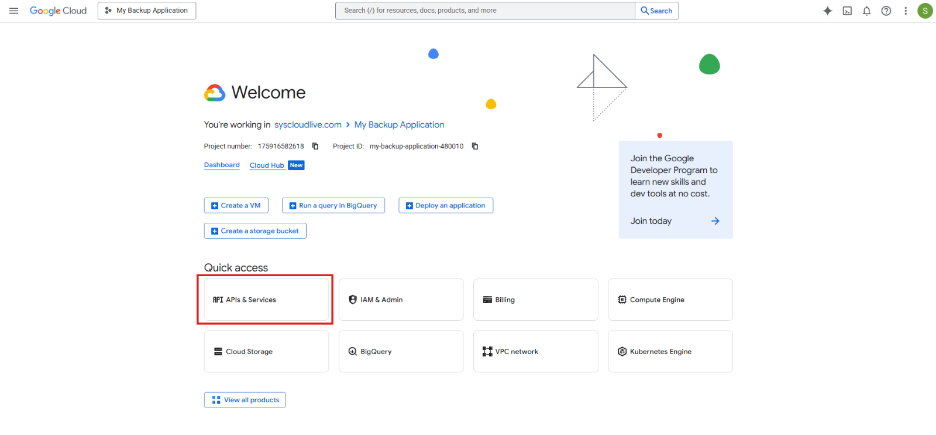
Step 2: Go to APIs & Services -> Credentials.
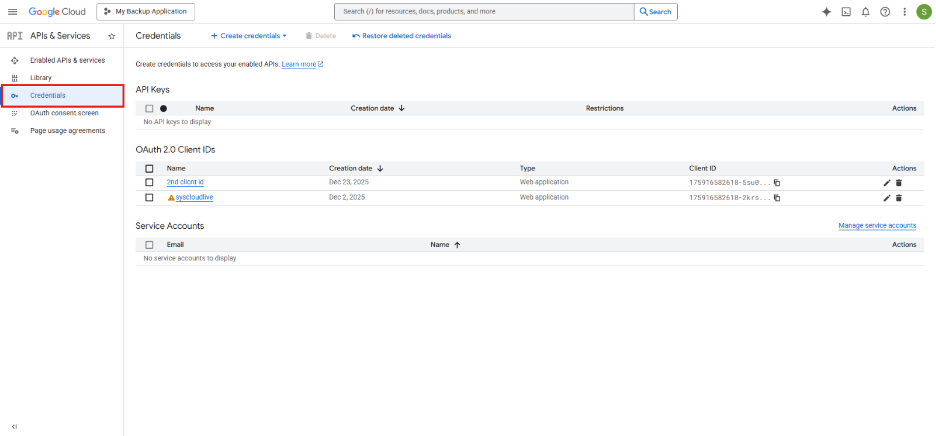
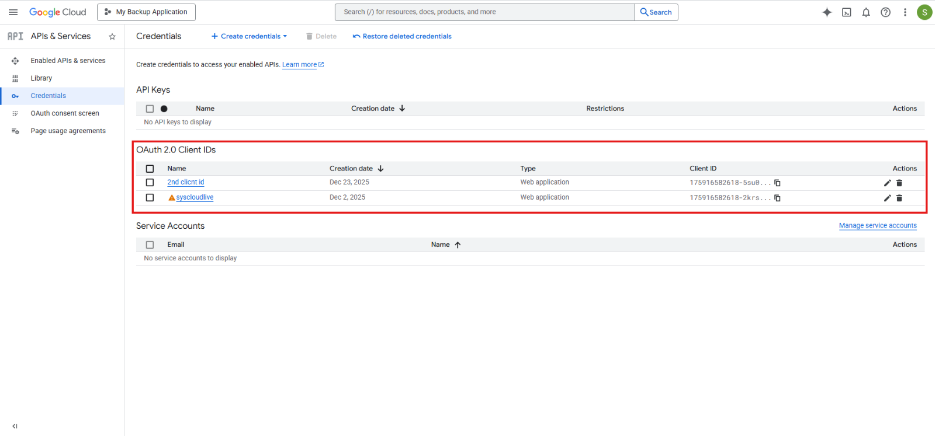
Step 3: Select the Client ID you want to update
Step 4: Click on +Add secret under Client secrets to create a new secret
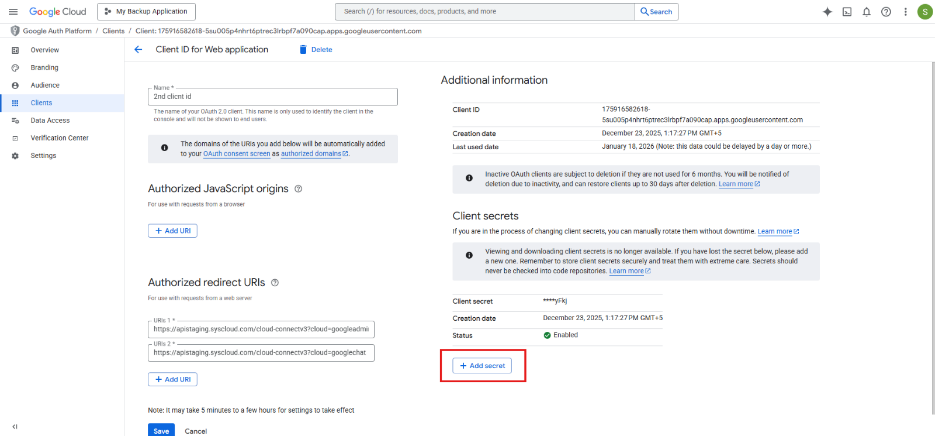
Step 5: Now copy the new Client Secret to update in the SysCloud Application
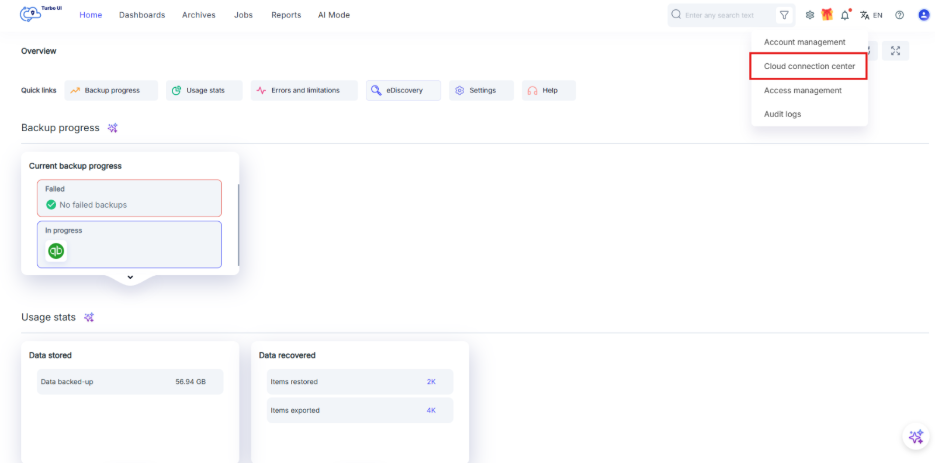
Step 6: Log in to SysCloud and go to Settings -> Cloud connection center.
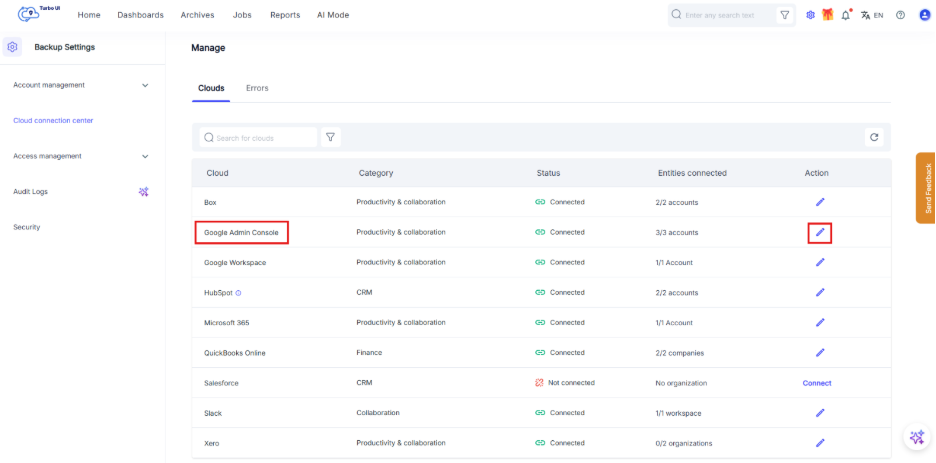
Step 7: Locate your Google Admin Console connection and click Edit (pencil icon) or open the connection details.
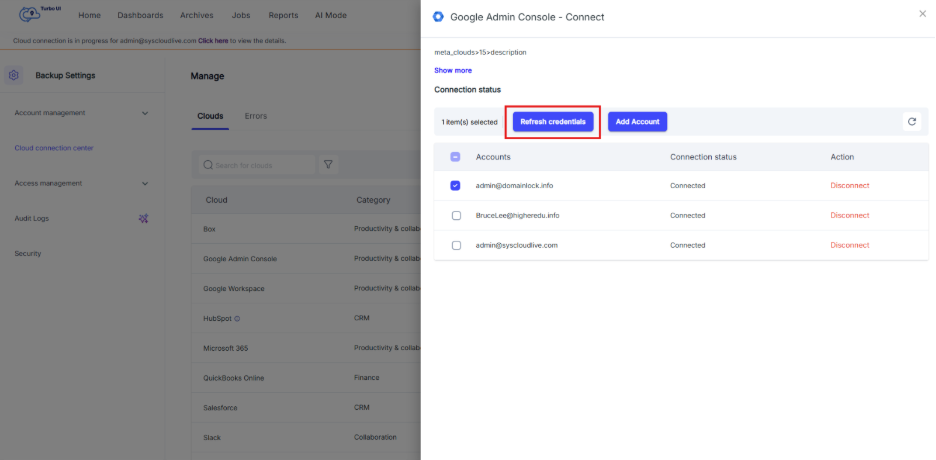
Step 8: Click Refresh Credentials and paste the new Client ID and Client Secret, then click Authorize in Google Admin Console .
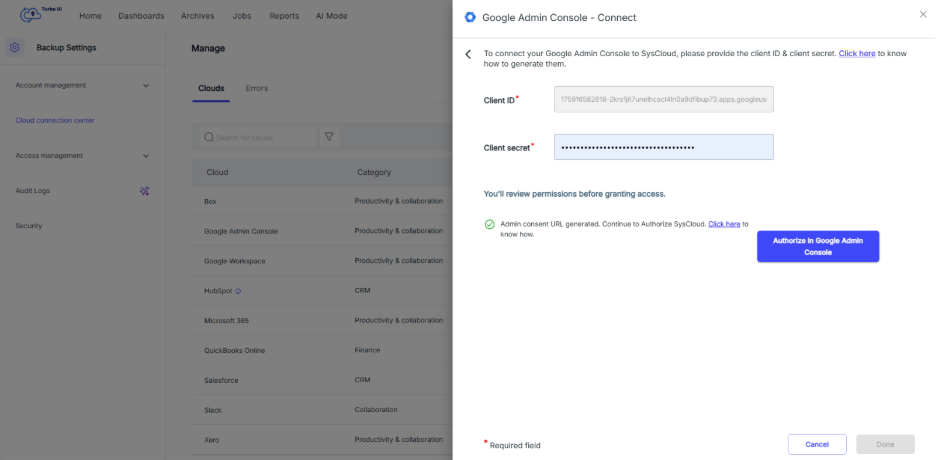
Step 9: Return to the backup status page and confirm the backup resumes in the next backup cycle.
Note: If the OAuth client still exists but only the secret was rotated, generating a new Client Secret and updating it in SysCloud is sufficient. If the OAuth client was deleted, create a new OAuth client and update both Client ID and Client Secret.