![Untitled design (1)-Aug-01-2022-12-37-27-80-PM.png]](https://help.syscloud.com/hs-fs/hubfs/Untitled%20design%20(1)-Aug-01-2022-12-37-27-80-PM.png?height=40&name=Untitled%20design%20(1)-Aug-01-2022-12-37-27-80-PM.png)
Data Change Insights action flows let you automatically perform an action when SysCloud detects newly added, changed, or deleted items that match the configured criteria.
Prerequisite
Data Change Insights action flows are available only for customers who have purchased the Data Change Insights add-on. If the add-on is not enabled, contact Sales to purchase it and unlock Data Change Insights action flows for change detections.
Not sure what action flows are? See What are custom action flows? to learn how automated actions work.
Steps
Step 1: Log in to the SysCloud backup application using your admin credentials.
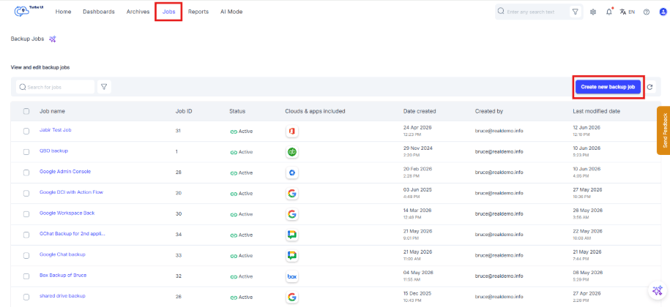
Step 2: Go to Jobs and click Create new backup job.
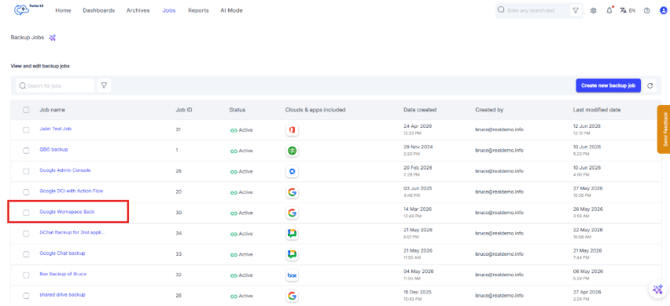
In case you already have an existing job that needs to be updated,
- Select the Google Workspace backup job you want to update.
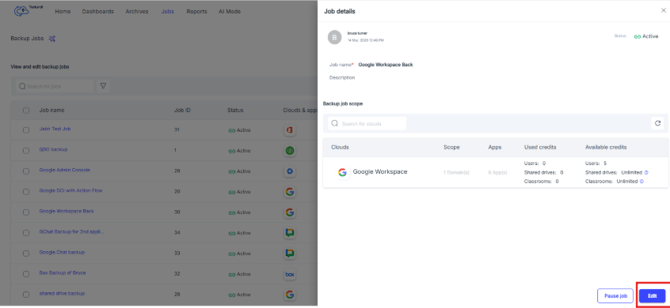
- From the side tray, click Edit
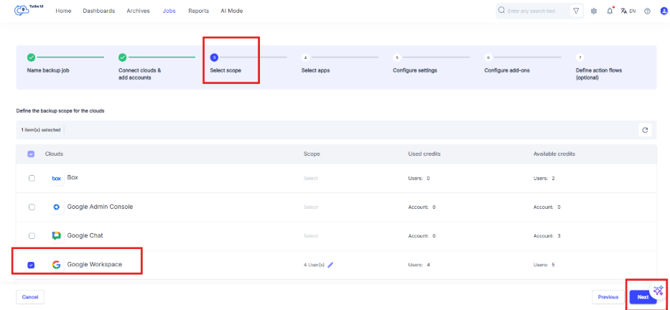
Step 3: In Step 3: Select scope, make sure Google Workspace is selected as part of the backup job scope. Click Next to proceed.
Step 4: Complete Step 4: Select apps and click Next.
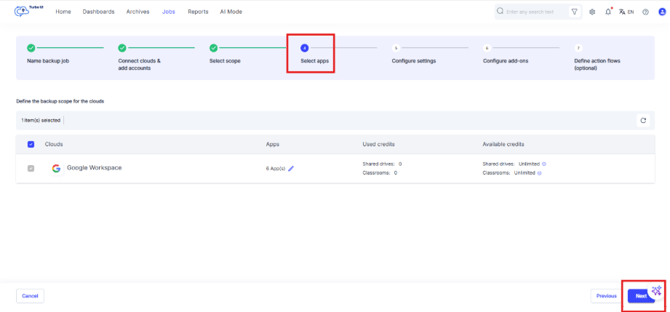
Step 5: Complete Step 5: Configure settings and click Next.
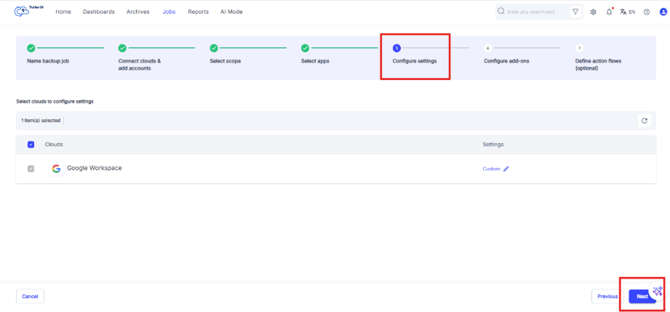
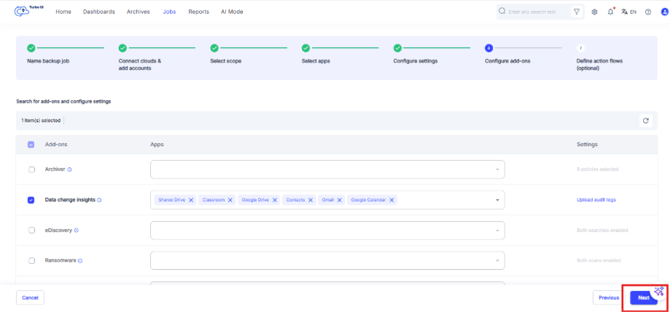
Step 6: In Step 6: Configure add-ons, select Data change insights.
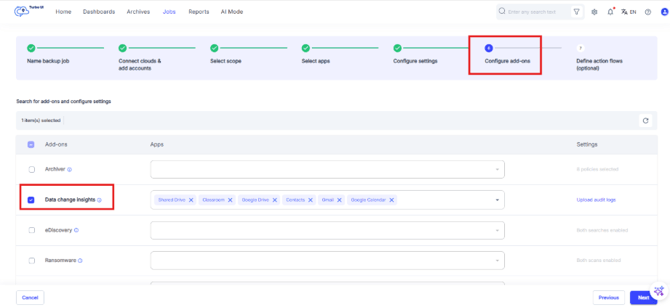
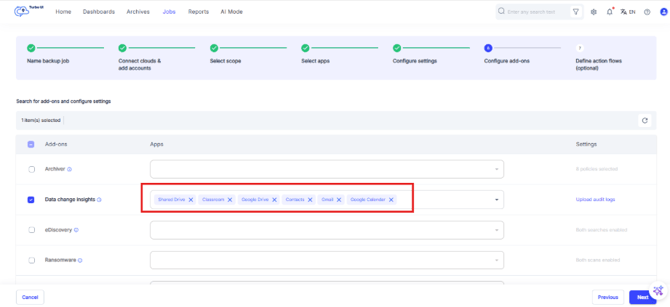
Step 7: Under the Apps column, select the Google Workspace apps for which you want to enable Data Change Insights.
Step 8: For Google Workspace, audit logs are available with SysCloud. No action is required. Click Next to go to Step 7: Define action flows (optional).
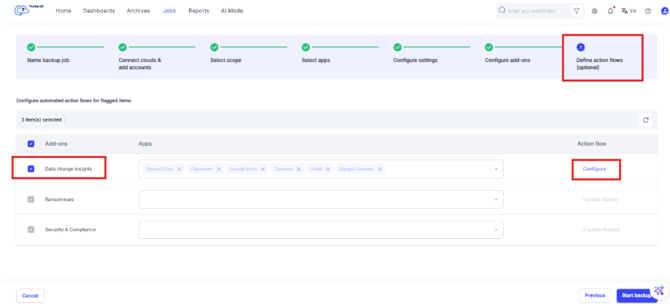
Step 9: Select Data change insights and click Configure.
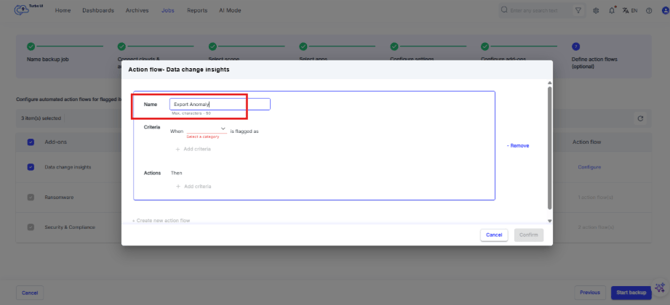
Step 10: In the Action flow - Data change insights pop-up, enter a name for the action flow.
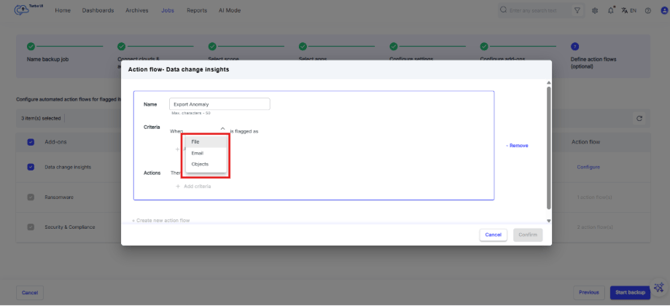
Step 11: Define the trigger criteria for the action flow.
| Field | Available options |
|---|---|
| Data type | File, Email, Objects |
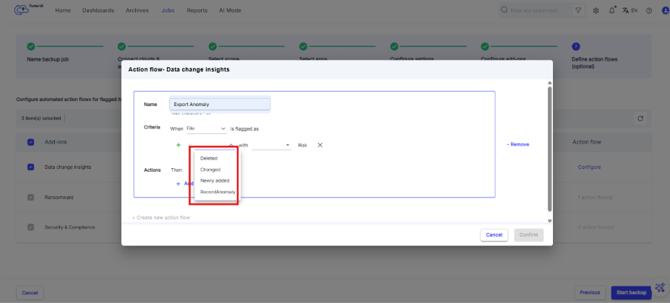
| Detection type | Newly added, Changed, Deleted |
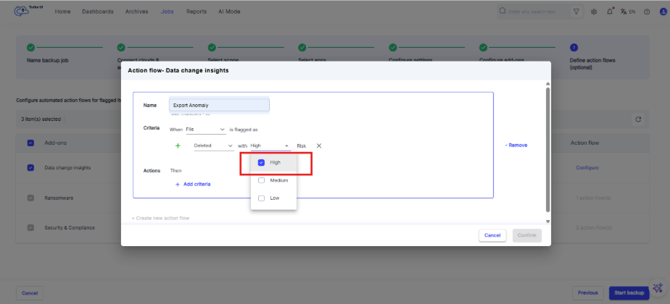
| Risk category | High, Medium, Low |
| Action | Export items |
Step 12: Under Criteria, select the data type.
Step 13: Click on + Add Criteria.
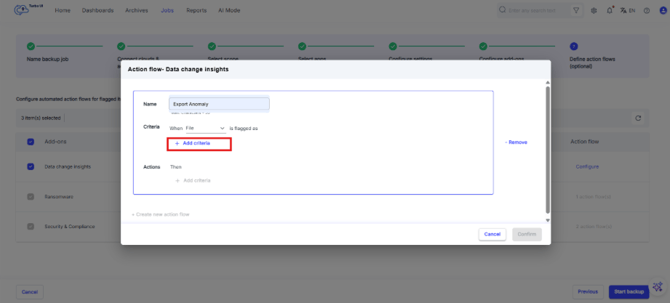
Step 14: Select the detection type for which the action flow should run.
Step 15: Select the risk category.
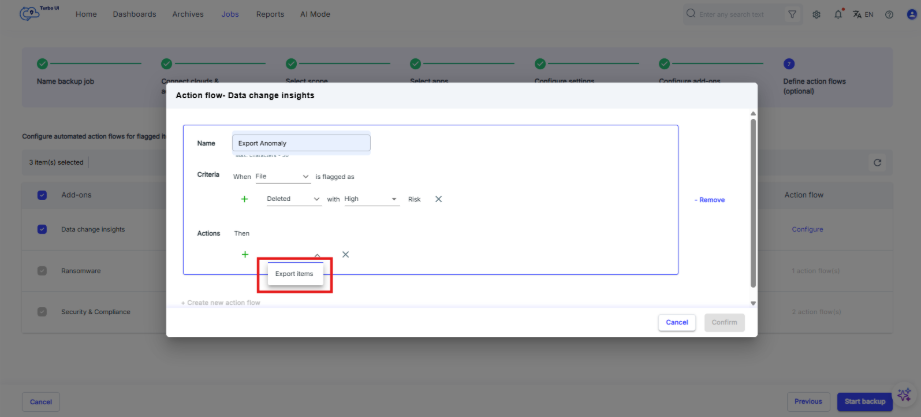
Step 16: Under Actions, click + Add criteria.
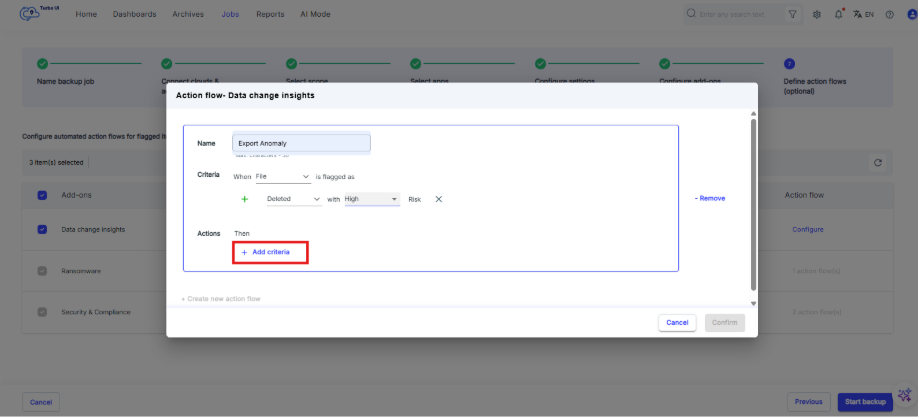
Step 17: From the dropdown, select Export items.
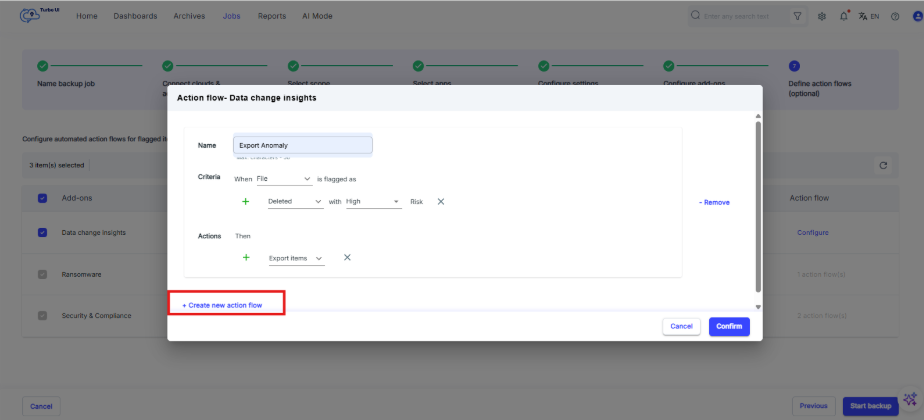
Step 18: To add another action flow, click Create new action flow and repeat the steps above.
Step 19: Click Confirm.
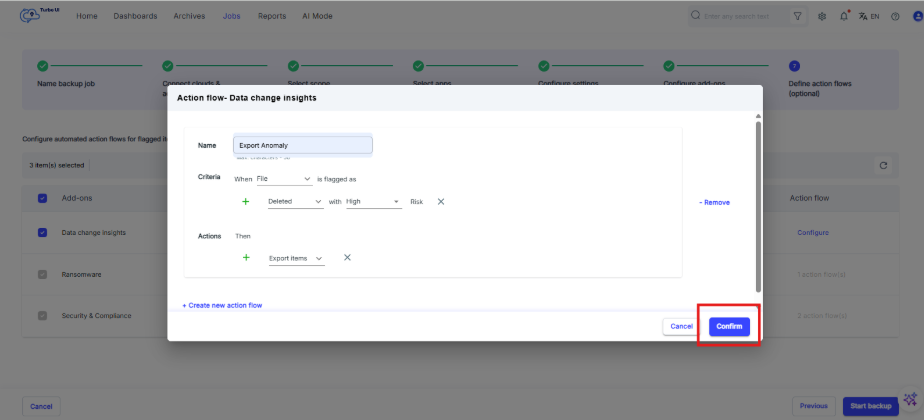
Step 20: Click Start Backup to save the backup job and enable the configured action flow.

The action flow will run when SysCloud detects a data change anomaly that matches the configured criteria.