![Untitled design (1)-Aug-01-2022-12-37-27-80-PM.png]](https://help.syscloud.com/hs-fs/hubfs/Untitled%20design%20(1)-Aug-01-2022-12-37-27-80-PM.png?height=40&name=Untitled%20design%20(1)-Aug-01-2022-12-37-27-80-PM.png)
Learn how to configure automated ransomware action flows in SysCloud, including supported services, trigger criteria, remediation actions, notifications, and safe snapshot recovery.
Automated action flows apply only to services and remediation actions supported by SysCloud's Ransomware Protection feature. Available actions may vary depending on the selected service and the type of ransomware alert.
Supported Services and Available Actions
Automated action flows for ransomware or encrypted content alerts are available for supported Google Workspace and Microsoft 365 services where ransomware detection is enabled.
Supported Services
- Google Drive (My Drive)
- Shared Drives
- Gmail
- Classroom
- OneDrive
- SharePoint
- Teams sites
- Outlook
Available Automated Actions
When ransomware-encrypted files are detected, you can configure one or more of the following automated actions:
- Transfer Ownership
- Restore Ownership
- Quarantine Files
- Remove All Sharing
- Remove Link Sharing
- Remove External Domain Sharing
- Restore from Safe Snapshot
- Delete Files
- Dismiss Alert
These actions help administrators automatically contain threats, restrict access to affected files, and recover clean versions of data when ransomware activity is detected.
Ransomware action flows are available only for customers who have purchased the Ransomware add-on. If you don’t have the add-on enabled, contact Sales to purchase it and unlock ransomware action flows.
Not sure what action flows are? See What are custom action flows? to learn how automated actions work.
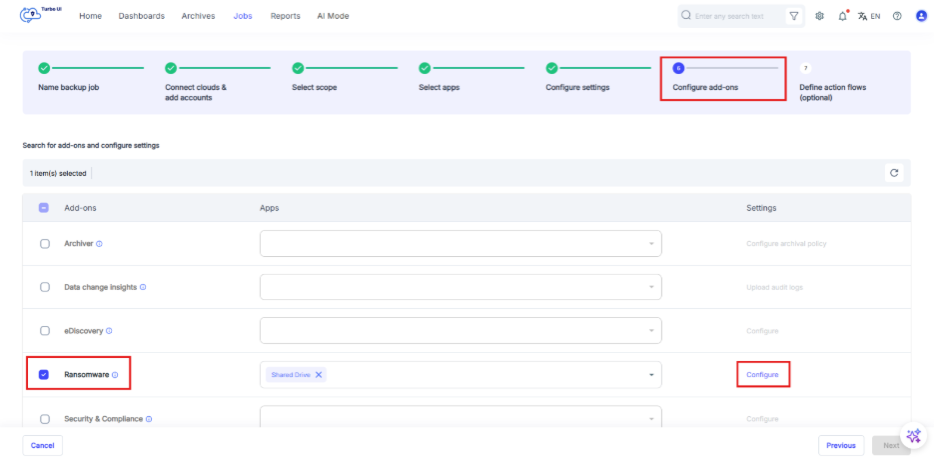
Step 1: Locate “Configure add-ons” in “Jobs” and enable “Ransomware”. Select “Configure” to choose the ransomware scans you want to perform.
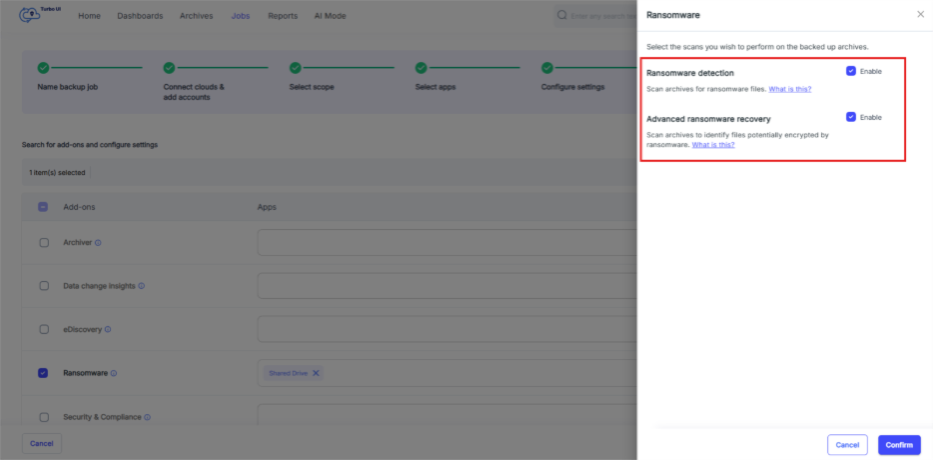
Step 2: Select the ransomware scan(s) you want to run on the backed-up archives.
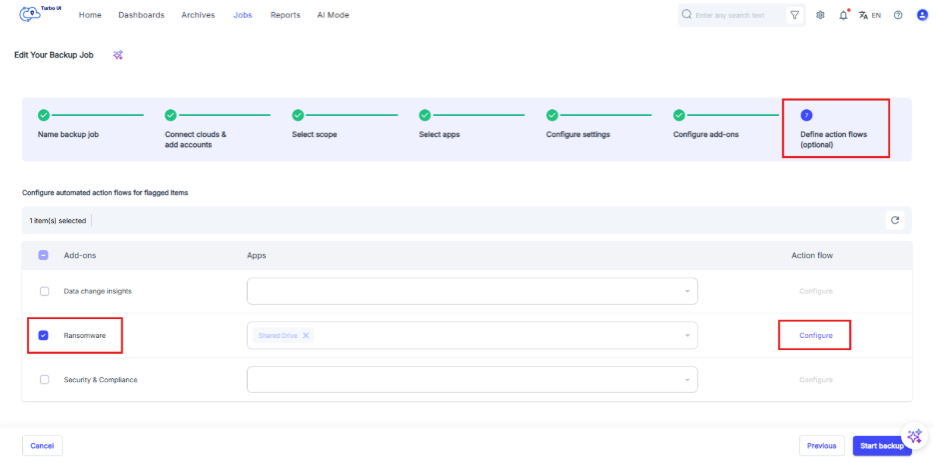
Step 3: Move to “Define action flows” and enable action flows for “Ransomware”. Select “Configure” to define the action flow.
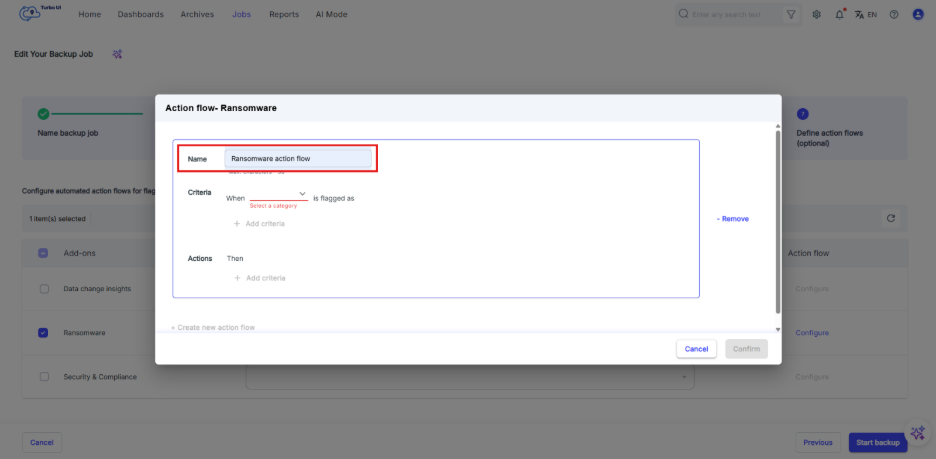
Step 4: Enter a name for the ransomware action flow.
Step 5: Define the trigger criteria for the action flow:
- Detection type: Ransomware or Encrypted
- Risk category: High, Medium, or Low
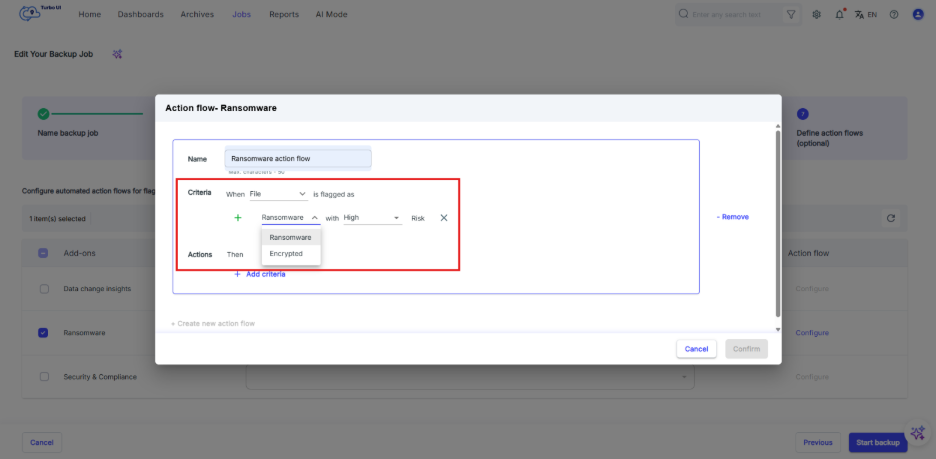
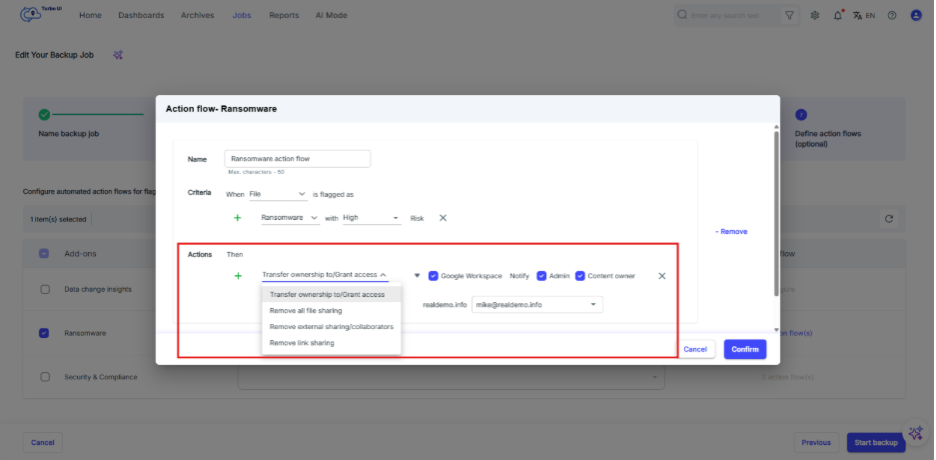
Step 6: Define the automated action(s) to perform:
- Transfer ownership / Grant access
- Remove all file sharing
- Remove external sharing / collaborator
- Remove link sharing
(Optional) Enable notifications to: Admin, Content owner
Step 7: To add more action flows, select “Create new action flow” and repeat the steps above.
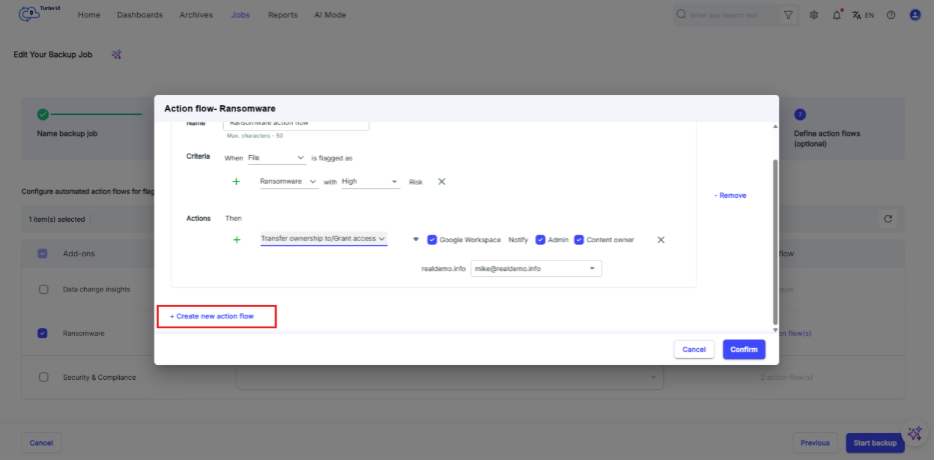
Step 8: Enable the action flow by selecting “Confirm”. Once you select “Start backup”, the action flow will run based on the configured criteria and actions.