![Untitled design (1)-Aug-01-2022-12-37-27-80-PM.png]](https://help.syscloud.com/hs-fs/hubfs/Untitled%20design%20(1)-Aug-01-2022-12-37-27-80-PM.png?height=40&name=Untitled%20design%20(1)-Aug-01-2022-12-37-27-80-PM.png)
You can apply a Hold on backed-up QuickBooks Online items from the Archives page. A hold helps preserve selected backed-up items for legal, compliance, or internal review requirements.
Make sure eDiscovery add-on is enabled for QuickBooks Online before applying a legal hold.
Steps to apply a hold
- Log in to the SysCloud application.
- Go to Archives and from the side navigation panel, select QuickBooks Online and click the QuickBooks Online company for which you want to apply a hold under Backup & Restore.
- Select the required QuickBooks Online data category where you want to put a hold.
Available categories include:
Category Description Transactions QuickBooks Online transaction records such as bill payments, bills, invoices, payments, journal entries, and deposits. Lists QuickBooks Online list items. Attachables Files or attachments associated with QuickBooks Online data. - To apply a hold on transactions, open the Transactions tab.
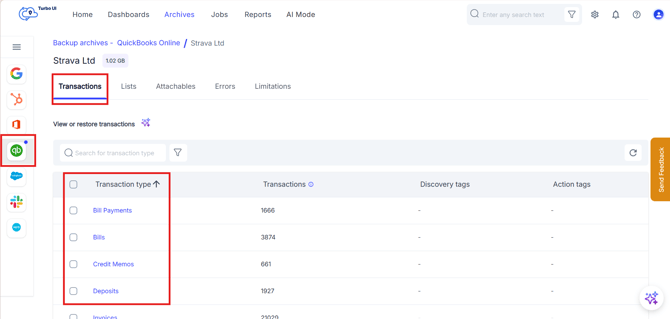
Note: Hold can also be applied to Lists, or Attachables, and items on the drilled down item-level view. - Select the required transaction type and select the items that you want to place on hold. Click More and select Hold.
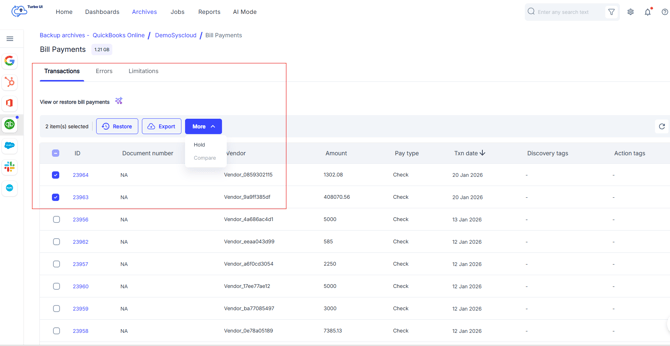
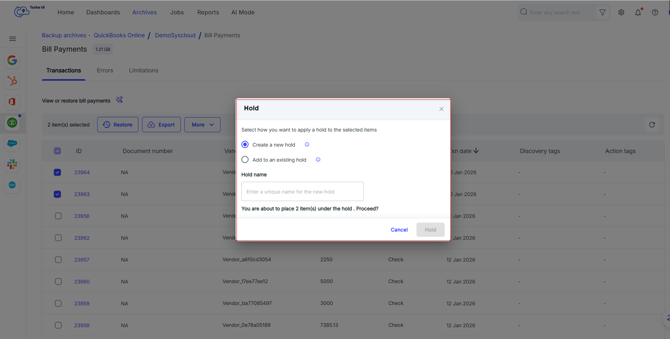
- In the Hold window, choose how you want to apply the hold:
Option Description Create a new hold Creates a new hold and applies it to the selected QuickBooks Online items. Add to an existing hold Adds the selected QuickBooks Online items to a hold that already exists.
Create a new hold
-
- Select Create a new hold.
- Enter a unique Hold name.
- Review the confirmation message.
- Click Hold.
Add items to an existing hold
-
- Select Add to an existing hold.
- Click the Select an existing hold dropdown.
- Choose the required hold from the list.
- Click Hold.
- You must select one or more QuickBooks Online items before applying a hold.
- Items placed on hold are marked under Action tags and can be viewed from Reports > Hold report. You can check about all the reports that SysCloud provides in this link here.