![Untitled design (1)-Aug-01-2022-12-37-27-80-PM.png]](https://help.syscloud.com/hs-fs/hubfs/Untitled%20design%20(1)-Aug-01-2022-12-37-27-80-PM.png?height=40&name=Untitled%20design%20(1)-Aug-01-2022-12-37-27-80-PM.png)
You can back up additional Slack Direct Messages by sending authorization requests to the required users from the Slack backup job scope. Direct Messages backup depends on user authorization because Slack restricts access to private channel and direct message data.
To back up additional Direct Messages
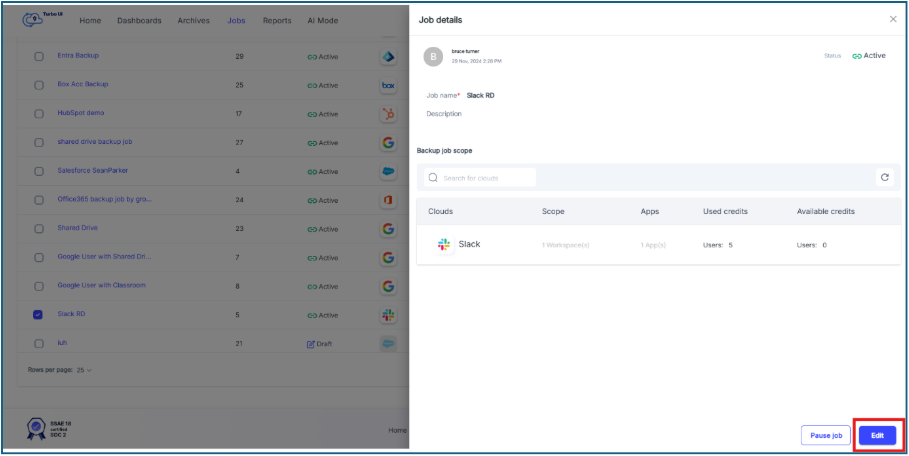
Step 1: Click Jobs from the top navigation menu.
Step 2: Open the Slack backup job associated with the selected backup archive.
Step 3: In the Job details side tray, click Edit.
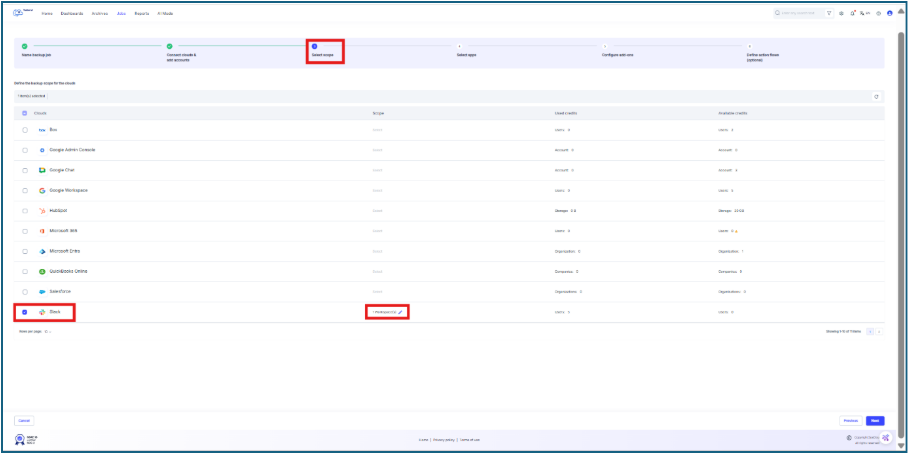
Step 4: In the backup job setup flow, go to Step 3: Select scope and in the Slack row, click the edit icon under the Scope column.
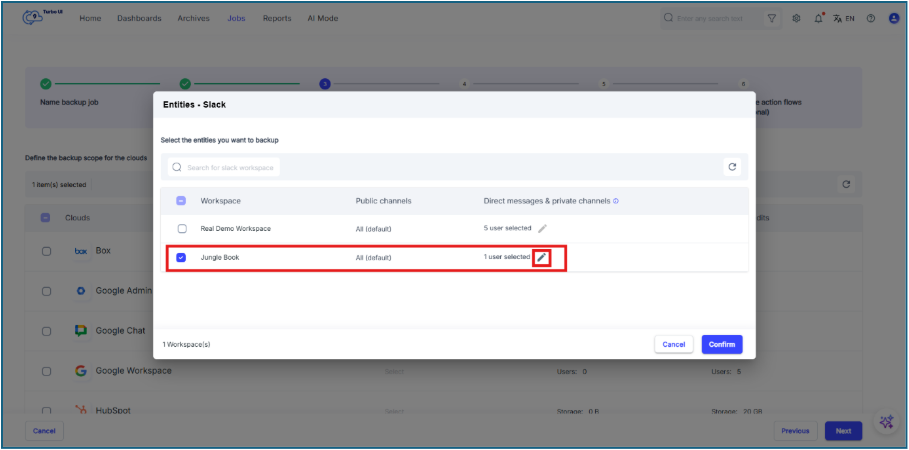
Step 5: In the Entities - Slack window, select the required Slack workspace and in the Direct messages & private channels column, click the edit icon.
Step 6: In the workspace user selection window, select the users to whom you want to send authorization requests.
You can filter users by authorization status, such as Unauthorized or Request ignored, to identify users who still need to authorize access.
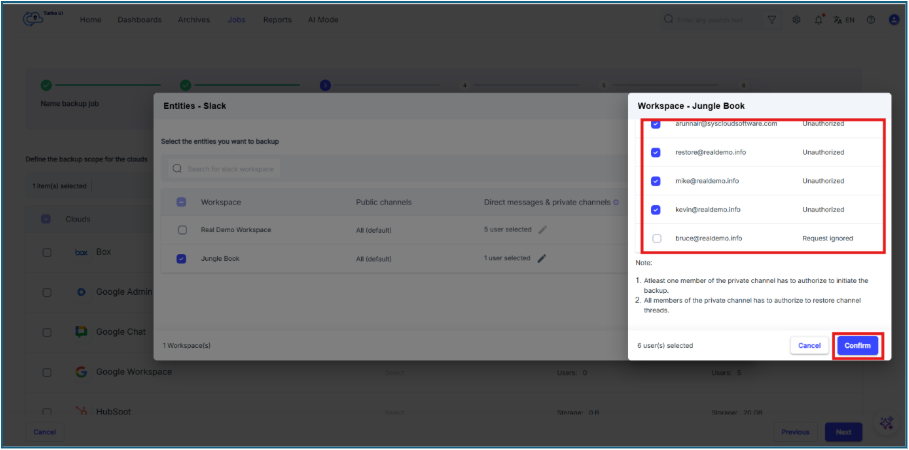
Step 7: Click Confirm.
Step 8: Click Confirm again in the Entities - Slack window to save the selected scope.
Step 9: Click Next through the remaining steps and click Start Backup to update the Slack backup job.
- Direct Messages are backed up only for authenticated users who have authorized SysCloud access.
- At least one member of a private channel must authorize access for SysCloud to initiate backup of that private channel.
- To restore Slack private channel threads, all members of the private channel must authorize access.
- Users who are marked as Unauthorized or Request ignored must complete authorization before their private channel and direct message data can be backed up.