![Untitled design (1)-Aug-01-2022-12-37-27-80-PM.png]](https://help.syscloud.com/hs-fs/hubfs/Untitled%20design%20(1)-Aug-01-2022-12-37-27-80-PM.png?height=40&name=Untitled%20design%20(1)-Aug-01-2022-12-37-27-80-PM.png)
This article explains how to update the retention period for Box backup archives in SysCloud.
Steps to change the Box retention period
- Log in to the SysCloud backup application using your admin credentials.
- From the top navigation menu, click Jobs.
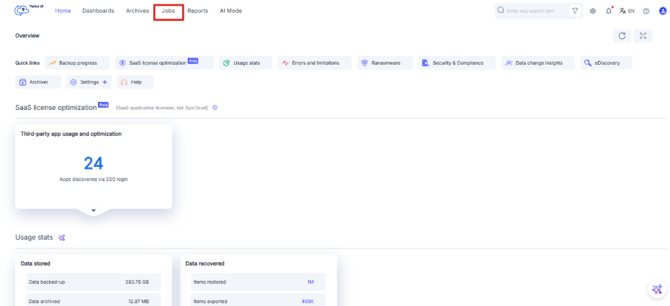
- Open the backup job where you want to enable auto-backup for Box.
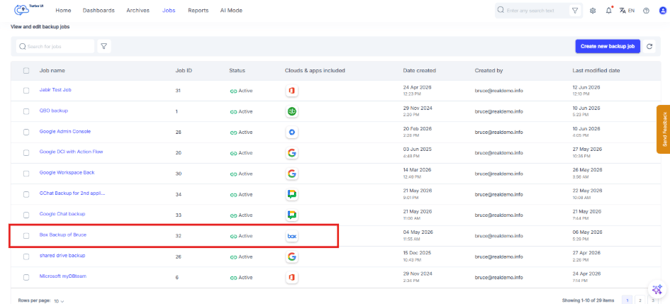
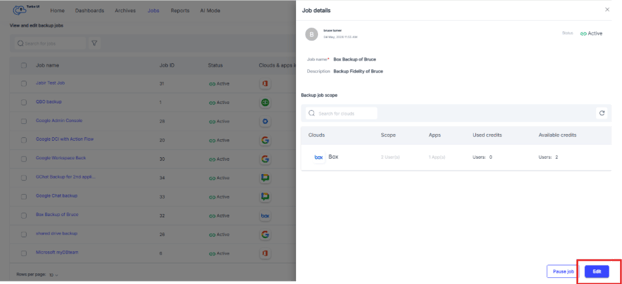
- From the side tray, Click on Edit to edit the job.
- Go to the Select apps step, click the Edit icon to configure the app and retention settings.
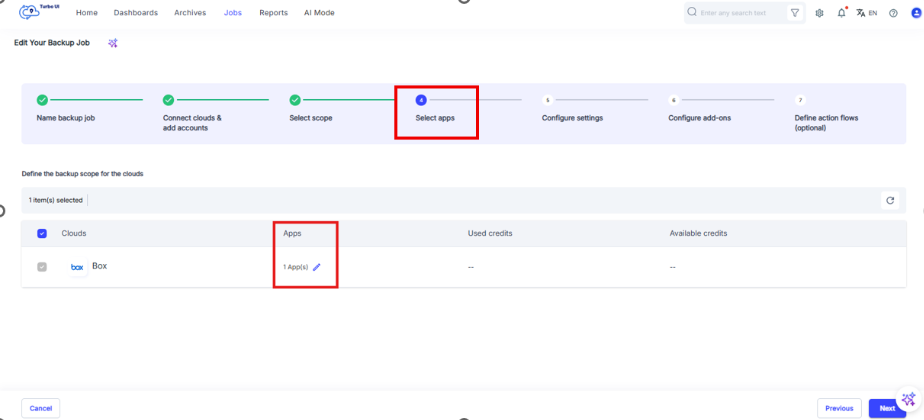
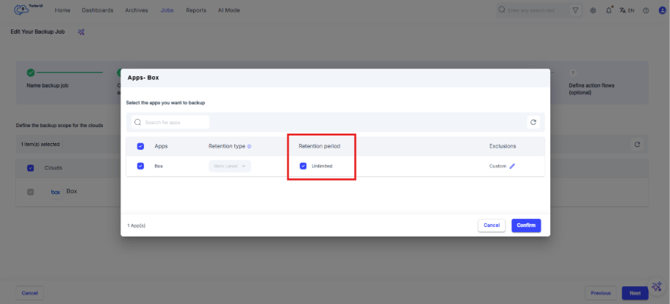
- In the Retention period column, choose one of the following options:
- Keep Unlimited selected to retain backed-up Box data without a defined retention limit.
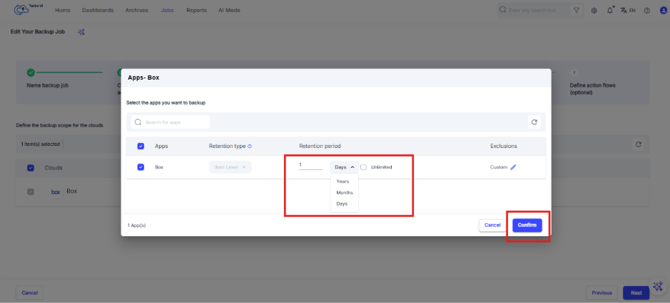
- Uncheck Unlimited to set a custom retention period.
- If you are setting a custom retention period, enter the required value and select the retention unit, such as days, months, or years. Click Confirm.
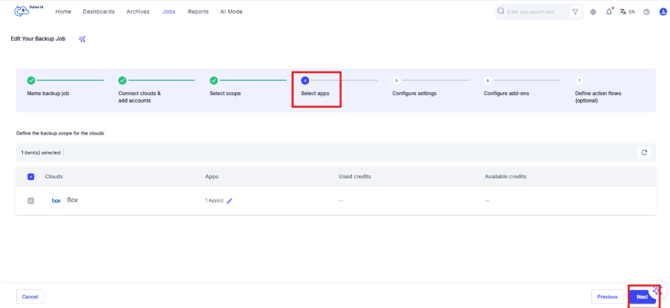
- Click Next to go to the Configure Settings step.
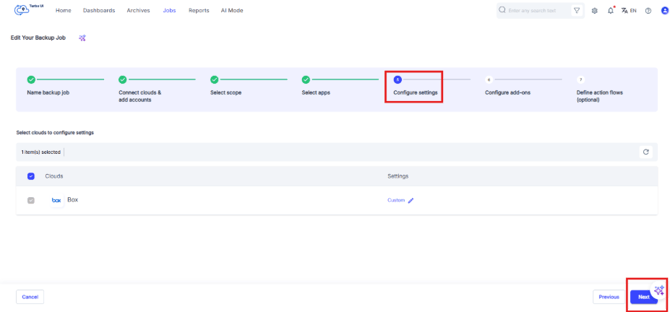
- Click Next to skip the Configure Settings step.
- Click Next to skip the Configure add-ons step, until you reach Define action flows steps. Click Start backup to start the backup.
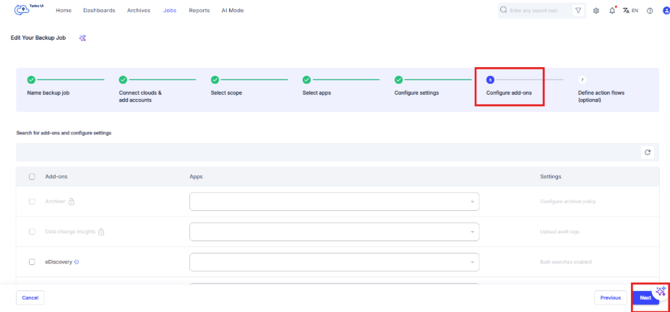
- On the Define action flows step, Click Start backup to save the job and start the backup
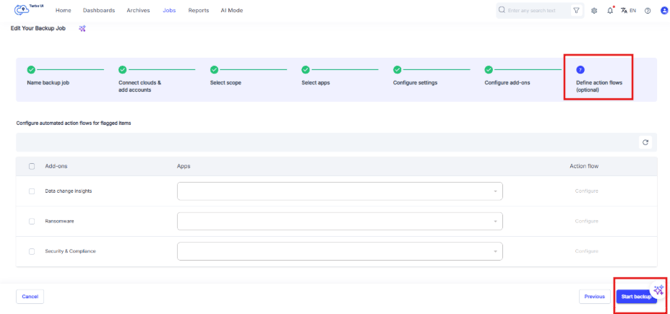
The updated retention period will be applied to the Box backup archives covered by the backup job.
Review the retention period carefully before reducing it. Backup data older than the configured retention period may no longer be retained in SysCloud archives after the updated setting is applied.
The updated retention period will be applied to the Box backup archives covered by the backup job.
Note
Review the retention period carefully before reducing it. Backup data older than the configured retention period may no longer be retained in SysCloud archives after the updated setting is applied.