![Untitled design (1)-Aug-01-2022-12-37-27-80-PM.png]](https://help.syscloud.com/hs-fs/hubfs/Untitled%20design%20(1)-Aug-01-2022-12-37-27-80-PM.png?height=40&name=Untitled%20design%20(1)-Aug-01-2022-12-37-27-80-PM.png)
You can change the retention period for Slack data from the Slack backup job configuration. The retention period defines how long SysCloud retains backed-up Slack data in the archive.
To change the Slack retention period
Step 1: Log in to SysCloud using your admin credentials.
Step 2: Click Jobs from the top navigation menu.
Step 3: For a new Job: You can create a new backup job by clicking on create new backup job and proceed to Step 4: Select apps in the flow.
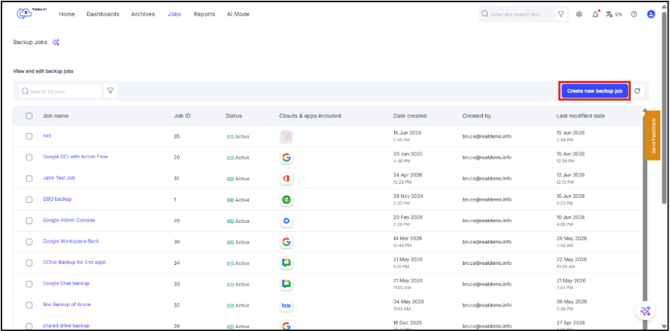
For an existing backup Job:
Open the existing Slack backup job for which you want to change the retention period and in the Job details side tray that pops up, click Edit and proceed to proceed to Step 4: Select apps in the flow.
Step 4: In the backup job setup flow, go to Step 4: Select apps. In the Slack row, click the edit icon under the Apps column.
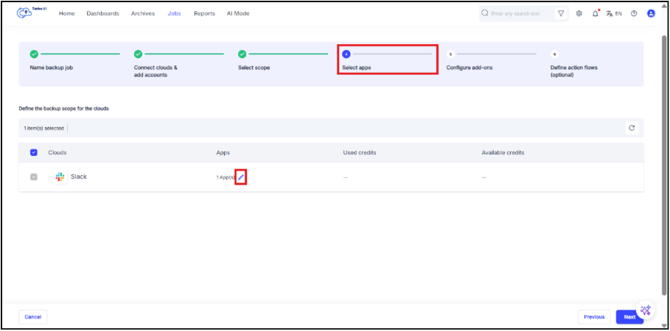
Step 5: In the Apps - Slack window, update the Retention period.
You can either:
- Enter a custom retention value and select the unit as Days, Months, or Years.
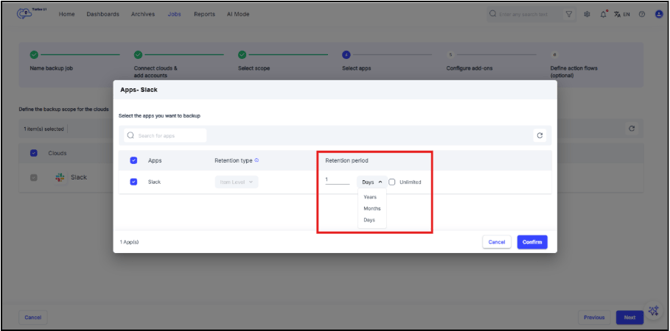
- Select Unlimited to retain Slack backup data without a fixed retention period.
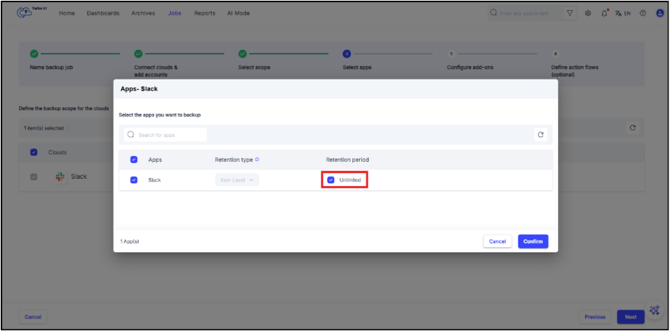
Step 6: Click Confirm.
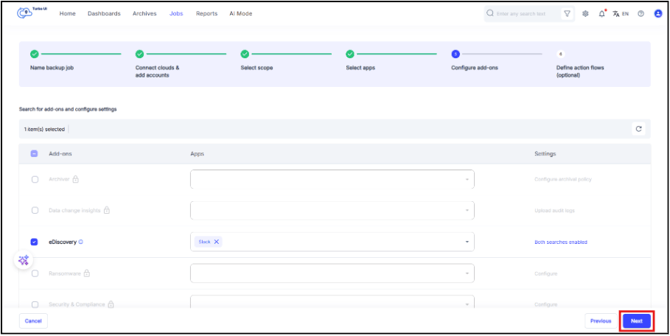
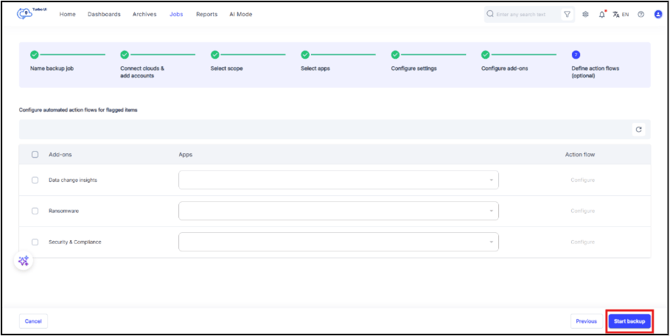
Step 7: Click Next through the remaining steps and then click Start Backup to save the updated retention settings.
- The retention type for Slack is set at the item level.
- Any retention change should be reviewed carefully, as reducing the retention period can affect how long older Slack backup data remains available in SysCloud.