![Untitled design (1)-Aug-01-2022-12-37-27-80-PM.png]](https://help.syscloud.com/hs-fs/hubfs/Untitled%20design%20(1)-Aug-01-2022-12-37-27-80-PM.png?height=40&name=Untitled%20design%20(1)-Aug-01-2022-12-37-27-80-PM.png)
You can configure eDiscovery for Slack from the Configure add-ons step in the Slack backup job setup. Enabling eDiscovery allows SysCloud to index Slack data so that it can be searched later using eDiscovery search options.
To configure eDiscovery for Slack
Step 1: Log in to SysCloud using your admin credentials.
Step 2: Click Jobs from the top navigation menu.
Step 3: For a new Job- You can create a new backup job by clicking on create new backup flow and proceed to step Configure add-ons in the flow.
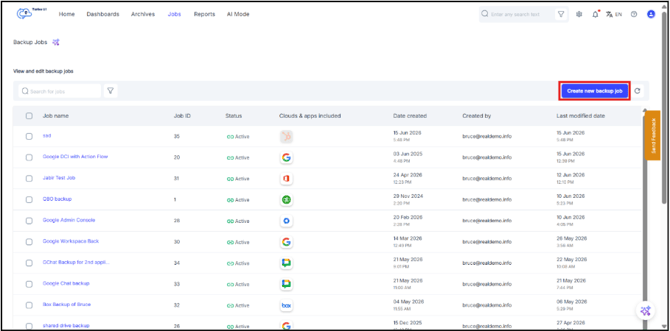
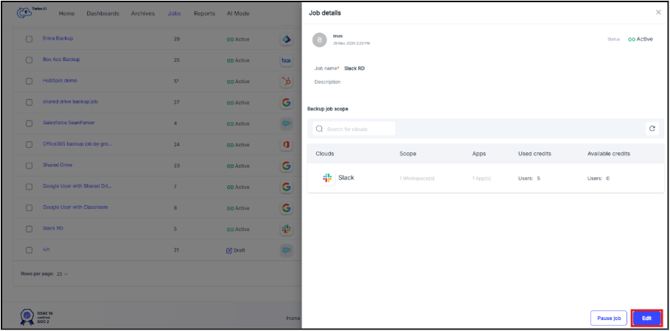
For an existing backup Job:
Open the existing Slack backup job for which you want to configure eDiscovery add-on and in the Job details side tray that pops up, click Edit and proceed to step Configure add-ons in the flow.
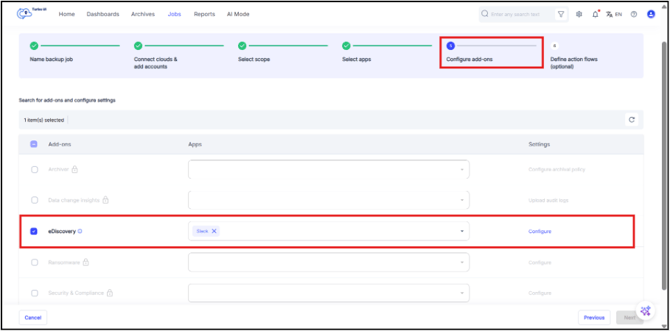
Step 4: In the backup job setup flow, reach Configure add-ons. In the Configure add-ons page, select the checkbox next to eDiscovery. In the Apps column Slack will be pre-selected. Under the Settings column, click Configure to open the eDiscovery settings side tray.
Step 5: In the eDiscovery side tray, choose the search options you want to enable:
- Metadata search: Indexes Slack’s metadata for future eDiscovery searches.
- Content search: Indexes the actual content of Slack data, including chat messages, so that the content can be searched later.
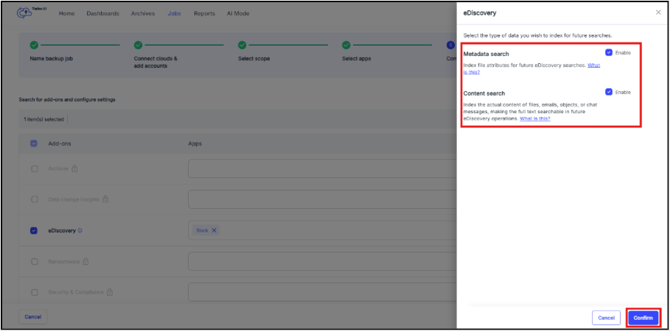
Note: Metadata Search can be enabled independently. If Content Search is enabled, Metadata Search is automatically enabled.
Step 6: Click Confirm.
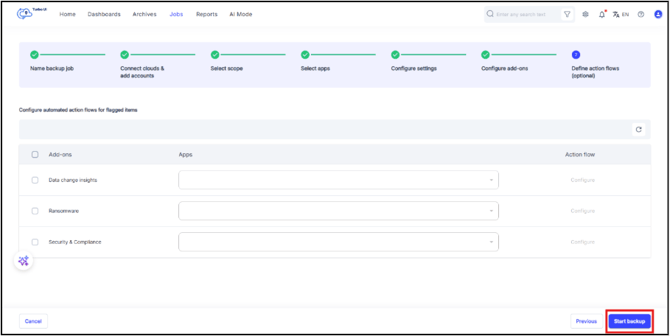
Step 7: Click Next through the remaining steps and click on Start backup in the last step to initiate backup with eDiscovery add-on.
- Slack must be selected as part of the backup job before eDiscovery can be configured for Slack.
- If both Metadata search and Content search are enabled, the settings column displays Both searches enabled.
- eDiscovery indexing applies to future searches after the backup job processes the selected Slack data.