![Untitled design (1)-Aug-01-2022-12-37-27-80-PM.png]](https://help.syscloud.com/hs-fs/hubfs/Untitled%20design%20(1)-Aug-01-2022-12-37-27-80-PM.png?height=40&name=Untitled%20design%20(1)-Aug-01-2022-12-37-27-80-PM.png)
Applicable for the Legacy UI.
You can configure the retention period for Outlook backups in SysCloud to control how long backed-up email data is retained in the backup archive. The retention period can be configured at the domain, group, or user level based on your backup requirements.
Steps to configure the Outlook email retention period
Step 1: Log in to SysCloud using your admin credentials.
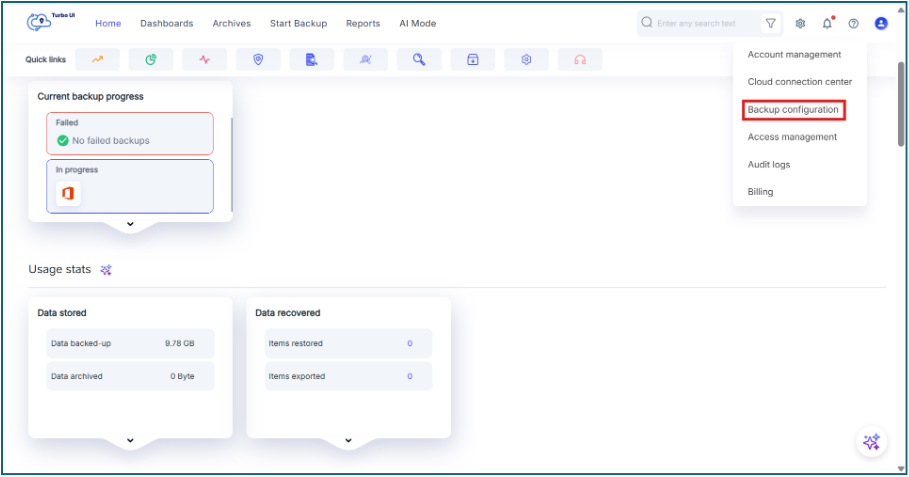
Step 2: Click the Settings icon from the header and select Backup Configuration.
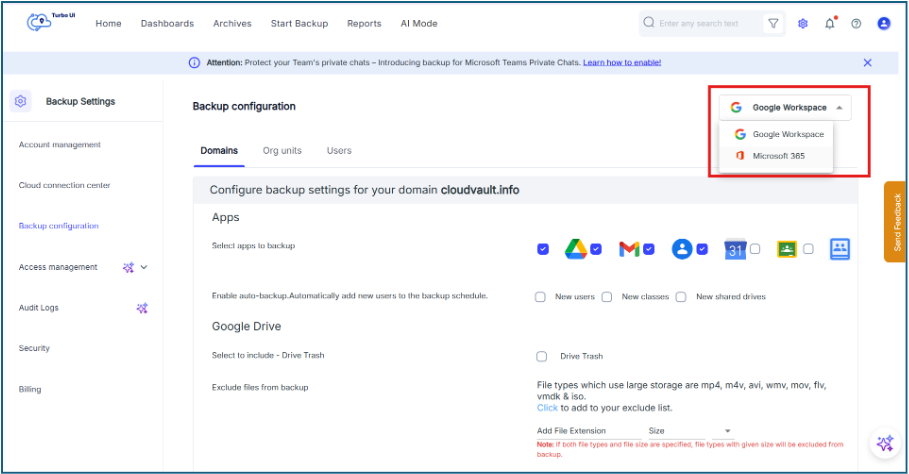
Step 3: In the Backup configuration page, select Microsoft 365 from the cloud dropdown.
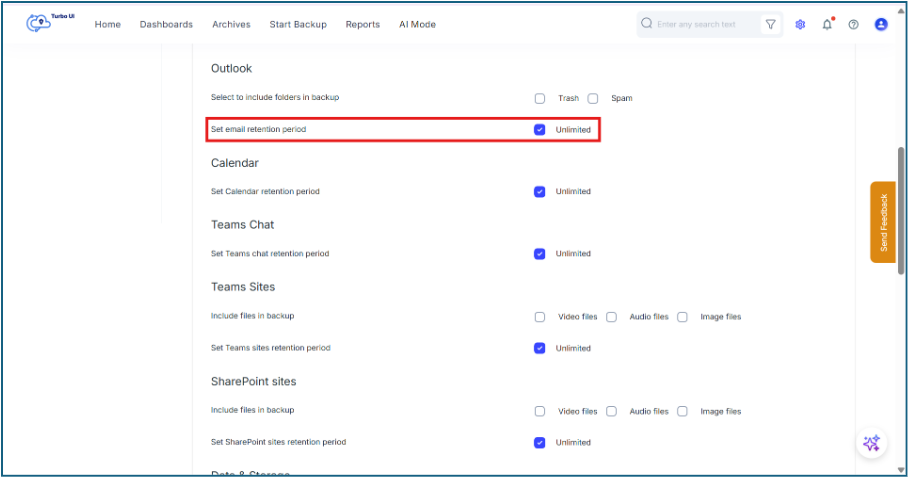
Step 4: In the Domains tab, go to the Outlook section and locate the Email retention period setting.It would be Unlimited by default. Uncheck it to get the retention period options.
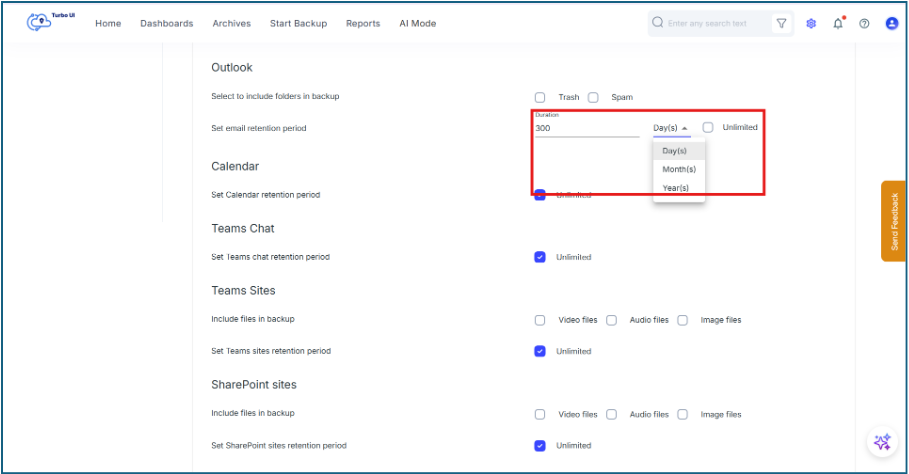
Step 5: Select the required retention option.
You can choose one of the following options:
Unlimited: Retains backed-up Outlook email data without a defined retention limit.
Custom retention period: Retains backed-up Outlook email data for a specific duration. Enter the required value and select the retention unit, such as days, months, or years.
Step 6: Scroll to the Apply to whom? section and choose how the settings should be applied.
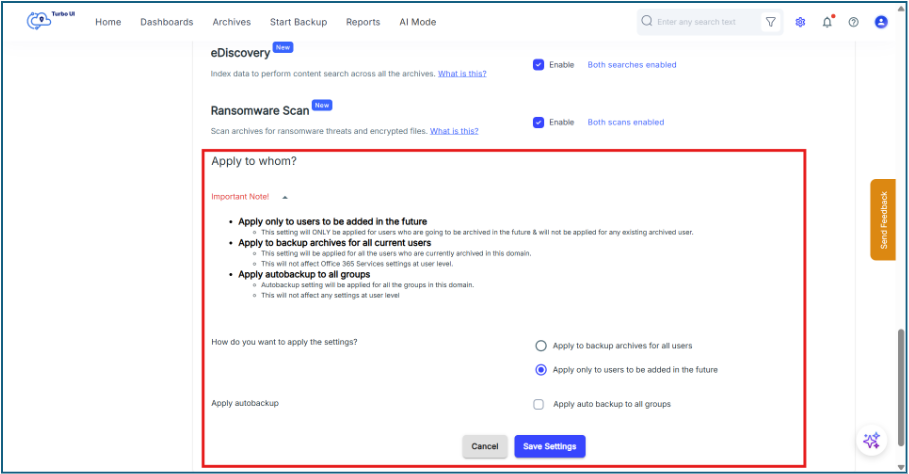
You can select one of the following options:
Apply to backup archives for all users: Applies the updated settings to all existing users in the domain.
Apply only to users to be added in the future: Applies the updated settings only to users added to the backup configuration later.
Apply auto backup to all groups: Applies auto backup settings to all groups in the domain. This does not change user-level settings.
Step 7: Click Save Settings.
Note: If a retention period is configured at the user or group level, it can override the domain-level retention setting for the selected users or groups.