![Untitled design (1)-Aug-01-2022-12-37-27-80-PM.png]](https://help.syscloud.com/hs-fs/hubfs/Untitled%20design%20(1)-Aug-01-2022-12-37-27-80-PM.png?height=40&name=Untitled%20design%20(1)-Aug-01-2022-12-37-27-80-PM.png)
You can configure Security & Compliance protection action flows in SysCloud to automatically perform actions on flagged items detected by Security & Compliance add-on. Action flows are configured in the backup job setup flow under the Define action flows step.
The criteria and actions available in an action flow depend on the selected add-on, selected app, item type, and flag type.
Configure a Security & Compliance action flow
Step 1: Log in to SysCloud using your admin credentials.
Step 2: Click Jobs from the top navigation menu.
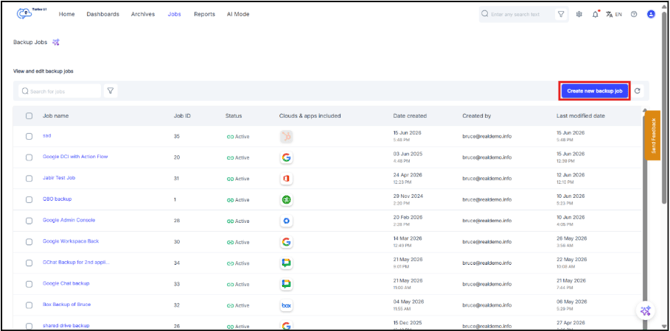
Step 3: Create a new backup job or edit an existing backup job.
To create a new backup job, click Create new backup job.
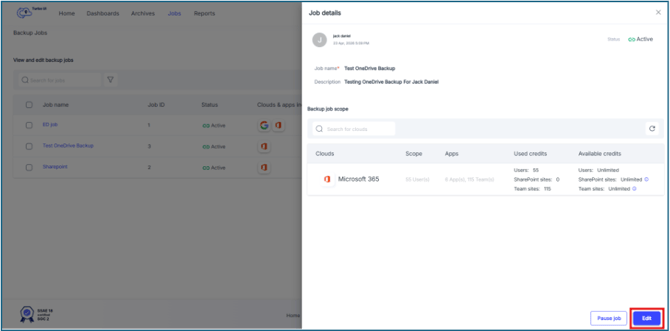
To edit an existing backup job, select the required backup job and click Edit in the Job details side tray.
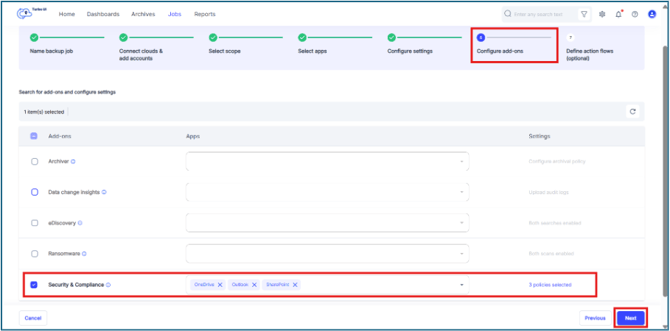
Step 4: Complete the backup job creation or edit flow until you reach the Configure add-ons step.
Step 5: Select the Security & Compliance add-on to configure action flows.
Step 6: In the Apps dropdown for each selected add-on, select and verify the apps for which the add-on should be enabled. Configure the add-on settings, if required, and click Next.
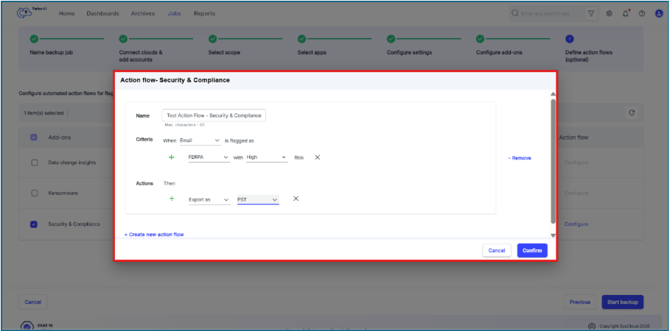
Step 7: In the Define action flows step, select Security & Compliance and click Configure.
Step 8: In the Action flow - Security & Compliance window, enter a name for the action flow.
Step 9: Under Criteria, select the item type.
The item type can be:
|
Criteria type |
Description |
|
File |
Applies the action flow to files flagged by Security & Compliance policies. |
|
|
Applies the action flow to emails flagged by Security & Compliance policies. |
Step 10: Select the Security & Compliance policy or violation type.
The available policy or violation types can include:
|
Policy or violation type |
|
FERPA |
|
Private Documents |
|
Individual Education Plan |
|
Confidential Data |
|
Internal collaborators |
|
External collaborators |
|
Domain collaborators |
|
Public with link |
|
Custom Policies |
Step 11: Select the risk level for the selected policy or violation type.
Step 12: Under Actions, click the + icon and select the action to perform.
The available actions depend on whether the criteria type is Email or File.
Security & Compliance actions for Email criteria
When the criteria type is Email, the available action is Export as.
You can select the export format as:
|
Export format |
Description |
|
PST |
Exports the flagged email data in PST format. |
|
MBOX |
Exports the flagged email data in MBOX format. |
After selecting the format, click Confirm to save the action flow.
For Security & Compliance, when Email is selected as the criteria type, the action flow is limited to email export actions. The available action is Export as, and the supported export formats are PST and MBOX.
Security & Compliance actions for File criteria
When the criteria type is File, the available actions can include:
|
Action |
Description |
|
Transfer ownership to/Grant access |
Grants the selected admin access to the flagged file for review or remediation. |
|
Remove all file sharing |
Removes all sharing permissions from the flagged file. |
|
Remove external sharing/collaborators |
Removes external sharing or external collaborators from the flagged file. |
|
Remove link sharing |
Removes link-based sharing from the flagged file. |
|
Place on hold |
Places the flagged file on legal hold. |
|
Export items |
Exports the flagged file or item. |
|
Dismiss |
Dismisses the flagged item from the action flow result. |
Step 13: Configure the selected file action.
If you select Transfer ownership to/Grant access, select the destination admin account. You can also choose whether to notify the admin or content owner, based on the options shown in the action flow window.
If you select a sharing removal action, SysCloud applies the selected sharing removal action to the flagged file.
If you select Place on hold, SysCloud places the flagged file on hold based on the configured action flow criteria.
If you select Export items, SysCloud exports the flagged file or item.
If you select Dismiss, SysCloud dismisses the flagged item from the action flow result.
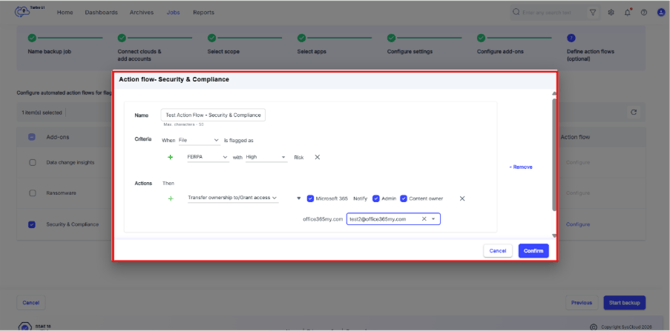
Step 14: Click Confirm to save the Security & Compliance action flow.
-
For Security & Compliance, the available actions change based on the selected criteria type. If you select Email, the available action is Export as with PST and MBOX format options. If you select File, the available actions change to file-based remediation actions such as granting access, removing sharing, placing the item on hold, exporting the item, or dismissing the item.
-
For Microsoft 365, the Transfer ownership to/Grant access action grants access to the selected admin account. It does not transfer ownership of the file.
-
To add another criteria row in the same action flow, click the + icon under Criteria and select the additional item type, flag type, and risk level.
-
To add another action in the same action flow, click the + icon under Actions and select the required action.
Step 15: Once the configuration is done. In the Define action flows step, click Start Backup to save the backup job and apply the action flow configuration.