![Untitled design (1)-Aug-01-2022-12-37-27-80-PM.png]](https://help.syscloud.com/hs-fs/hubfs/Untitled%20design%20(1)-Aug-01-2022-12-37-27-80-PM.png?height=40&name=Untitled%20design%20(1)-Aug-01-2022-12-37-27-80-PM.png)
Follow the below steps to connect your HubSpot account to SysCloud backup application
You must be an admin with the required permissions to authorize the cloud connection. For Salesforce, make sure the account you use has the required permissions to authorize third-party app access. If you do not have the required permissions, contact the account holder or the appropriate admin to authorize the connection.
Step 1: Log in to your SysCloud backup account.
Step 2: Click on the settings icon in the upper-right corner of the page. Select Cloud Connection Center from the drop-down.
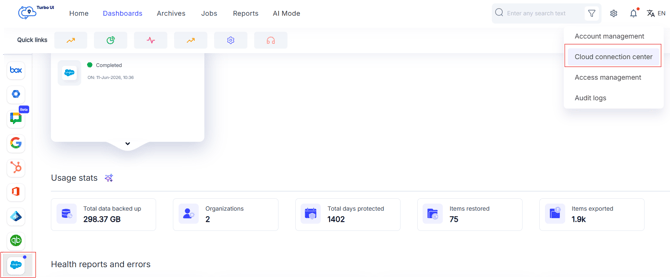
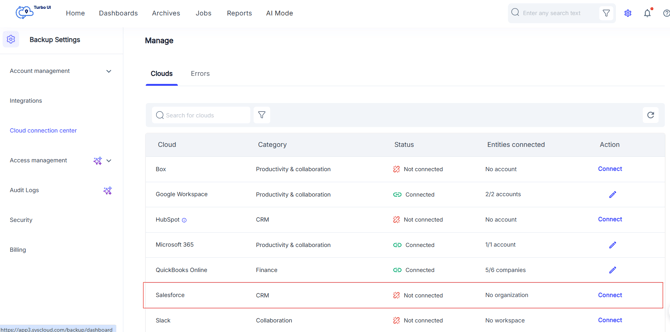
Step 3: On the Cloud Connection Center page, locate Salesforce.
-
If this is the first Salesforce account you are connecting to SysCloud, the status will not be shown as Connected. The Action column will show Connect. Click Connect.
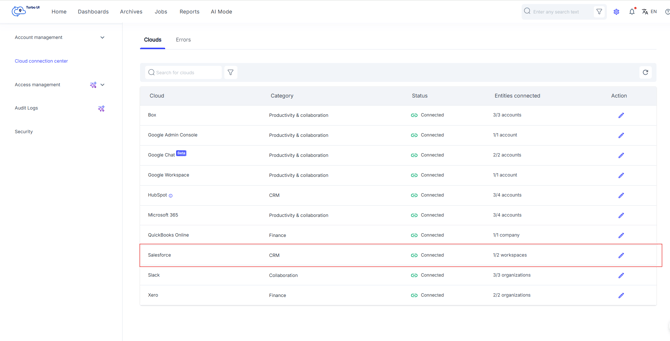
- If one or more Salesforce accounts are already connected, click the Edit connection icon for Salesforce.
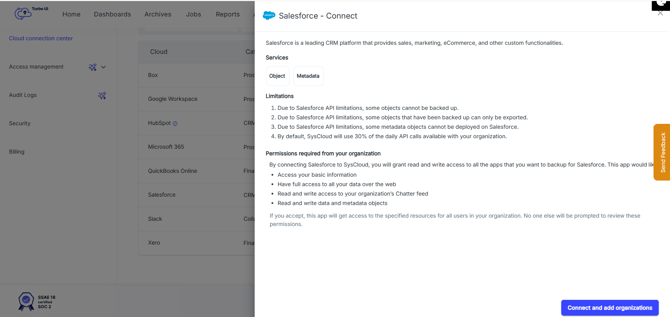
Step 4: Click Connect and add organizations if this is the first Salesforce account you are connecting.
Step 5: Choose the account you want to reconnect to SysCloud and grant access.
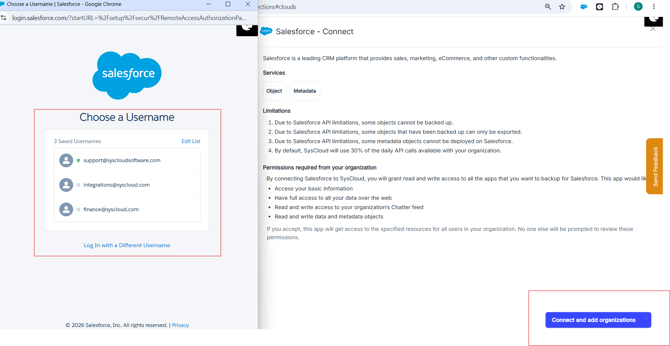
Step 6: After authorization is completed, the new Salesforce account will be connected to the SysCloud backup application.