![Untitled design (1)-Aug-01-2022-12-37-27-80-PM.png]](https://help.syscloud.com/hs-fs/hubfs/Untitled%20design%20(1)-Aug-01-2022-12-37-27-80-PM.png?height=40&name=Untitled%20design%20(1)-Aug-01-2022-12-37-27-80-PM.png)
Google Cloud Project Creation
Before you can create OAuth credentials, you need a Google Cloud project. This project serves as a container for all your APIs and authentication configurations.
Note: If you already have an account with ‘Google Cloud console” you can skip Step 1.
STEP 1: Access Google Cloud Console
The Google Cloud Console is where you'll manage all your cloud resources and OAuth configurations.
Instructions:
- Navigate to https://console.cloud.google.com/
- Sign in with your Google Account (use an account with admin access)
- If you see a welcome screen, read through it and click "Agree and continue"
- Accept the terms of service if prompted
STEP 2: Create a New Project
A Google Cloud project is a container that holds all your APIs, credentials, and settings.
Instructions:
- Click on the Project Selector dropdown on the top left of the page.
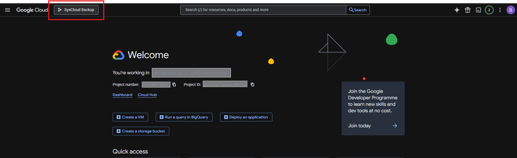
- In the popup window that appears, click the blue "NEW PROJECT" button.
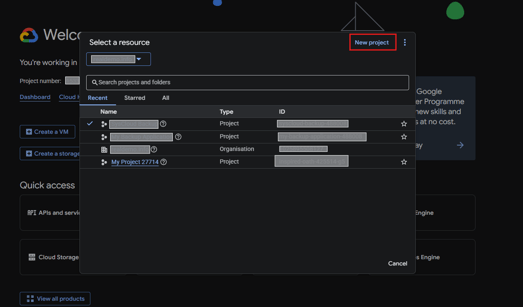
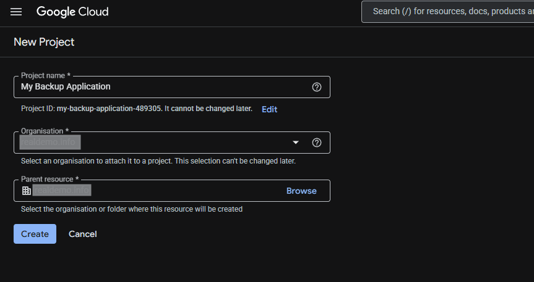
- A form will appear asking for project details:
- Project Name: Enter a meaningful name like "My Backup Application" or "OAuth Integration Project"
- Organization: This will likely be auto-filled or show "No organization"
- Parent resource: Select your organization.
- Click on "CREATE" button.
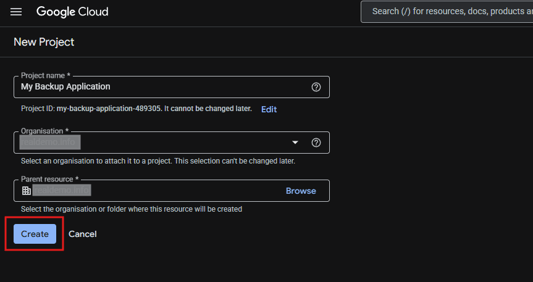
- You'll see a notification at the bottom right indicating "Project creation in progress." Once complete, you'll be automatically switched to your new project.
STEP 3: Enable required API
Before SysCloud can access Google Chat resources, you must enable the Google Chat API in your Google Cloud project.
Instructions:
-
Go to the home page of the project created.
-
Go to APIs & Services > Library.
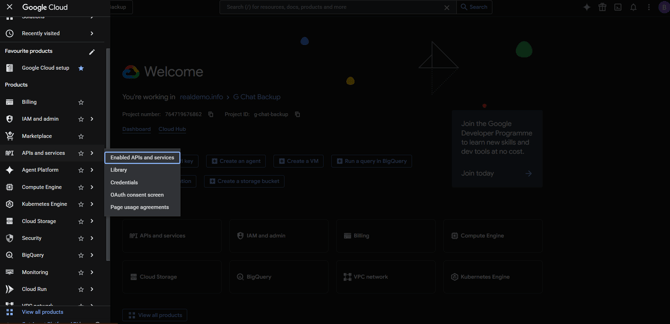
-
Search for Google Chat API in the search bar and select it.
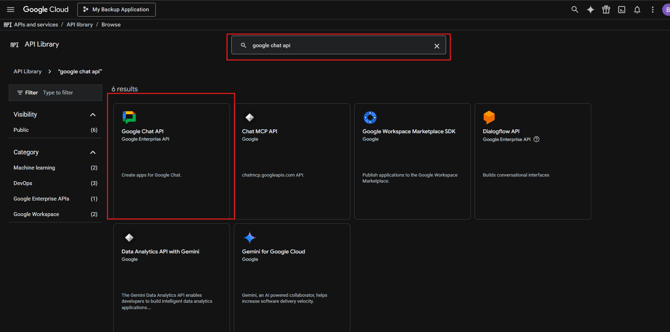
-
Click Enable.
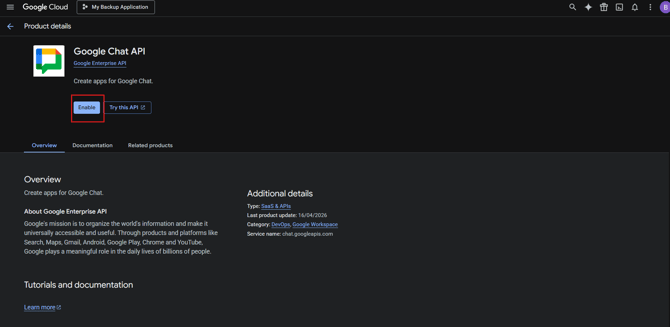
- Wait for the API to be enabled. You’ll see a loading indicator while Google enables the API.
Note: When you enable an API, Google Cloud grants your project access to that API. This doesn't immediately consume resources; it just makes the API available for your project to use.
STEP 4: Configure the Google Chat app
Google Chat requires a Chat app configuration before the Google Chat API can be used. This is a one-time setup for the selected project.
Instructions:
-
In Google Cloud Console, go to APIs & Services > Google Chat API > Configuration tab.
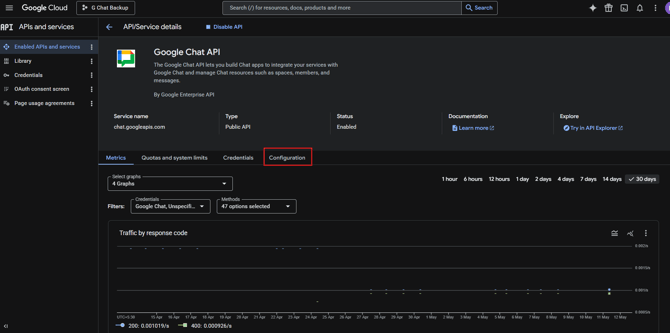
-
Click Configure, if you have not already configured the app.
- App name: Enter a recognizable name, such as
SysCloud Google Chat Backup. - Avatar URL: Enter an avatar URL. This can be a placeholder image URL.
- Description: Enter a short description, such as
Google Chat backup with SysCloud.Fill out the basic information for your application:
- App name: Enter a recognizable name, such as
-
Under Functionality settings,
-
Select App works in direct messages and spaces.
- Set Connection type to API-based.
-
-
In the Event handler URL field, enter the event handler URL.
Example:https://example.com/handler -
Click Save.
Note: This step is required only once per project. After the Google Chat app is configured, you do not need to repeat this step for the same project.
PHASE 2: OAuth 2.0 consent screen configuration
The OAuth consent screen is what users see when they are asked to authorize your application. It should clearly explain what your application does and what permissions it needs.
STEP 5: Create OAuth 2.0 consent screen
Instructions:
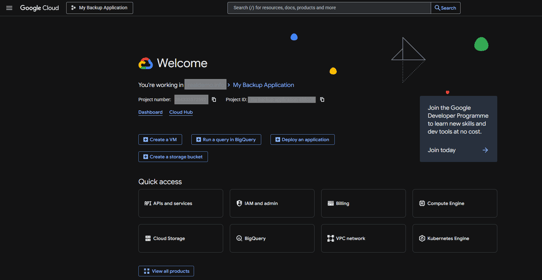
- Navigate to 'Google Cloud' home page with your project selected.
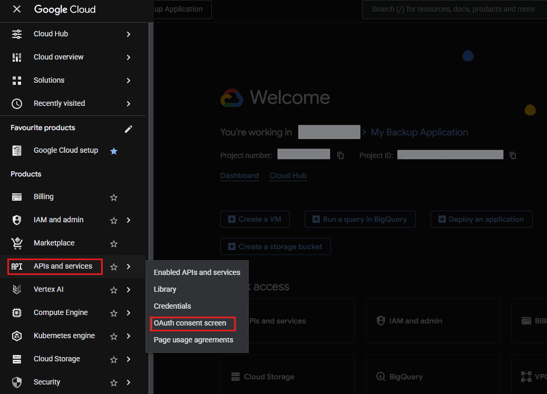
- In the left sidebar under "APIs & Services," click "OAuth consent screen"
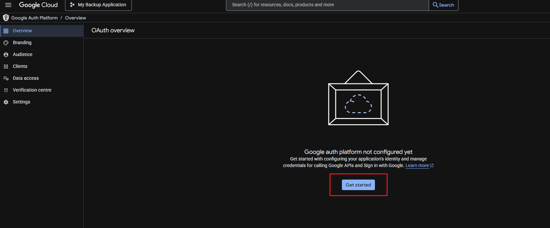
- Click on 'Get Started'.
STEP 6: Configure consent screen details
Instructions:
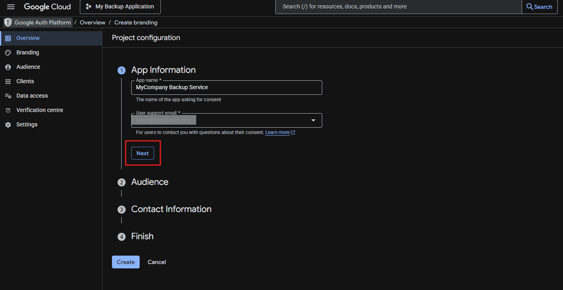
- Configure app information
- Application Name: Enter your application's name (e.g., "MyCompany Backup Service"). This will appear on the consent screen, so make it something users will recognize.
- User Support Email: Enter an email address where users can contact you if they have questions about your application's privacy or security.
- Click on 'Next'
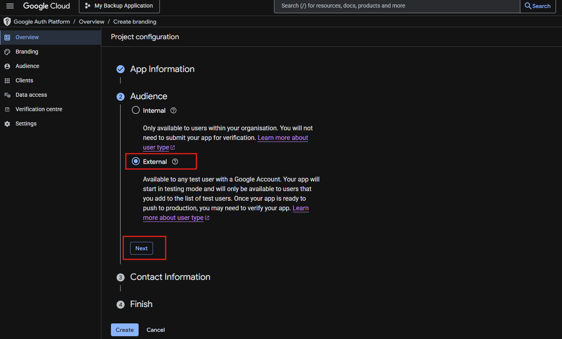
- Configure audience
- External: Choose this option (recommended for most applications). This allows you to create an application that can be used by anyone with a Google account.
- Internal: Choose this only if your organization specifically requires it. This limits access to users within your Google Workspace domain.
- Click on 'Next'
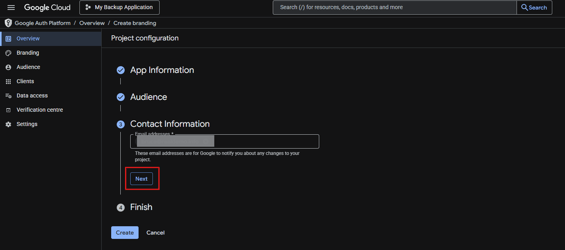
- Developer Contact Information: Enter your contact email (e.g., admin@mycompany.com). This is where Google will contact you if there are issues with your application.
- Click on 'Next'
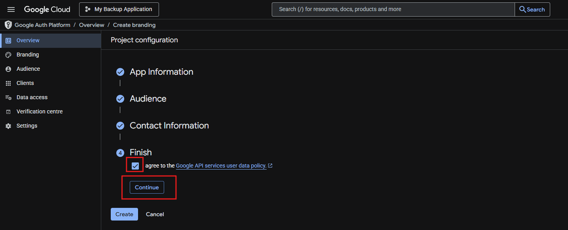
- Agree to Google terms and 'Continue'
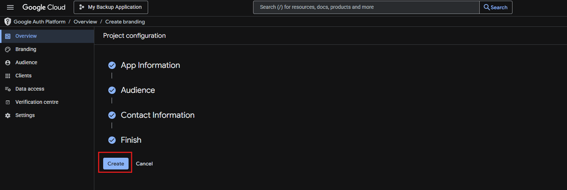
- Click on 'Create'
- Click on 'Branding' in the left navigation and scroll-down to find 'Authorized domains'.
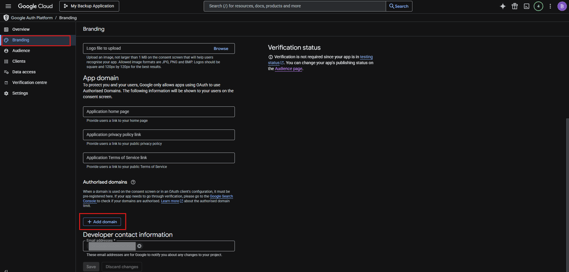
- Authorized Domains: Add the domain(s) where your application is hosted:
- Click "Add Domain"
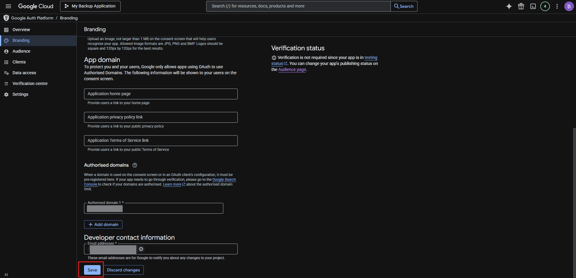
- Enter your domain name (e.g., backup.mycompany.com)
- You may need to verify domain ownership. If prompted, follow Google's verification process.
- Add multiple domains if your application is hosted in multiple locations
- Click on 'Save'.
STEP 7: Define OAuth scopes
Scopes define what permissions your application is requesting.
For Google Chat backup, add the required scopes that allow SysCloud to access Google Chat spaces, memberships, messages, users, and groups.
Instructions:
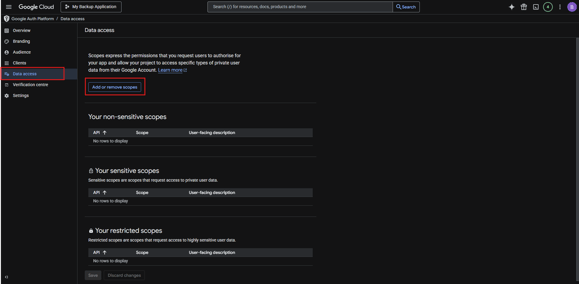
- On the left navigation, click Data access.
-
Click ADD OR REMOVE SCOPES.
- A scope selection dialog will appear with a search bar and list of available scopes.
-
Add all required scopes for this integration. For each scope, either:
- Search for it by name in the search box.
- Scroll to find it in the list.
- Click the checkbox next to the scope to select it.
- Clear the search bar and repeat the steps for the next scope.
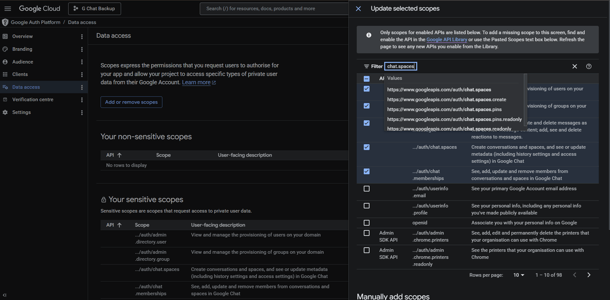
- Once you've selected all required scopes, click UPDATE.
-
Click Save.
Scope summary table
| Scope name | Scope URL |
|---|---|
| chat.spaces | https://www.googleapis.com/auth/chat.spaces |
| chat.memberships | https://www.googleapis.com/auth/chat.memberships |
| chat.messages | https://www.googleapis.com/auth/chat.messages |
| admin.directory.user | https://www.googleapis.com/auth/admin.directory.user |
| admin.directory.group | https://www.googleapis.com/auth/admin.directory.group |
Click here to know, how to generate the OAuth client credentials to connect your Google Admin Console to SysCloud backup application.