![Untitled design (1)-Aug-01-2022-12-37-27-80-PM.png]](https://help.syscloud.com/hs-fs/hubfs/Untitled%20design%20(1)-Aug-01-2022-12-37-27-80-PM.png?height=40&name=Untitled%20design%20(1)-Aug-01-2022-12-37-27-80-PM.png)
Step 1: Log in to your SysCloud account.
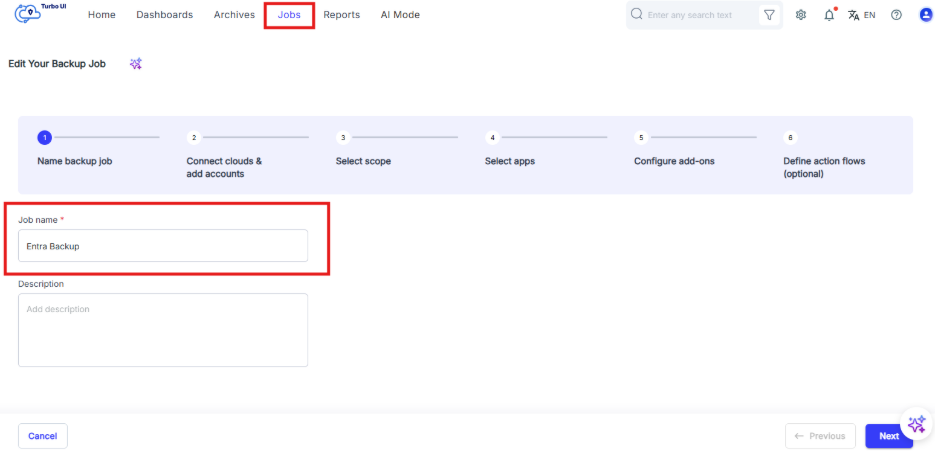
Step 2: Click "Jobs" from the top menu bar.
Step 3: Enter a job name and a description (optional). Click "Next"
Step 4: Click the "Connect" option beside Microsoft 365 from the Clouds list.
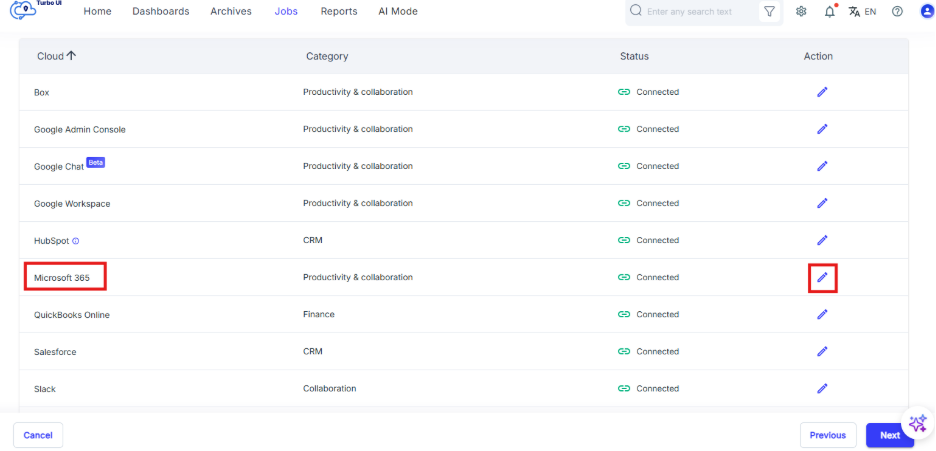
Microsoft Entra backup is enabled through your Microsoft 365 cloud connection in the SysCloud backup application.
The steps you need to follow depend on whether your Microsoft 365 cloud is already connected to SysCloud.
Steps if the O365 Cloud is already connected | Steps if the O365 Cloud is not connected
Scenario 1: Microsoft 365 is already connected to SysCloud
If you have already connected your Microsoft 365 cloud to SysCloud, reconnect the Microsoft 365 account to allow SysCloud to start backing up Microsoft Entra data.
To reconnect your Microsoft 365 account:
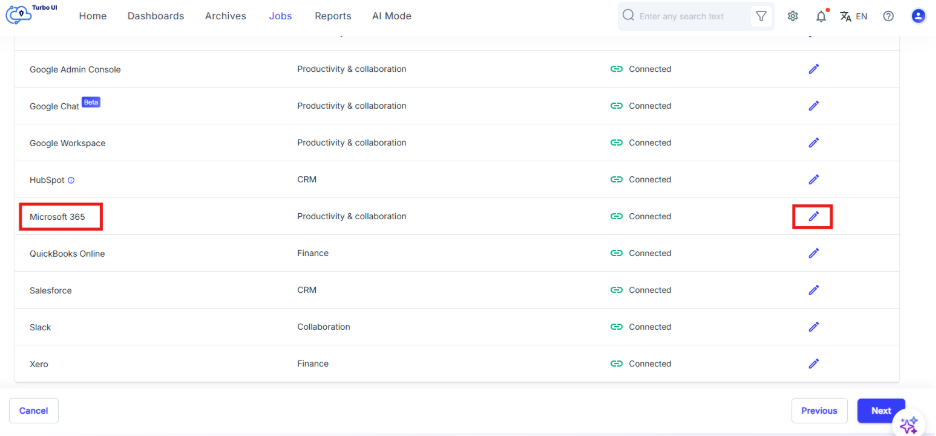
- Click the Edit icon under the Action column for Microsoft 365.
- Click Add accounts.
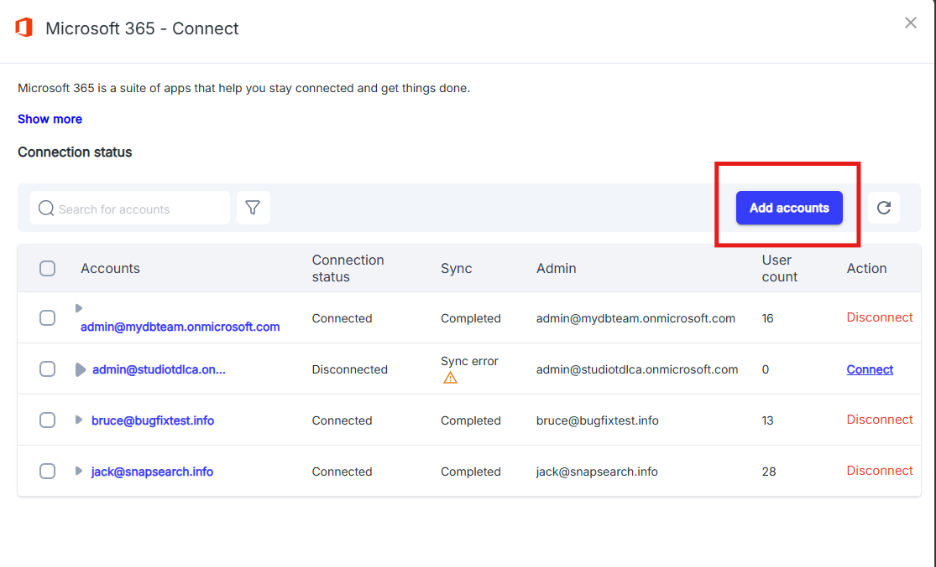
- Choose the Microsoft 365 account name.
- Click Connect.
- Sign in to Microsoft 365 and grant the required permissions.
After the reconnection is complete, you will be redirected to the Cloud Connection Center.
For detailed reconnection steps, see How can I reconnect or re-authenticate my Microsoft 365 account?
Note: Reconnecting your Microsoft 365 account will not affect any actively running backups for that account.
Scenario 2: Microsoft 365 is not connected to SysCloud
If you have not connected your Microsoft 365 cloud to SysCloud yet, connect your Microsoft 365 account from the Cloud Connection Center. This will allow SysCloud to back up supported Microsoft 365 data, including Microsoft Entra.
To connect your Microsoft 365 account:
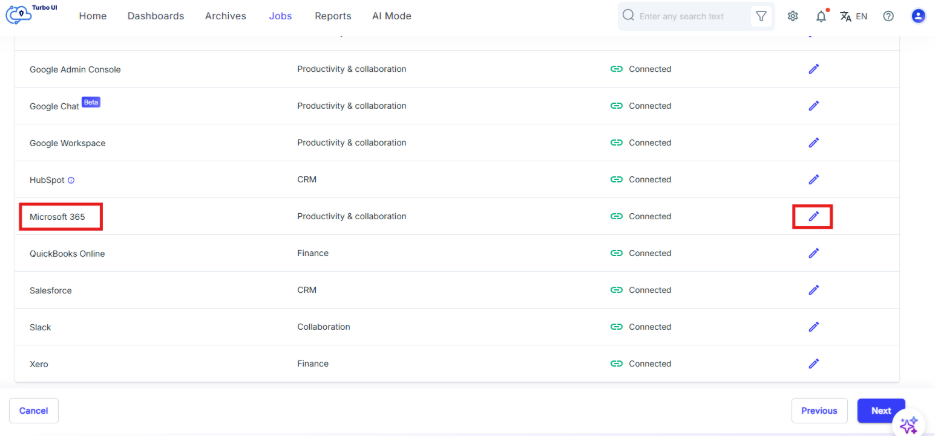
- Click the Action icon next to Microsoft 365.
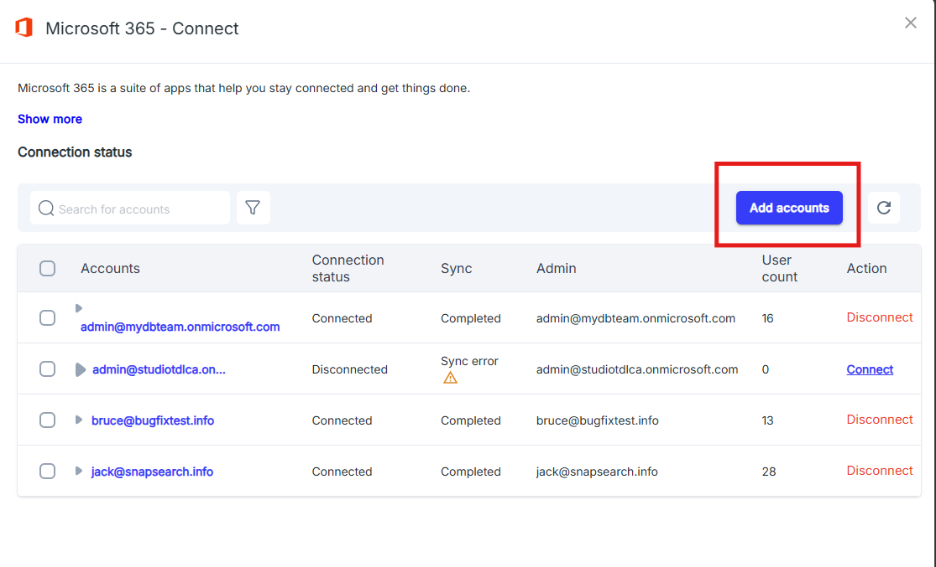
2. Select the Microsoft 365 account.
4. Sign in to Microsoft 365 and grant the required permissions.
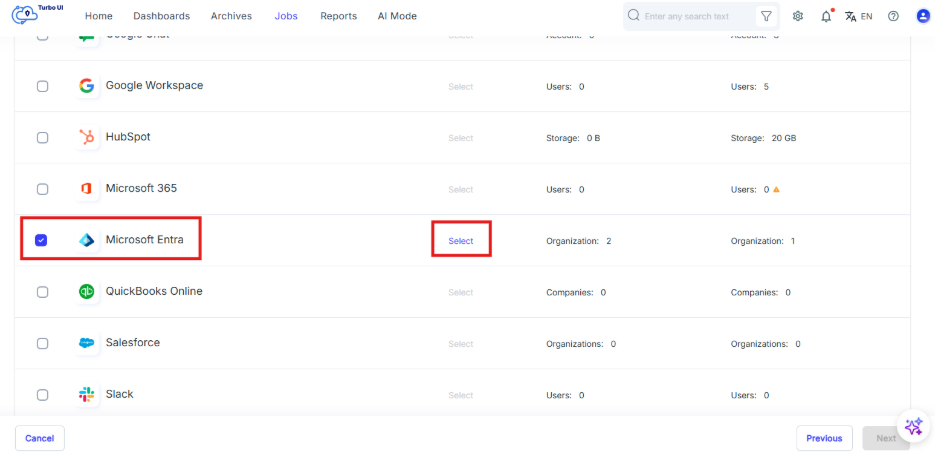
5. Select the checkbox next to the Microsoft Entra you want to backup and click on "Select" to choose the scope of backup.
For detailed setup steps, see How to connect Microsoft 365 account to the SysCloud backup application?
Note: When connecting Microsoft 365 for the first time, you may be prompted to sign in and grant permissions twice: first to authorize access to all applications, and then to authorize SharePoint-based OneNotes.
What happens after connecting or reconnecting Microsoft 365?
After Microsoft 365 is connected or reconnected, SysCloud will be able to access the required permissions to start backing up Microsoft Entra data.
You can go to the SysCloud backup application and configure or review the backup settings for your Microsoft 365 cloud as needed in your Backup Job.
Step 5: Select scope
a. Select the checkbox next to the Microsoft Entra you want to backup and click on "Select" to choose the scope of backup.
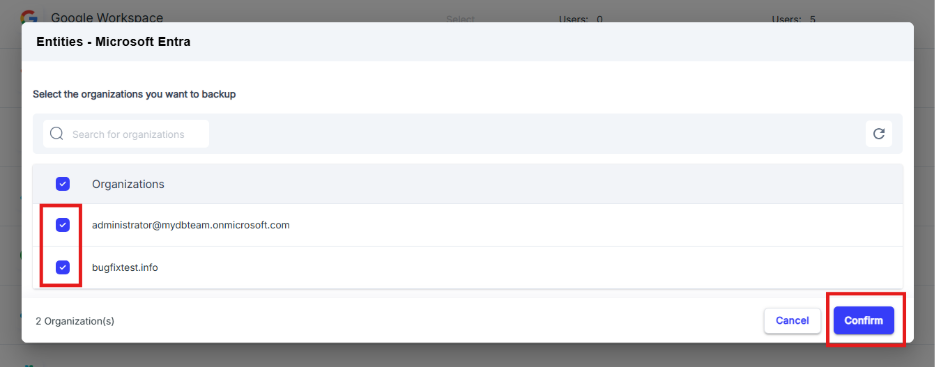
b. Select the entity you want to backup and click "Confirm" and move to the next step.
Step 6: Select apps and retention
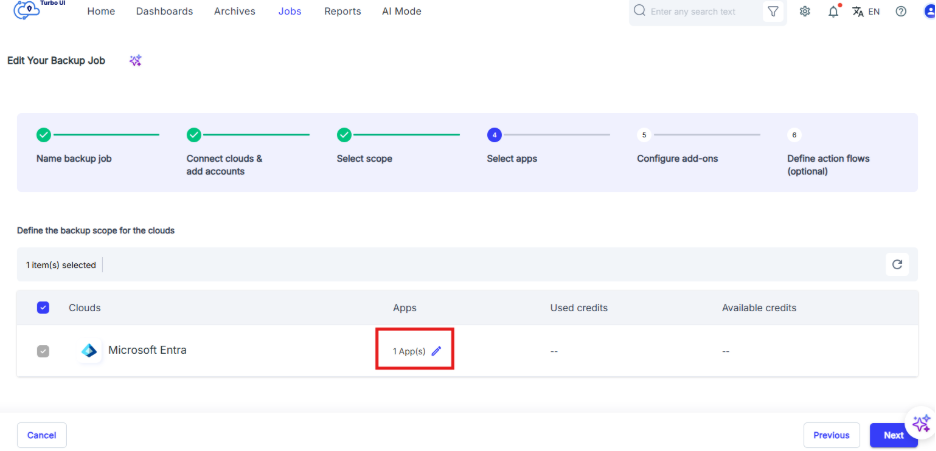
a. Click on "Select apps & retention" to configure retention for the selected SaaS application.
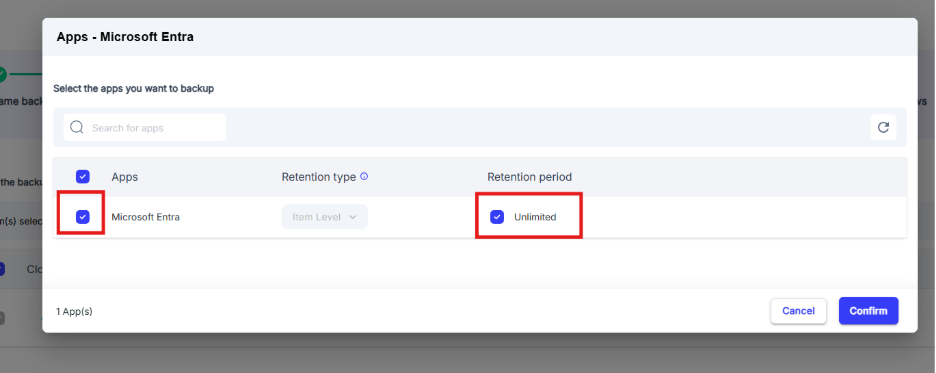
b. Select the checkbox next to Google Admin Console to choose the app.
c. By Default only item level retention will be applied for Microsoft Entra.
d. If you want the items retained only for a certain period, uncheck the box under “Retention period” and specify the number of days, months or years for which you want the items retained. Click on “Confirm” and then move to the next step.
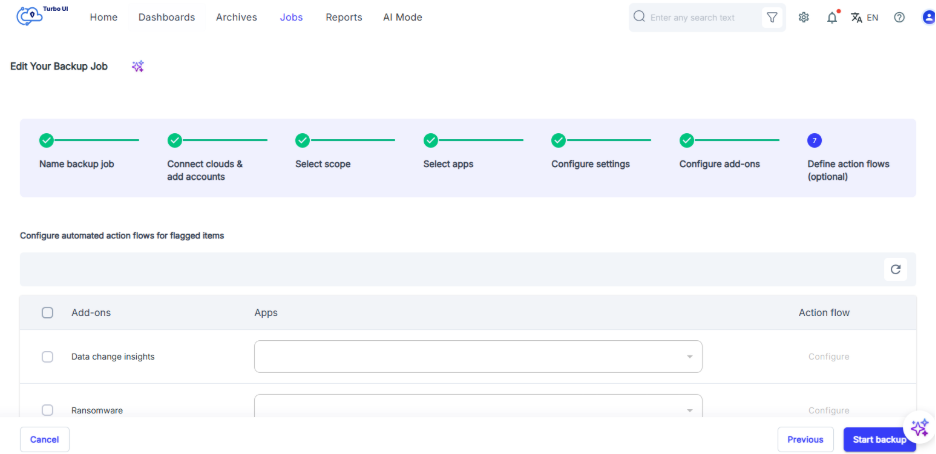
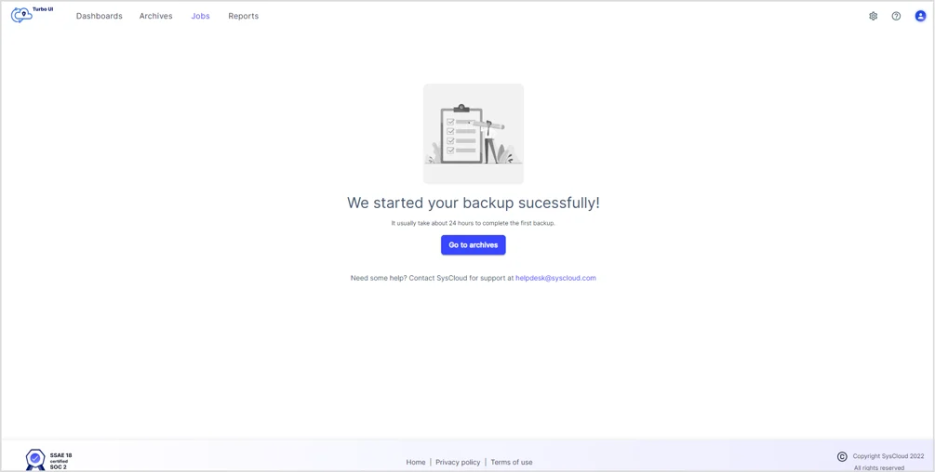
Step 7: The step to configure add-ons and define action flows can be skipped. After that select "Start backup".