![Untitled design (1)-Aug-01-2022-12-37-27-80-PM.png]](https://help.syscloud.com/hs-fs/hubfs/Untitled%20design%20(1)-Aug-01-2022-12-37-27-80-PM.png?height=40&name=Untitled%20design%20(1)-Aug-01-2022-12-37-27-80-PM.png)
Note:
Before you create the OAuth credentials, we recommend you to
1. Create a Google Cloud project: This project serves as a container for all your APIs and authentication configurations.
2. Create an OAuth consent screen: The OAuth consent screen is what users see when they're asked to authorize your application.
Click here to know how to create a Google Cloud project & OAuth consent screen.
Create OAuth 2.0 Client Credentials
Client credentials are what your application uses to authenticate with Google. They consist of a Client ID and Client Secret.
Create OAuth Client ID
This is where you create the actual OAuth credentials that your application will use.
Instructions:
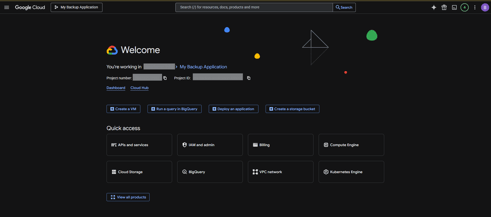
- Login to Google Cloud and navigate to the project created.
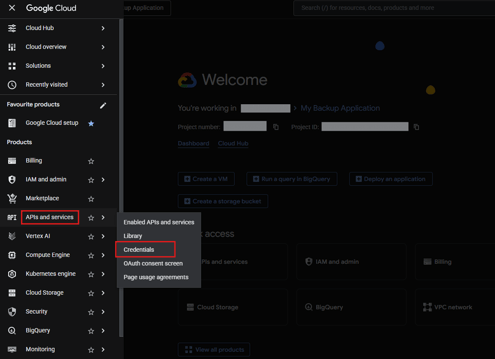
- Go to "APIs & Services" > "Credentials"
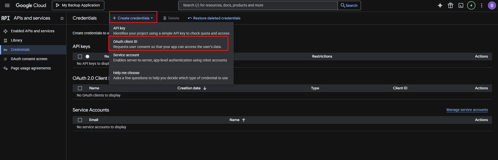
- Click the blue "+Create credentials" button and from the dropdown menu, select "OAuth client ID"
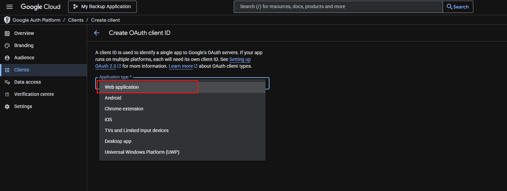
Note: If you get a message about creating an OAuth consent screen first, you need to go back to PHASE 2 and complete those steps first - Select your "Application type", as Web application
- Enter a Name for your credentials (e.g., "My Web Application" or "Backup Service OAuth")
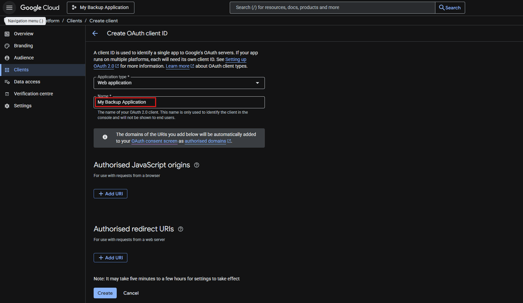
- Configure Redirect URIs - The redirect URI is critical—it's where Google sends users back to your application after authorization.
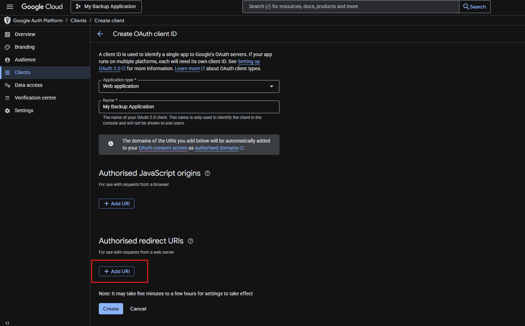
- In the Authorized redirect URIs section, Click on 'Add URI' and enter your redirect URI exactly as shown below:
Your Redirect URI: https://api.syscloud.com/cloud-connectv3?cloud=googleadminconsole- Important requirements that this URI meets:
-
-
- ✓ Uses HTTPS (not HTTP) - Required for security
- ✓ Must match exactly (case-sensitive) - Enter it exactly as shown above
- ✓ Must be a valid, accessible URL - This is your SysCloud endpoint
- ✓ Must return successful HTTP response - SysCloud server handles this
-
- 7. Click "CREATE" to save your credentials
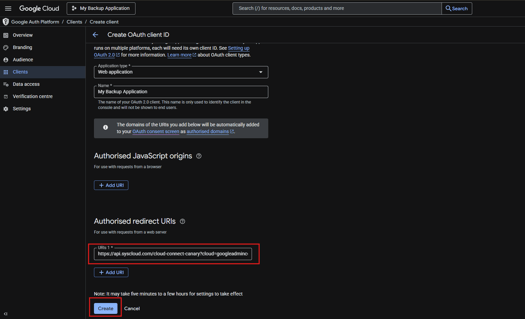
Important Note: Do not remove, modify, or alter the query parameter. The entire URL must be entered exactly as provided.
Save Your Credentials
This is the most critical step. Your credentials are only shown once.
Instructions:
- A popup will appear with your credentials
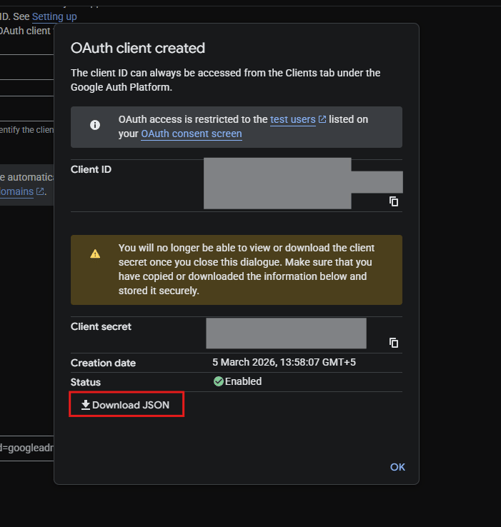
- This is the ONLY time you'll see the Client Secret in full
- Client ID: A long string like 123456789-abcdefghijklmnop.apps.googleusercontent.com
- This is not sensitive and can be shared
- This identifies your application to Google
- Client Secret: A string like GOCSPX-abc123def456ghi789
- This is HIGHLY SENSITIVE
- Treat it like a password
- NEVER share it
- NEVER commit it to version control
- NEVER expose it in client-side code
- Download the JSON file: Click the download button to save a JSON file containing your credentials. This file looks like:
{
"client_id": "123456789-abcdefg.apps.googleusercontent.com",
"client_secret": "GOCSPX-abc123def456ghi789",
"redirect_uris": ["https://backup.mycompany.com/oauth/callback"],
"auth_uri": "https://accounts.google.com/o/oauth2/auth",
"token_uri": "https://oauth2.googleapis.com/token"
} - Store securely: Save the Client Secret in your application's secure configuration system.
Once the credentials are created, continue to enter the credentials in SysCloud to connect and backup your Google Admin Console. Click here to know how.