![Untitled design (1)-Aug-01-2022-12-37-27-80-PM.png]](https://help.syscloud.com/hs-fs/hubfs/Untitled%20design%20(1)-Aug-01-2022-12-37-27-80-PM.png?height=40&name=Untitled%20design%20(1)-Aug-01-2022-12-37-27-80-PM.png)
SysCloud allows you to export Microsoft 365 data from a selected backup snapshot or snapshot range. You can perform a point-in-time export at two levels:
- Item-level export: Export specific items such as OneDrive files, Outlook emails, Microsoft People contacts, Calendar events, SharePoint files, or Teams data from a selected snapshot or snapshot range.
- Entity-level export: Export an entire Microsoft 365 app for a user, an entire Team, or a SharePoint site from a selected backup snapshot.
The main difference between the two flows is where the snapshot is selected. For item-level export, the snapshot is selected from the item table before selecting the items to export. For entity-level export, the snapshot is selected inside the Export pop-up window.
Item-level point-in-time export for Microsoft 365
You can use item-level point-in-time export to export selected Microsoft 365 items from a specific backup snapshot or snapshot range. The selected snapshot determines which backed-up version of the item is exported.
The steps below use OneDrive as an example.
Step 1: Login to SysCloud application using your admin credentials.
Step 2: Click on “Archives” and select “Microsoft 365” from the Side Navigation Panel.
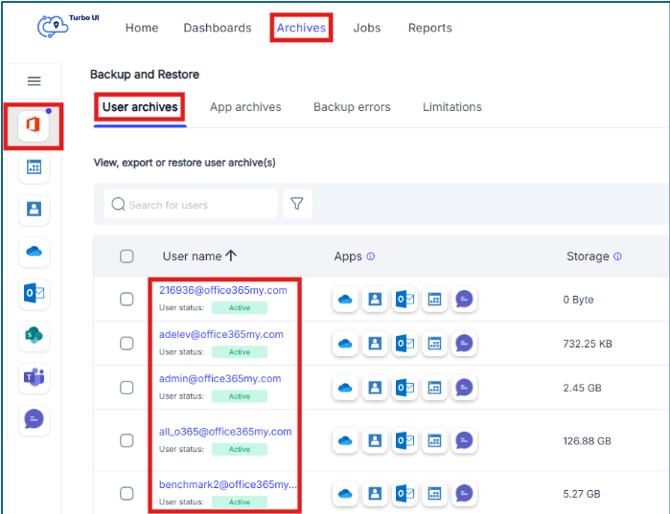
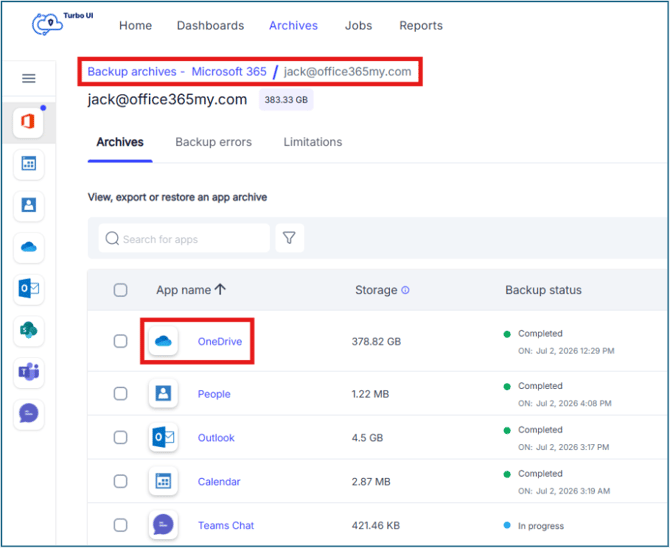
Step 3: Navigate to the user archives tab and click on a username to drill down into their archive. Click on any app in the selected user archive to view files. Here we select OneDrive as an example.
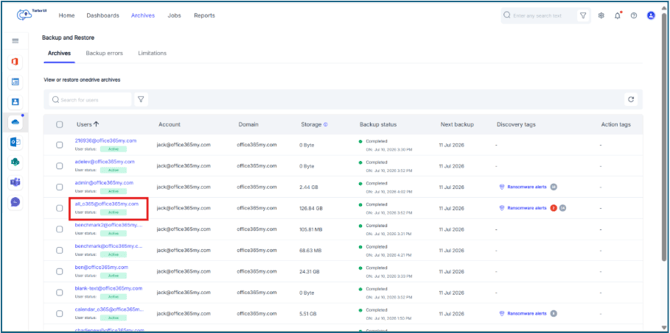
Step 4: In the OneDrive archive page, select the user whose OneDrive backup archive you want to view. You can use the search bar or filter option to locate the required user, and then click the username to open their backed-up OneDrive data.
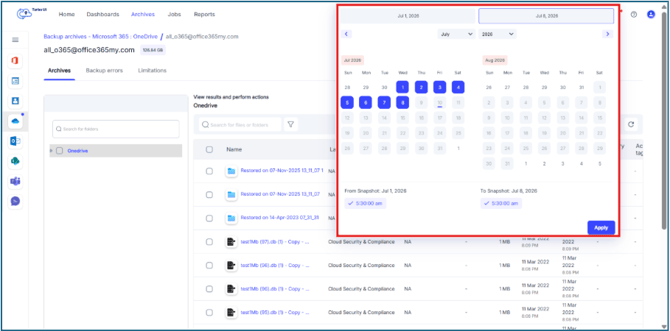
Step 5: Once you enter the OneDrive backup archives click on the Snapshot Selector
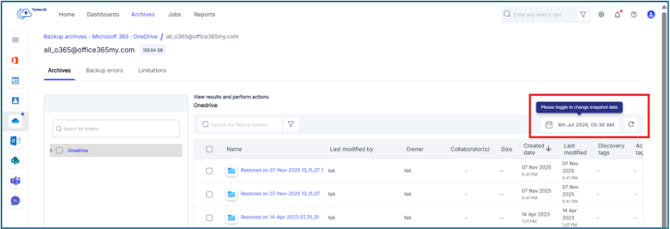
You can choose either:
- Snapshot range: Select a From Snapshot and To Snapshot date and time. SysCloud displays the latest backed-up version of each item available within the selected snapshot range.
- Specific snapshot: Select the same snapshot date and time as both the From Snapshot and To Snapshot. SysCloud displays the item version available in that specific backup snapshot.
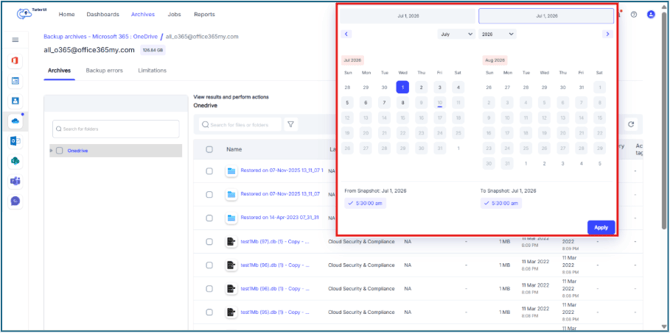
Step 5: Click Apply to load the OneDrive App archive data from the selected snapshot or snapshot range.
Step 6: Select the checkbox next to the Microsoft 365 App item you want to export and click Export.
Step 7: In the Export - OneDrive window, verify the selected snapshot date or snapshot range using the calendar icon.
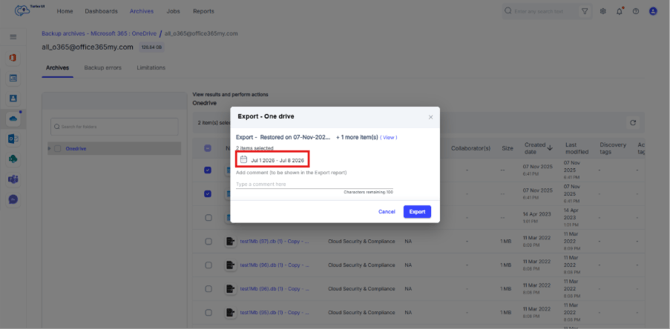
Export with Snapshot Range
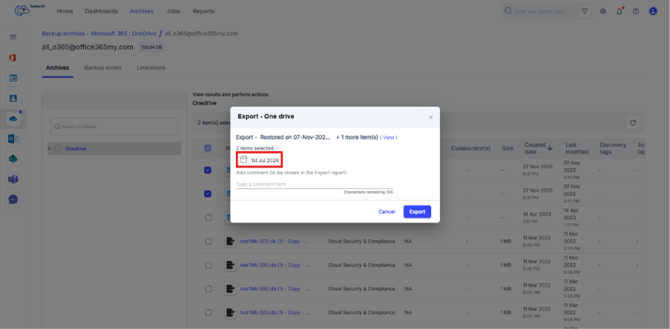
Export with specific Snapshot
Step 8: Add an optional comment to be shown in the Export report and click Export to confirm the export.
Step 9: You can view the export/export status from Reports > Export report.
Entity-level point-in-time export for Microsoft 365
You can use entity-level point-in-time export to export an entire Microsoft 365 app for a user, an entire Team, or a SharePoint site from a selected backup snapshot. This is useful when you want to download the selected entity as it existed at a specific date and time.
The steps below use OneDrive as an example.
To perform an entity-level point-in-time export
Step 1: Log in to SysCloud using your admin credentials.
Step 2: Click Archives from the top navigation menu and select Microsoft 365 from the left-side cloud navigation. Select the Microsoft 365 app you want to export, such as OneDrive.
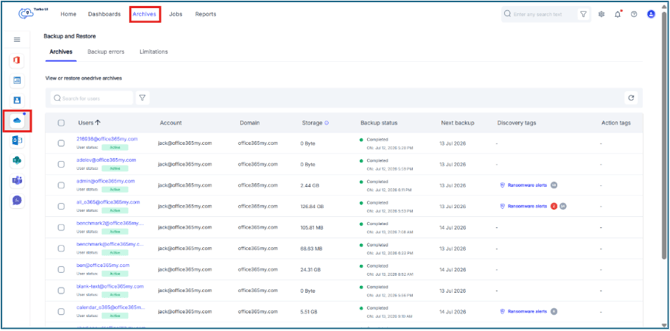
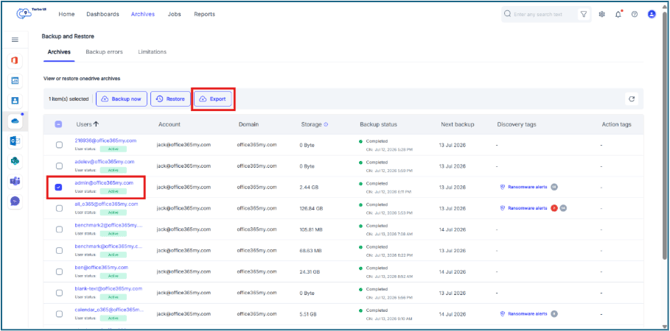
Step 3: In the Archives tab, locate the user whose app-level data you want to export. Select the checkbox next to the required user and click Export.
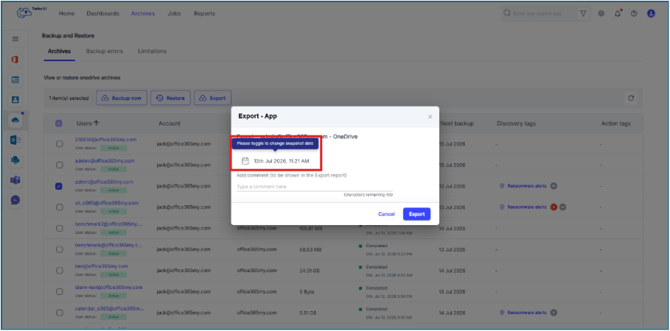
Step 4: In the Export - App window, verify the selected user and app click the snapshot selector.
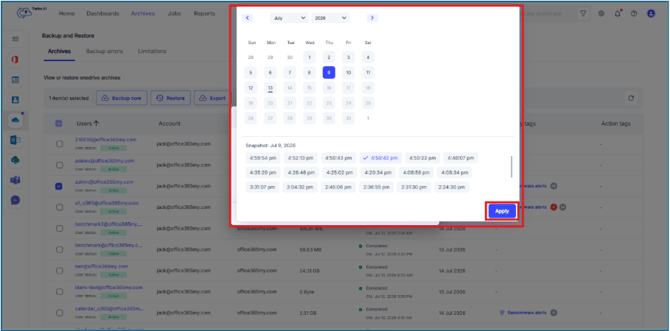
Step 5: Select the backup snapshot date and time from which you want to export the app data. Click Apply.
Step 6: Add an optional comment to be shown in the Export report. Click Export to confirm the export.
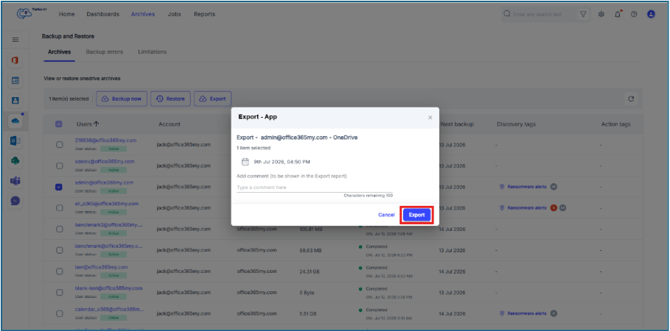
Step 7: You can view the export status and access the download link from Reports > Export report.
- App-level point-in-time export exports the selected app data based on the snapshot date and time selected in the export window.
- The export format depends on the Microsoft 365 app selected. For file-based apps such as OneDrive and SharePoint, the exported data is downloaded as a ZIP file, and files are retained in their original/native format inside the export package.
- The export download link remains active for 7 days. After the link expires, you must initiate the export again to generate a new download link.