![Untitled design (1)-Aug-01-2022-12-37-27-80-PM.png]](https://help.syscloud.com/hs-fs/hubfs/Untitled%20design%20(1)-Aug-01-2022-12-37-27-80-PM.png?height=40&name=Untitled%20design%20(1)-Aug-01-2022-12-37-27-80-PM.png)
Applicable for the Legacy UI.
The Archiver add-on helps archive backed-up data to reduce storage and licensing costs. You can enable Archiver from the backup configuration settings for supported cloud applications.
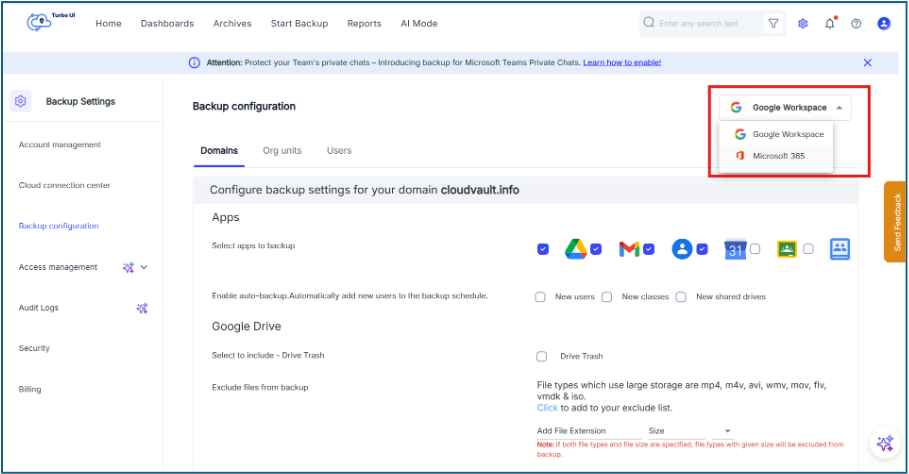
For example, you can select Microsoft 365 from the cloud dropdown and configure Archiver for the supported Microsoft 365 backup data.
Steps to enable and configure Archiver
Step 1: Log in to SysCloud using your admin credentials.
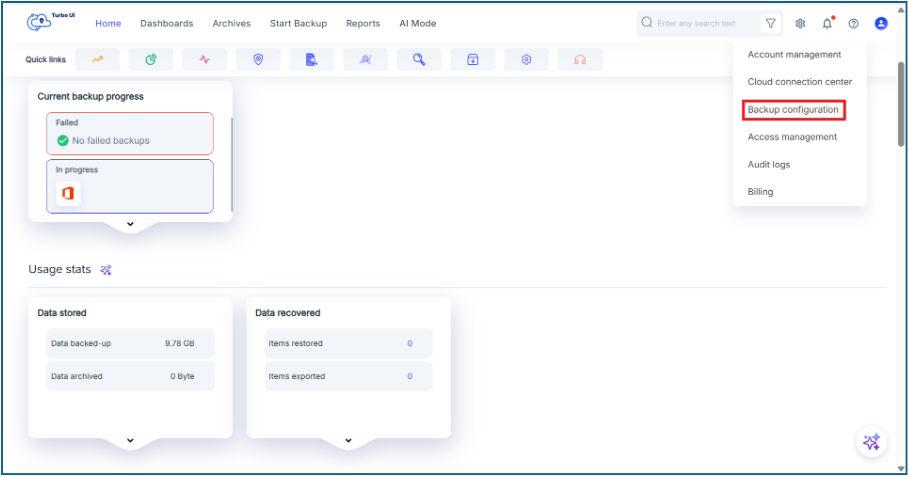
Step 2: Click the Settings icon from the header and select Backup Configuration.
Step 3: In the Backup configuration page, select the required cloud application from the cloud dropdown.
For example, select Microsoft 365 to configure Archiver for Microsoft 365 backup data.
Step 4: In the backup configuration page, scroll to the Add-ons section.
Step 5: Locate Archiver and select Enable.
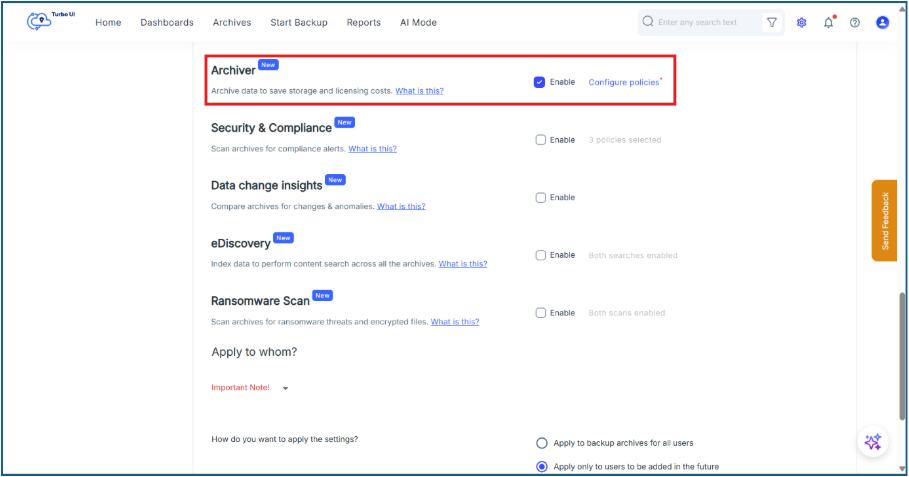
Step 6: Click Configure policies or Configure archival policy.
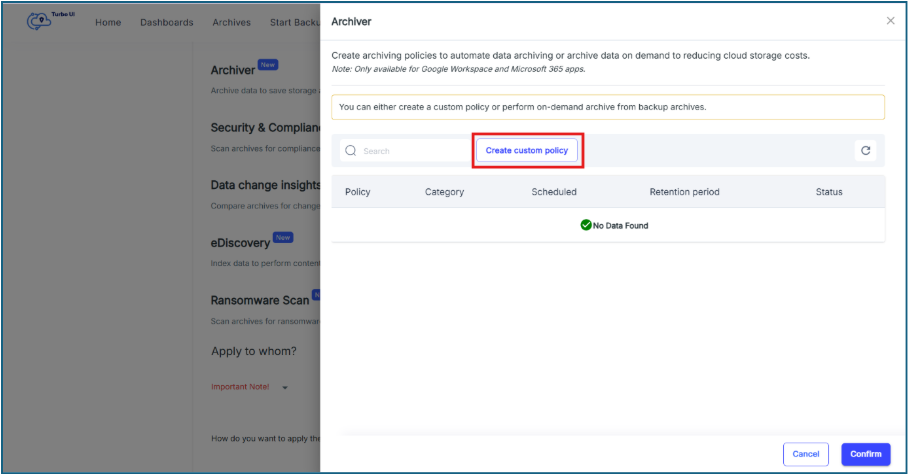
The Archiver side panel opens.
Step 7: In the Archiver side panel, click Create custom policy to create a new archival policy.
You can also select an existing archival policy if one is already available.
 Step 8: After creating or selecting the required archival policy, click Confirm.
Step 9: Scroll to the Apply to whom? section and choose how the settings should be applied.
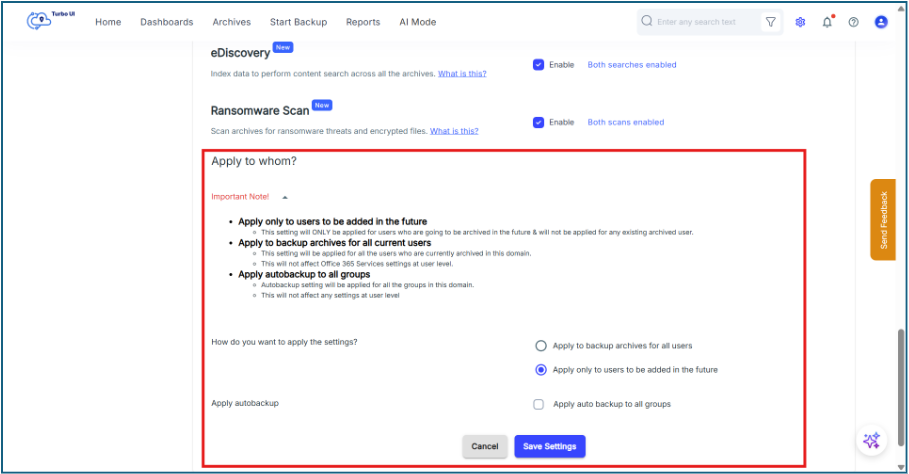
You can select one of the following options:
Apply to backup archives for all users: Applies the updated settings to all existing users in the domain.
Apply only to users to be added in the future: Applies the updated settings only to users added to the backup configuration later.
Apply auto backup to all groups: Applies auto backup settings to all groups in the domain. This does not change user-level settings.
Step 10: Click Save Settings.
Archiver is available only for supported SaaS applications including Google Workspace and Microsoft 365 apps.