![Untitled design (1)-Aug-01-2022-12-37-27-80-PM.png]](https://help.syscloud.com/hs-fs/hubfs/Untitled%20design%20(1)-Aug-01-2022-12-37-27-80-PM.png?height=40&name=Untitled%20design%20(1)-Aug-01-2022-12-37-27-80-PM.png)
SysCloud exports data in a zipped file. After downloading the export file from the SysCloud export report, you must extract the archive to view the exported contents.
Steps
Step 1: Log in to the SysCloud backup application using your admin credentials.
Step 2: Go to Reports > Export report.
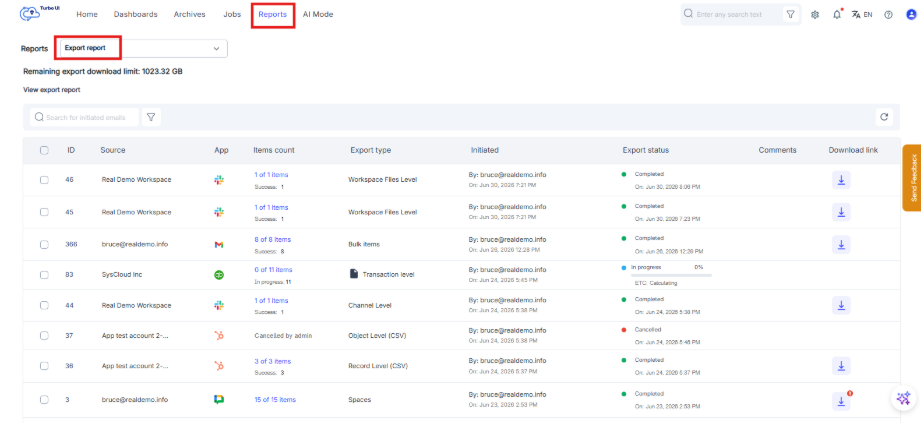
Step 3: Locate the completed export and click the download icon.
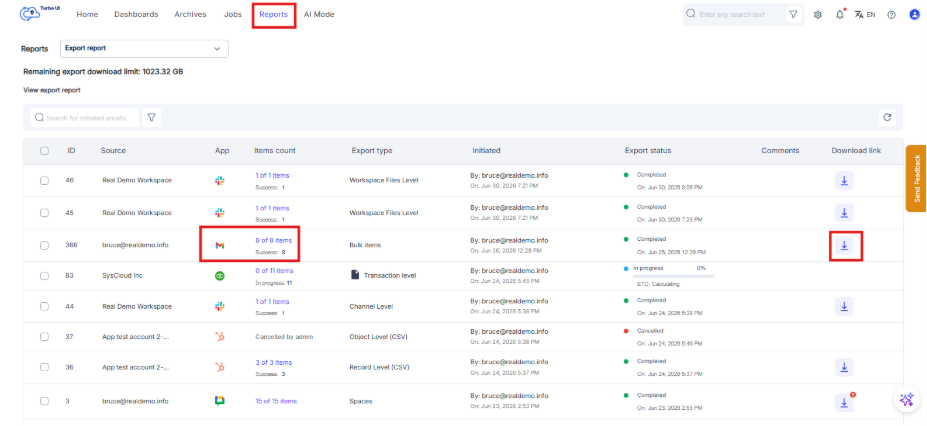
Step 4: After the zipped file is downloaded, extract the file on your computer.
Extract the file on Windows
- Right-click the downloaded zipped file.
- Select Extract All or Extract here, if the option is available.
- If your Windows version does not support extracting the file directly, install a trusted archive utility.
- Open the zipped file using the archive utility and extract the contents to the required folder.
Extract the file on Mac
- Locate the downloaded zipped file.
- If the file does not open directly, install a trusted archive utility.
- Open the zipped file using the archive utility.
- Extract the contents to the required folder.
The exported SysCloud data will be available in the extracted folder.
The export download link remains active for 7 days from the time the export is available in the export report.