![Untitled design (1)-Aug-01-2022-12-37-27-80-PM.png]](https://help.syscloud.com/hs-fs/hubfs/Untitled%20design%20(1)-Aug-01-2022-12-37-27-80-PM.png?height=40&name=Untitled%20design%20(1)-Aug-01-2022-12-37-27-80-PM.png)
How to manage backup from the Backup Configurations page?
Use the Backup configuration page to manage Google Workspace backup settings for domains, org units, and individual users.
This article applies only to customers using the Legacy UI backup configuration flow. It does not apply to customers using the Turbo UI backup job flow.
Open the Backup configuration page
- Log in to the SysCloud backup application using your admin credentials.
- Click the Settings icon in the top-right corner. Select Backup configuration.
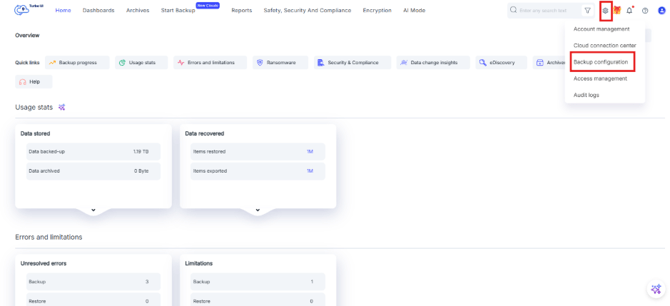
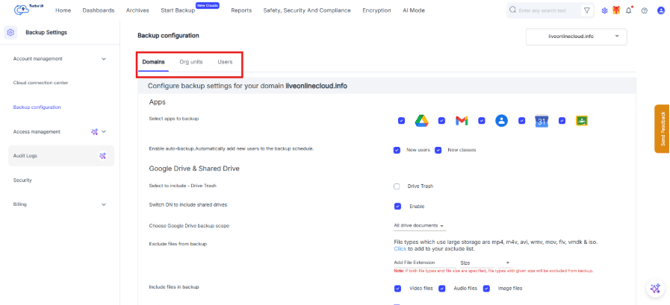
- On the Backup configuration page, select the required Google Workspace domain from the domain selector. You can manage backup settings from the following tabs:
- Domains
- Org units
- Users
Manage domain-level backup settings
Use the Domains tab to configure backup settings that apply at the Google Workspace domain level.
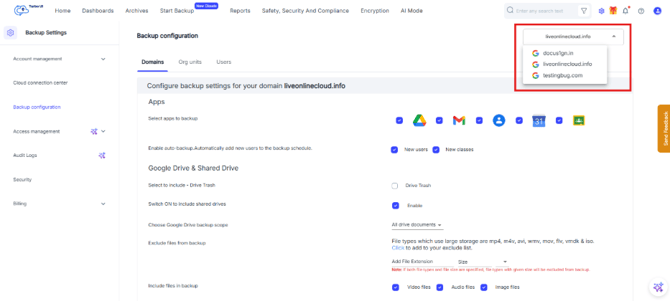
- On the Backup configuration page, select the required Google Workspace domain from the domain selector in the top right corner.
- Open the Domains tab.
- Under Apps, select the Google Workspace apps you want to back up.
- Enable auto-backup options, if required:
- New users
- New classes
- Configure Google Drive and Shared Drive settings, if required:
- Include Drive Trash
- Include shared drives
- Choose the Google Drive backup scope
- Exclude files by file extension or file size
- Include video, audio, or image files
- Set the Drive retention period
- Configure Gmail settings, if required:
- Include or exclude labels such as Trash and Spam
- Set the email retention period
- Configure Calendar and Classroom settings, if required:
- Set Calendar retention period
- Include video, audio, or image files for Classroom
- Set Classroom retention period
- Configure additional settings, if required:
- Backup storage limits
- Admin access to user archives
- Backup archive retention for suspended or deleted users
- Add-ons such as Archiver, Security & Compliance, Data Change Insights, eDiscovery, and Ransomware Scan
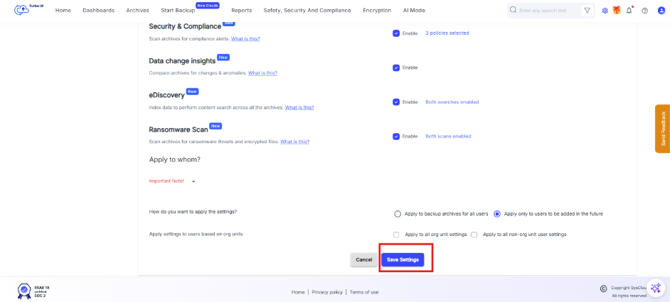
- Under Apply to whom?, choose how the settings should be applied:
- Apply to backup archives for all users
- Apply only to users to be added in the future
- Apply to all org unit settings
- Apply to all non-org unit user settings
- Click Save Settings.
Manage org unit-level backup settings
Use the Org units tab to manage backup settings for specific Google Workspace organizational units.
- On the Backup configuration page, select the required Google Workspace domain from the domain selector in the top right corner.
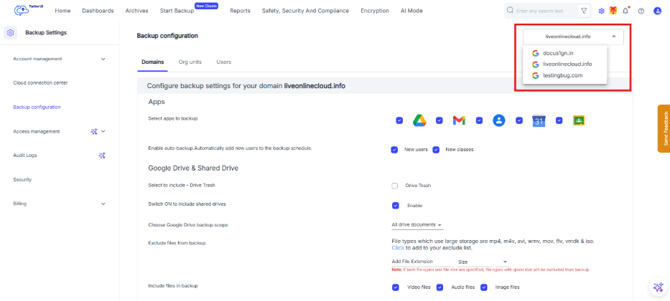
- Open the Org units tab.
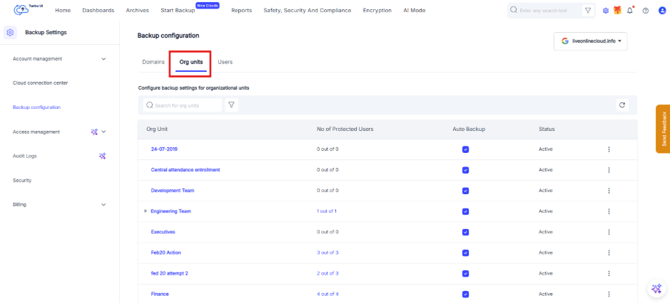
- Search for the required org unit, if needed.
- Review the following details for each org unit:
- Org unit name
- Number of protected users
- Auto-backup status
- Backup status
- To enable or disable auto-backup for an org unit, use the checkbox under the Auto Backup column.
- To view or manage additional actions for an org unit, click the three-dot menu next to the org unit.
Manage user-level backup settings
Use the Users tab to manage backup actions for individual Google Workspace users.
- On the Backup configuration page, select the required Google Workspace domain from the domain selector in the top right corner.
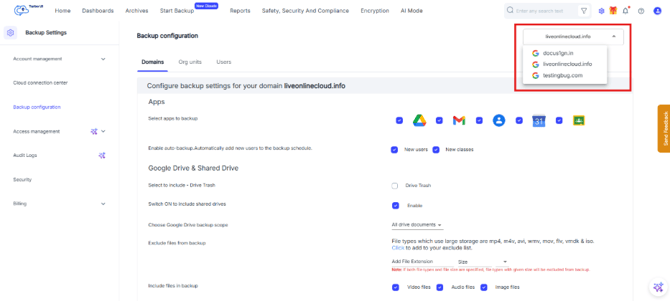
- Open the Users tab.
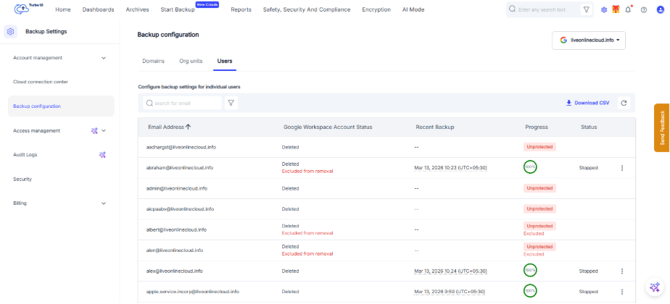
- Search for the required user, if needed.
- Review the user’s backup details:
- Email address
- Google Workspace account status
- Recent backup
- Backup progress
- Backup status
- Click the three-dot menu next to the user.
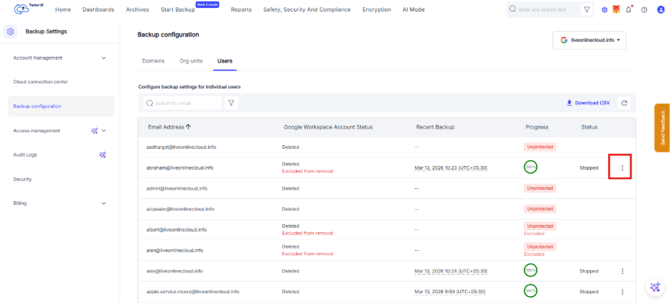
- Choose the required action:
- Pause the Backup: Pauses backup for the selected user.
- Backup Now: Starts an on-demand backup for the selected user.
- Settings: Opens user-level backup settings.
- Delete User: Deletes the user from the backup configuration.
Changes made from the Backup configuration page apply based on the selected level: domain, org unit, or user. Review the selected domain and tab before saving any changes.