![Untitled design (1)-Aug-01-2022-12-37-27-80-PM.png]](https://help.syscloud.com/hs-fs/hubfs/Untitled%20design%20(1)-Aug-01-2022-12-37-27-80-PM.png?height=40&name=Untitled%20design%20(1)-Aug-01-2022-12-37-27-80-PM.png)
You can perform a metadata search across backed-up Slack data using SysCloud eDiscovery. Metadata search lets you search indexed Slack records using available metadata such as file name, object type, channel information, date, and other supported attributes.
To perform a metadata search across Slack data
Step 1: Log in to SysCloud using your admin credentials and open the eDiscovery search page using any one of the following methods:
Option 1: From the Slack dashboard
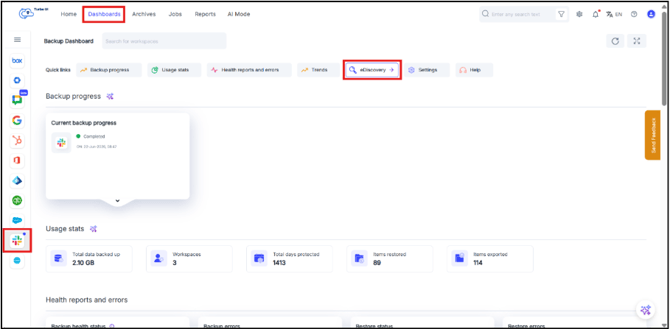
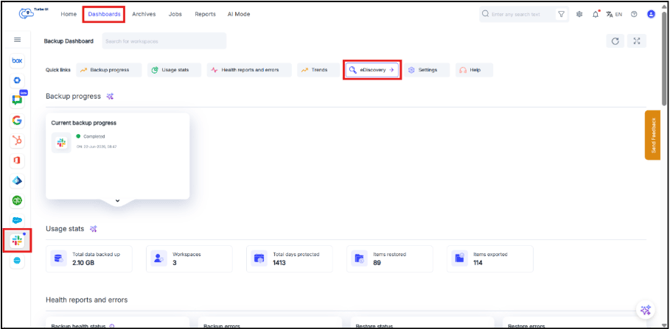
- Click Dashboards from the top navigation menu.
- Select Slack from the left-side cloud navigation.
- Under Quick links, click eDiscovery.
- In the Saved searches card, click Start an eDiscovery search.
Option 2: From the global search filter
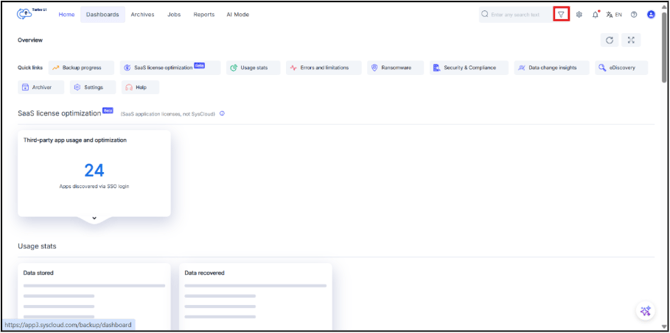
- Click the filter icon next to the global search bar at the top-right corner.
- This opens the eDiscovery search page.
Step 2: In the eDiscovery search page, configure the metadata search details:
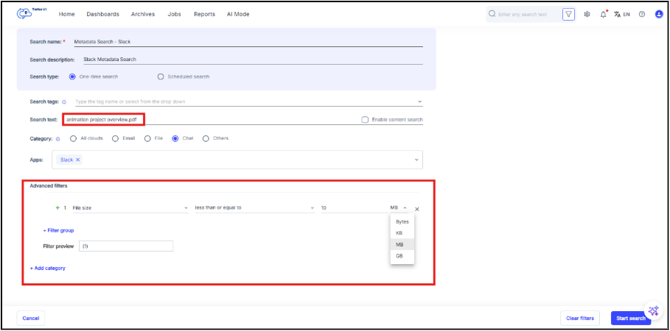
- Enter a Search name and Search description.
- Select the Search type as One-time search or Scheduled search, based on your requirement.
- In the Search text field, enter the metadata value you want to search for. For example, enter a Slack file name such as animation project overview.pdf.
- Do not select Enable content search. Leaving this option unchecked keeps the search as a metadata search.
- Under Category, select Chat, File, Others for accessing advanced filters.
- Under Apps, select Slack.
- Configure Advanced filters, if required. For example, you can filter results by file size using a condition such as File size less than or equal to 10 MB.
- Click Start search.
-
Advanced filter options change based on the selected Category and the apps selected for the search.
- For example, the File category shows file-related filters such as file name, file size, owner email, file extension, folder name, and file created date. The Chat category shows chat-related filters such as threads, replies, announcements, date posted, and file size. The Others category shows app-specific entity filters such as user groups, account number, account type, classification, company name, and created-on fields. Select the appropriate category before configuring advanced filters.
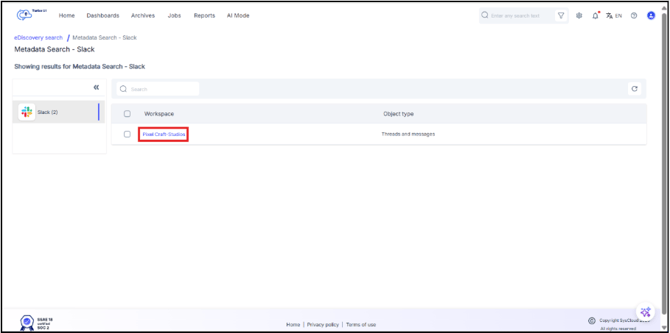
Step 3: In the search results page, click the Slack workspace name to view the matching Slack data.
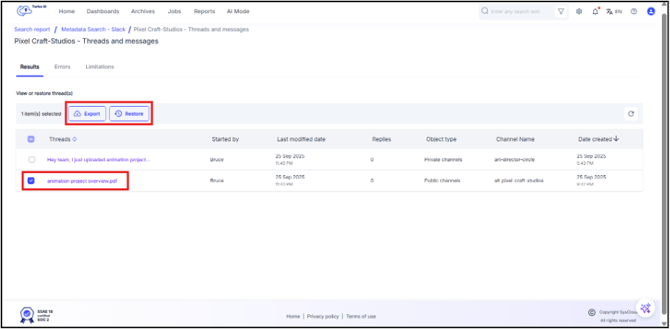
Step 4: Review the matching Slack threads, messages, and files from the Results tab. You will also be able to export and restore the metadata search results from here.
- Metadata search is available only for Slack data that has been backed up and indexed for eDiscovery.
- Slack metadata search results can include supported Slack channels, direct messages, group direct messages, messages, thread replies, files, users, workspace users, and user groups, depending on the Slack data backed up and indexed by SysCloud.
- Thread-level restore is not supported for private Slack channels. To restore a thread from a private channel, restore the entire private channel instead.