![Untitled design (1)-Aug-01-2022-12-37-27-80-PM.png]](https://help.syscloud.com/hs-fs/hubfs/Untitled%20design%20(1)-Aug-01-2022-12-37-27-80-PM.png?height=40&name=Untitled%20design%20(1)-Aug-01-2022-12-37-27-80-PM.png)
You can export QuickBooks Online data from a selected backup snapshot or snapshot range in the SysCloud archive. The selected snapshot determines which backed-up version of the QuickBooks Online item is exported.
To export QuickBooks Online data from a snapshot
Step 1: Login to SysCloud application using your admin credentials.
Step 2: Click on “Archives” and select QuickBooks Online from the Side Navigation Panel. Select a company from the list.
Step 3: Open the required QuickBooks Online data category, such as Transactions, Lists and Attachables and select an object.
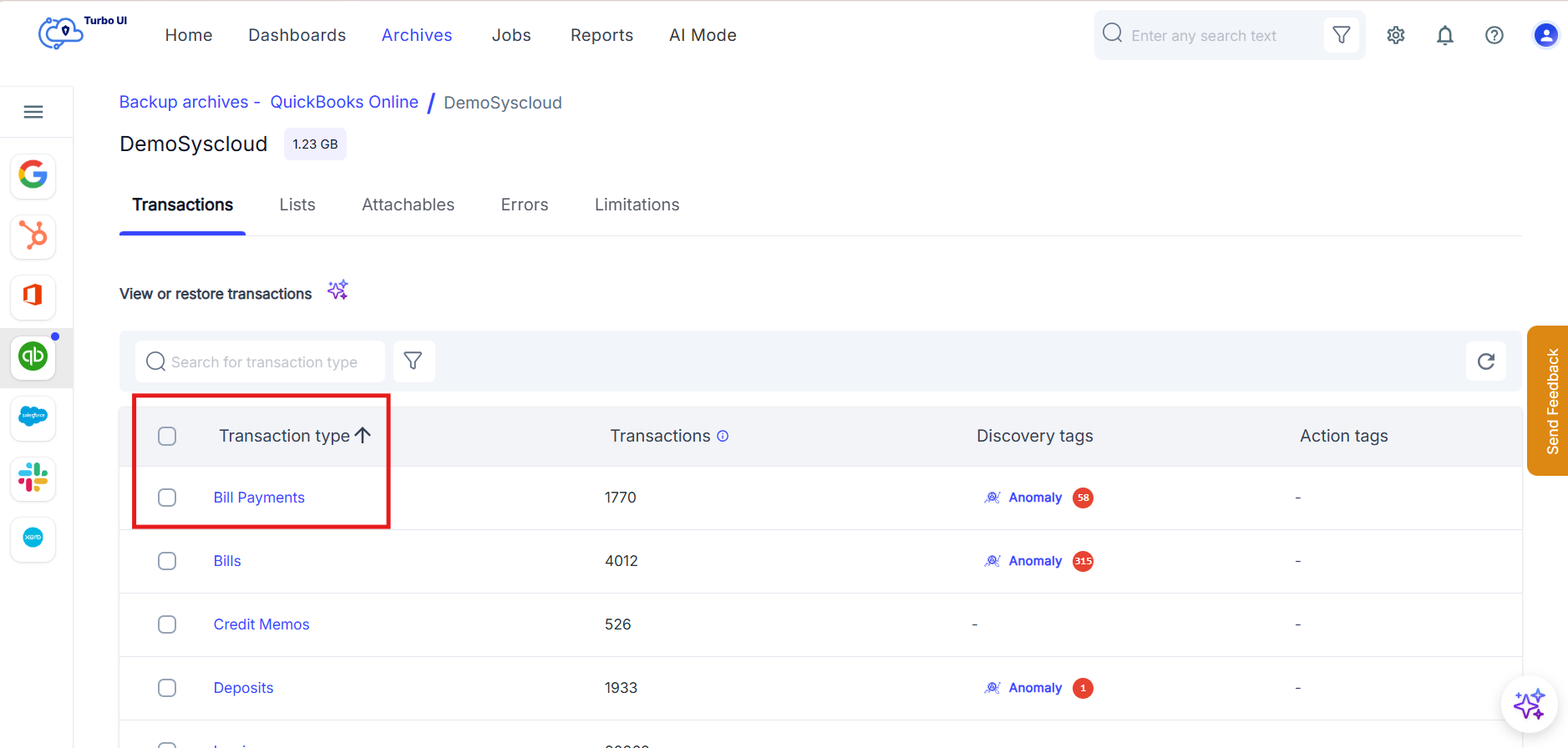
Step 4: Inside click the calendar icon in the archive view to select the required snapshot. You can choose either:
- Snapshot range: Select a From Snapshot and To Snapshot date and time. SysCloud displays the latest backed-up version of each item available within the selected snapshot range.
- Specific snapshot: Select the same snapshot date and time as both the From Snapshot and To Snapshot. SysCloud displays the item version available in that specific backup snapshot.
Step 5: Click Apply to load the QuickBooks Online archive data from the selected snapshot or snapshot range.
Step 6: Select the checkbox next to the QuickBooks Online item you want to export and click Export.
Step 7: In the Export - QuickBooks Online window, verify the selected snapshot date or snapshot range using the calendar icon.
Export with Snapshot Range
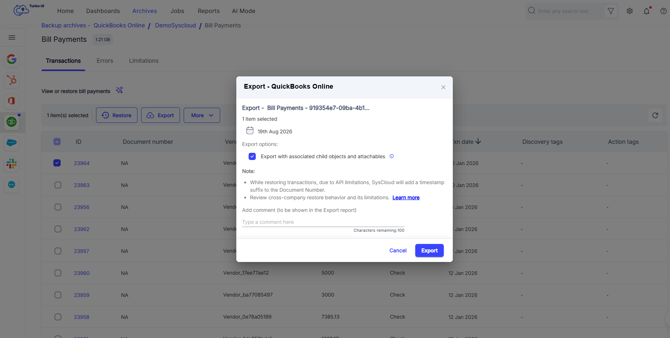
Export with specific Snapshot
Step 8: Add an optional comment to be shown in the Export/Export report and click Export to confirm the export/export.
Step 9: You can view the export/export status from Reports > Export report.