![Untitled design (1)-Aug-01-2022-12-37-27-80-PM.png]](https://help.syscloud.com/hs-fs/hubfs/Untitled%20design%20(1)-Aug-01-2022-12-37-27-80-PM.png?height=40&name=Untitled%20design%20(1)-Aug-01-2022-12-37-27-80-PM.png)
You can export Slack data from a selected backup snapshot or snapshot range in the SysCloud archive. The selected snapshot determines which backed-up version of the Slack item is exported.
To export Slack data from a snapshot
Step 1: Login to SysCloud application using your admin credentials.
Step 2: Click on “Archives” and select Slack from the Side Navigation Panel.
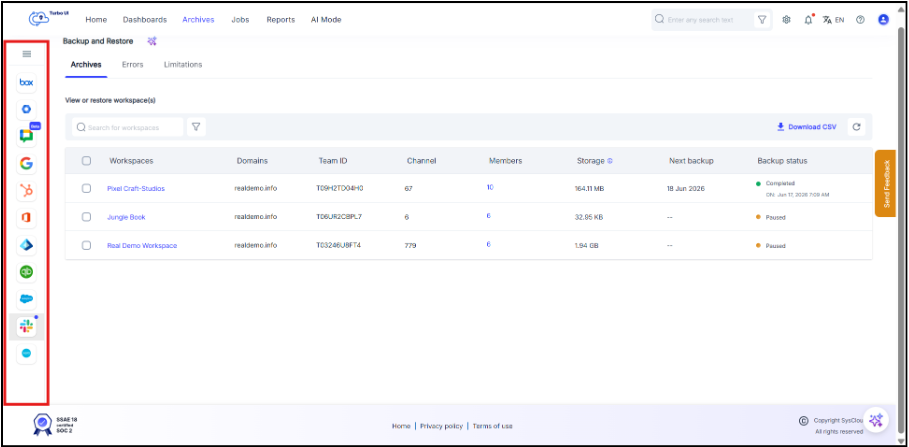
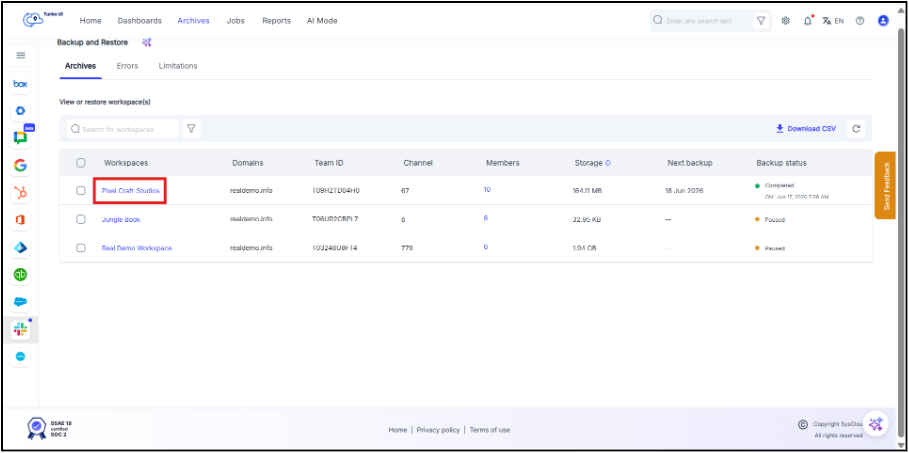
Step 3: Select your workspace from the list.
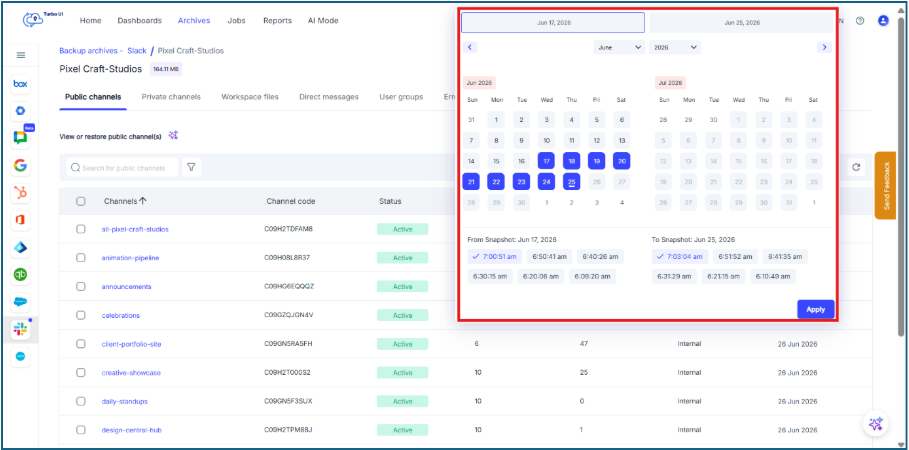
Step 4: Open the required Slack data category, such as Public channels, Private channels, Workspace files, Direct messages, or User groups and click the calendar icon in the archive view to select the required snapshot.
You can choose either:
- Snapshot range: Select a From Snapshot and To Snapshot date and time. SysCloud displays the latest backed-up version of each item available within the selected snapshot range.
- Specific snapshot: Select the same snapshot date and time as both the From Snapshot and To Snapshot. SysCloud displays the item version available in that specific backup snapshot.
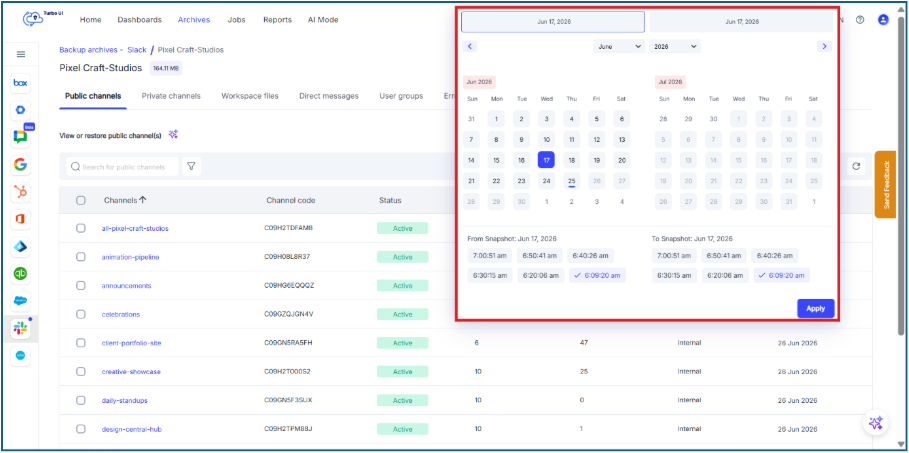
Step 5: Click Apply to load the Slack archive data from the selected snapshot or snapshot range.
Step 6: Select the checkbox next to the Slack item you want to export and click Export.
Step 7: In the Export - Slack window, verify the selected snapshot date or snapshot range using the calendar icon.
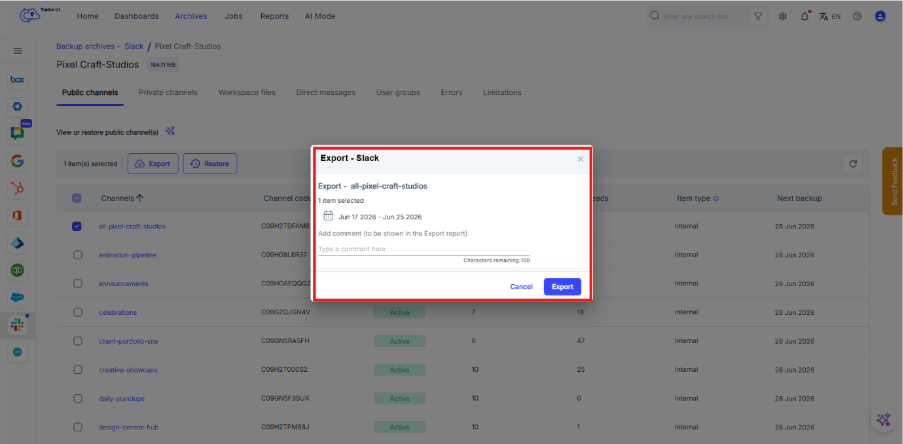
Export with Snapshot Range
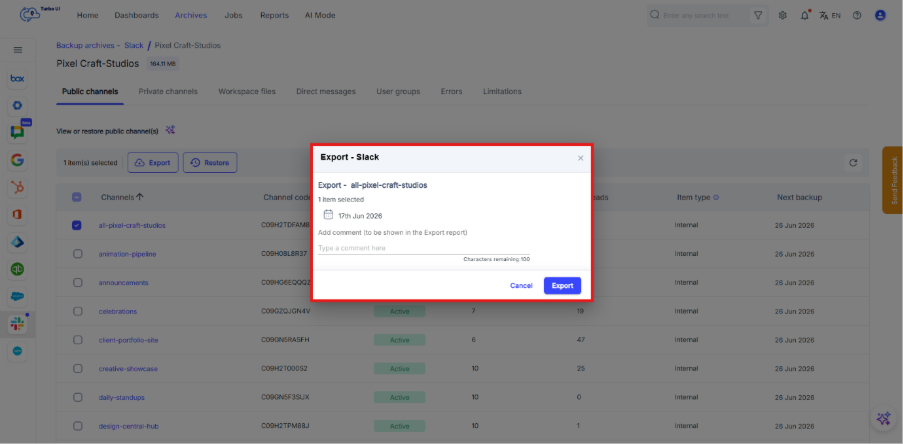
Export with specific Snapshot
Step 8: Add an optional comment to be shown in the Export/Export report and click Export to confirm the export/export.
Step 9: You can view the export/export status from Reports > Export report.