![Untitled design (1)-Aug-01-2022-12-37-27-80-PM.png]](https://help.syscloud.com/hs-fs/hubfs/Untitled%20design%20(1)-Aug-01-2022-12-37-27-80-PM.png?height=40&name=Untitled%20design%20(1)-Aug-01-2022-12-37-27-80-PM.png)
Create client credentials
Refer to the below help articles to create client credentials to backup admin console
1. Create a Google Cloud Project & Add scopes
2. Create the OAuth client credentials
Validate client credentials
1. Login to SysCloud Backup application.
2. Click on the settings 'gear' icon on the top navigation bar and select 'Cloud connection center'
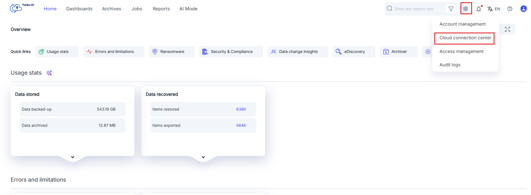
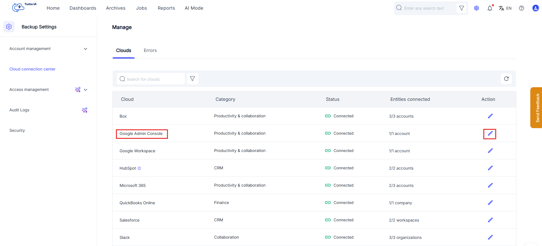
3. Click on 'Connect' or 'Edit (pencil) icon' next to Google Admin console
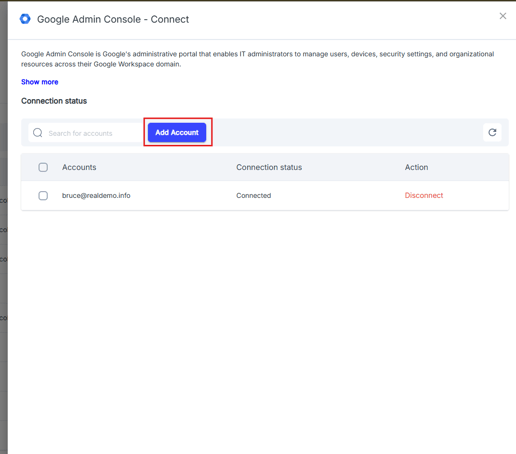
4. Click on 'Add account' button
5. Enter the client ID and client secret
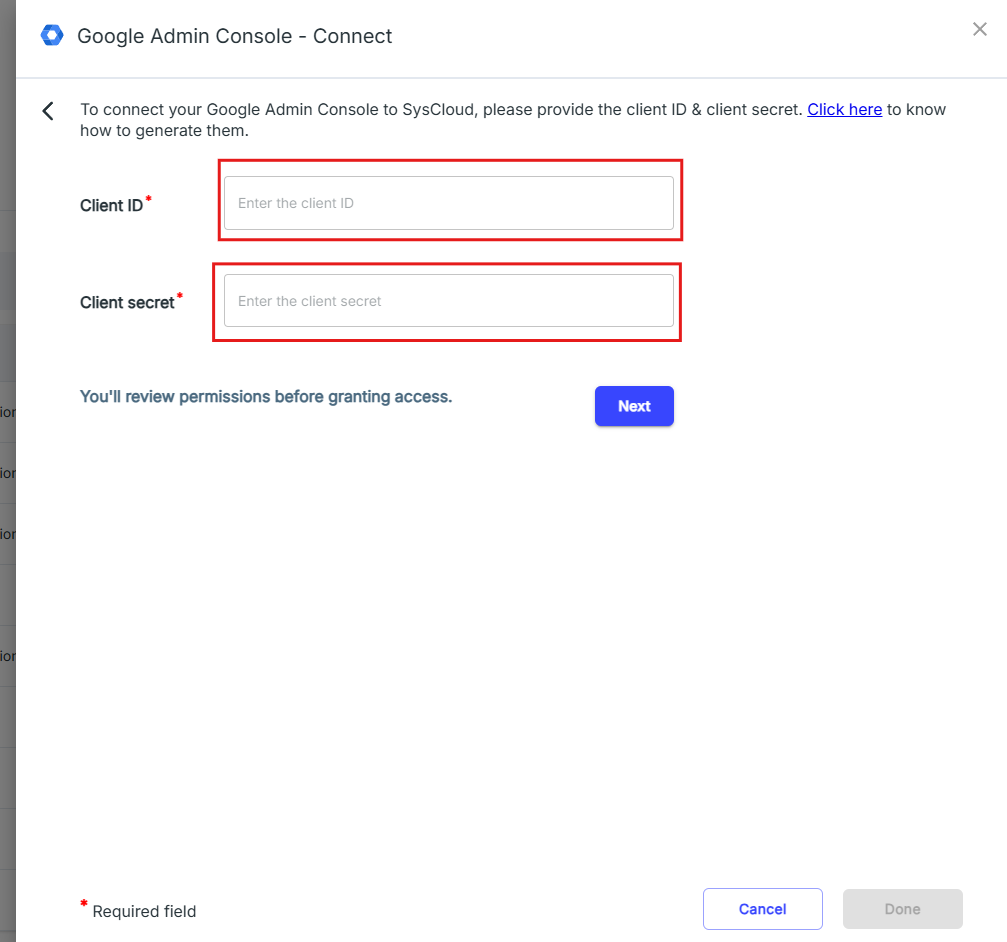
6. Click on 'Next' and credential validation will start.
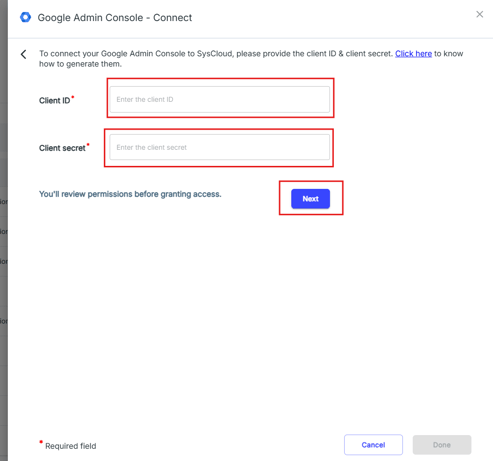
7. If they are successfully validated, you will see an 'Authorize admin access' button. If the validation fails, please recheck the credentials and try again. If that doesn't work, create a new set of credentials.
Authorize Admin Access
1. Once the credentials are verified, click on 'Authorize admin access' to give SysCloud access to the scopes defined for this client.
2. This will open a pop-up asking for Google authorization. Login to the Google Workspace account, you wish to backup.
3. You will see the OAuth scopes & consent screen. Click on 'Accept' to give SysCloud the necessary scopes to backup Admin console.
If the authorization is successful, you will see the account listed in Google Admin console cloud connection side tray as connected.
If the authorization fails, refer to this help article to know the potential reasons. Once the issues are resolved, re-try credential validation & admin authorization.