![Untitled design (1)-Aug-01-2022-12-37-27-80-PM.png]](https://help.syscloud.com/hs-fs/hubfs/Untitled%20design%20(1)-Aug-01-2022-12-37-27-80-PM.png?height=40&name=Untitled%20design%20(1)-Aug-01-2022-12-37-27-80-PM.png)
Follow the steps below to restore HubSpot records from SysCloud backup application:
Step 1: Log in to SysCloud using your admin credentials. Select the HubSpot icon from the left navigation menu
Step 2: Click Reports from the top menu. From the report drop-down, select Export report.
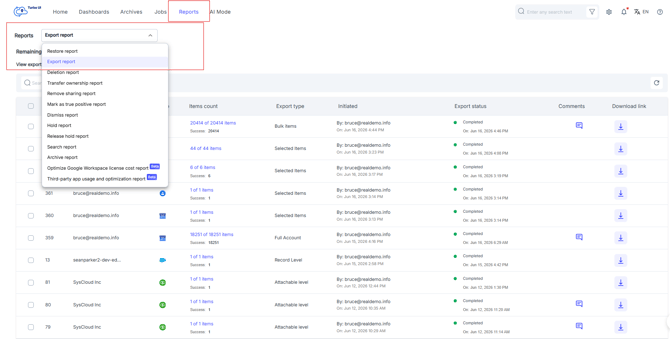
Step 3: Find the export request that you want to download.
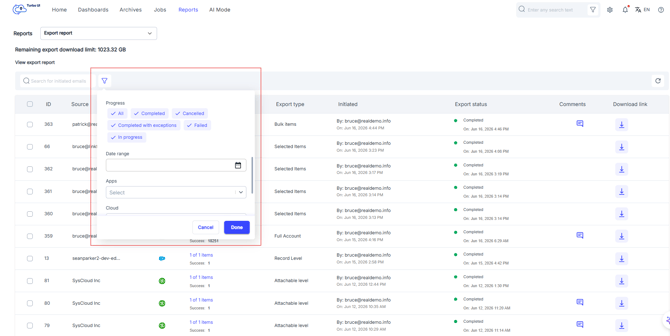
You can use the search bar and filters to quickly find the required export report, especially when there are many export requests listed.
To use filters:
- Click the filter icon next to the search bar.
- Select the required filter criteria.
- Click Done to apply the filters.
The following filters are available:
- Progress: Use this filter to view export reports based on the export status. You can filter by All, Completed, Cancelled, Completed with exceptions, Failed, or In progress.
- Date range: Use this filter to view export reports initiated within a specific date range.
- Cloud: Use this filter to view export reports based on the selected cloud.
- Export type: Use this filter to view reports based on the type of export performed.
You can also use the search bar to find export reports by the initiated email address. This helps you quickly locate exports initiated by a specific user.
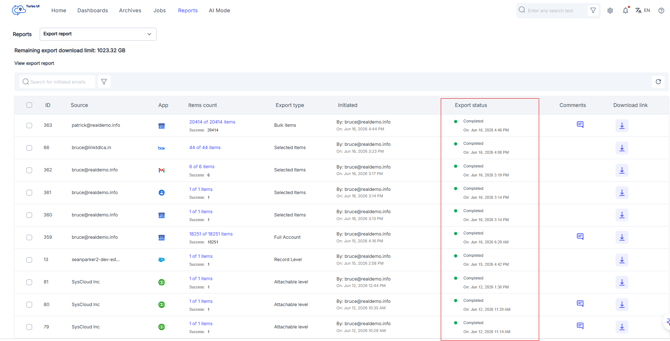
Step 4: Check the Export status column and confirm that the export is marked as Completed.
Step 5: Click the download icon under the Download link column to download the export file.
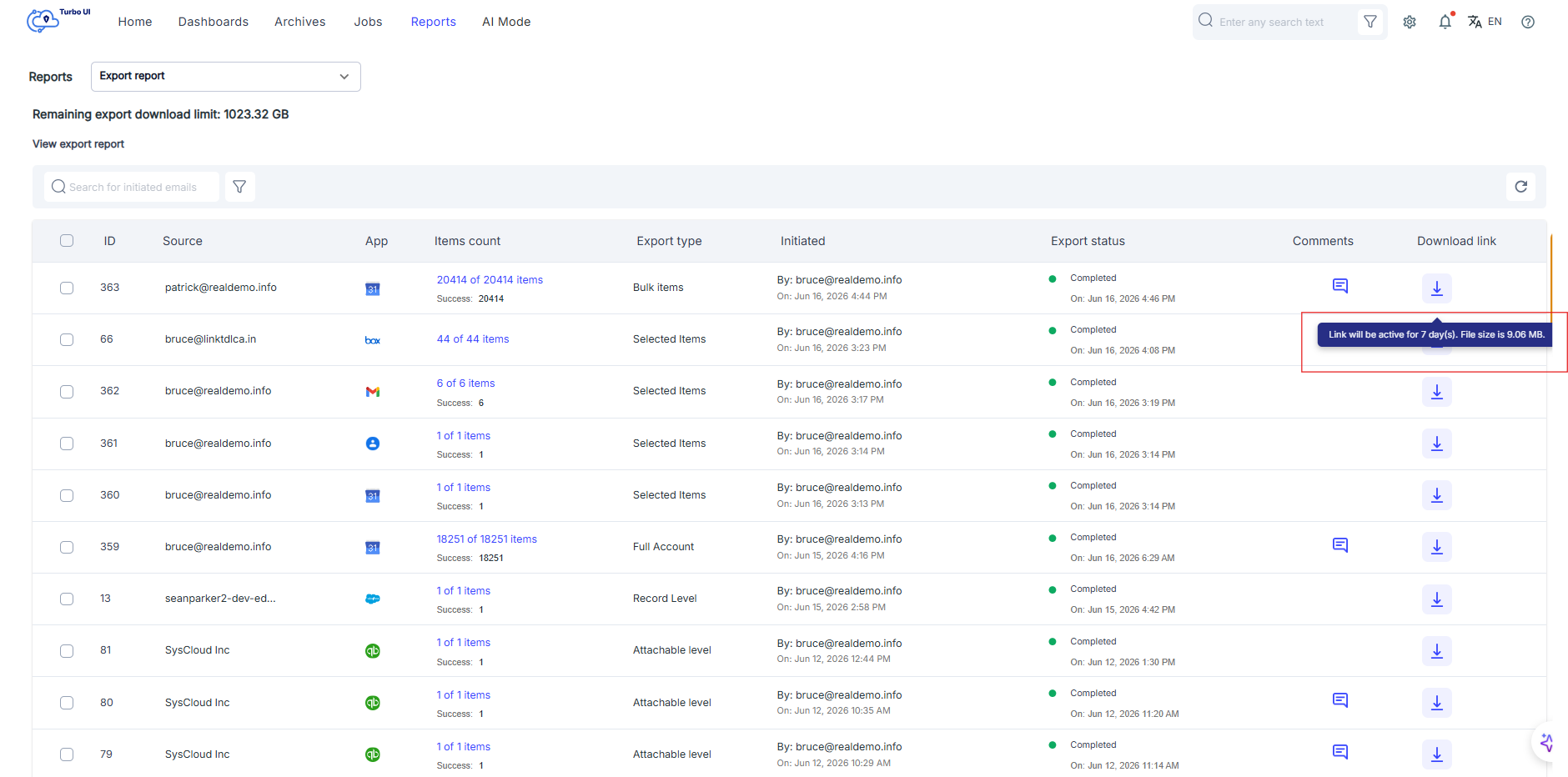
- Export download links are available only for completed exports.
- The download link will remain active for 7 days.
- The remaining export download limit is displayed at the top of the export report page.
- You can use search and filters together to quickly find the required export report.