![Untitled design (1)-Aug-01-2022-12-37-27-80-PM.png]](https://help.syscloud.com/hs-fs/hubfs/Untitled%20design%20(1)-Aug-01-2022-12-37-27-80-PM.png?height=40&name=Untitled%20design%20(1)-Aug-01-2022-12-37-27-80-PM.png)
Follow the steps below to restore Salesforce records from SysCloud backup application:
Step 1: Log in to SysCloud using your admin credentials. Select the Salesforce icon from the left navigation menu
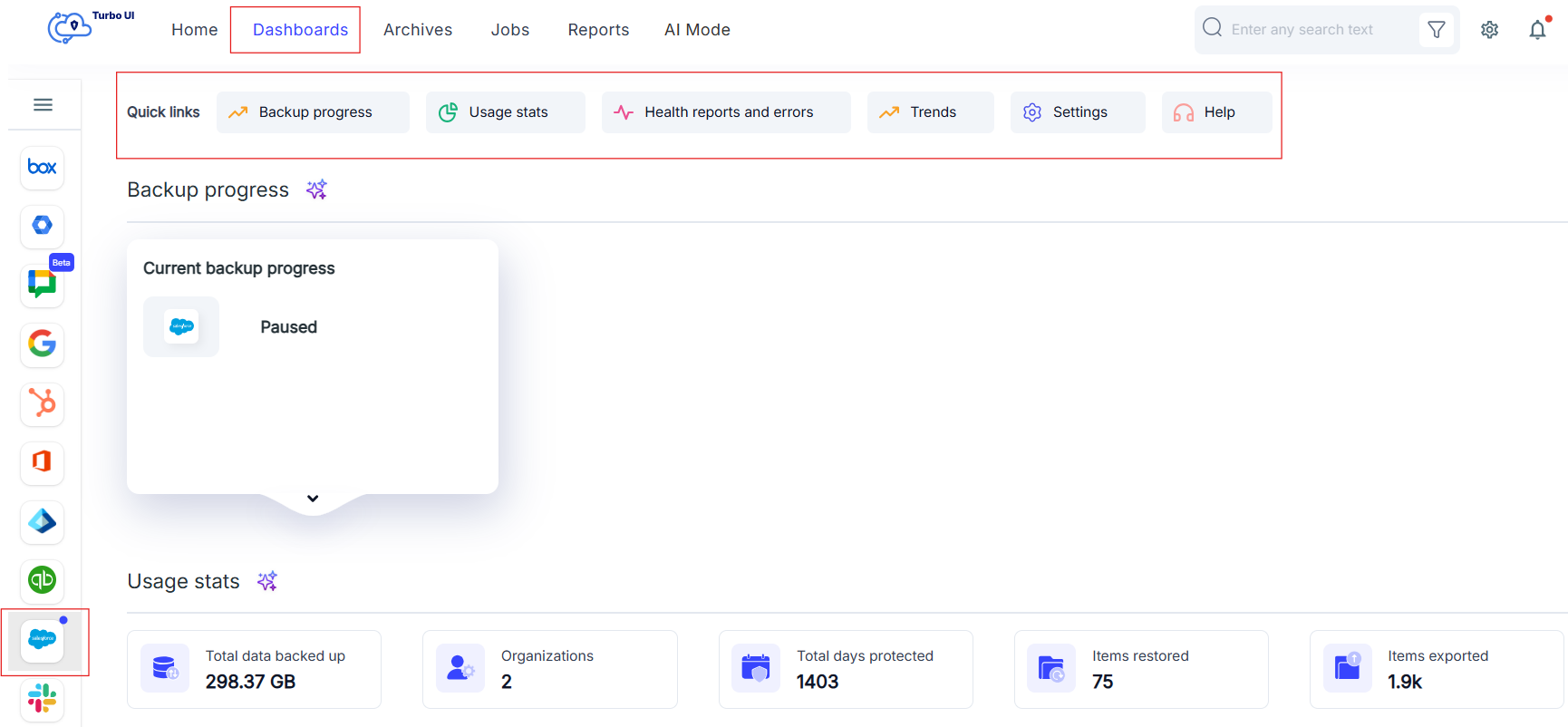
Step 2: Click Dashboards from the top menu. The Backup Dashboard page will be displayed. Use the quick links at the top of the dashboard to navigate to the required section. You can expand each card to view more details.
-
Backup progress : Shows the current backup progress for Salesforce.
-
Usage stats : Shows backup usage details such as accounts, data backed up, days protected, items restored, and items exported.
-
Health reports and errors : Shows backup health status, backup errors, restore status, restore errors, export status, and export errors.
-
Trends : Shows backup, restore, and export trends.
-
Settings : Shows dashboard-related activity such as audit logs.
-
Help : Redirects you to the help resources
Backup progress
The Backup progress section shows the current backup status for Salesforce.
You can view the backup status, last backup date and time, data backed up, limitations, and errors.
To view more details:
- Go to the Backup progress section.
- Click the expand arrow on the backup progress card.
- Under the Summary tab, you can view the overall Salesforce backup status.
- Click the Accounts tab to view account-level backup details.
The Accounts tab displays each Salesforce account with its backup status, data backed up, limitations, and errors.
Usage stats
The Usage stats section provides a summary of Salesforce backup usage.
You can view the following details:
-
Accounts : Shows the number of Salesforce accounts added to backup.
-
Total data backed up : Shows the total amount of Salesforce data backed up by SysCloud.
-
Total days protected : Shows the total number of days the Salesforce data has been protected.
-
Items restored : Shows the number of Salesforce items restored from the backup application.
-
Items exported : Shows the number of Salesforce items exported from the backup application.
Health reports and errors
The Health reports and errors section shows the overall health of Salesforce backup, restore, and export activities.
You can view the following cards:
-
Backup health status : Shows the number of backups that are completed, in progress, paused, or failed.
-
Backup errors : Shows the number of backup errors and limitations.
-
Restore status : Shows the restore activity status for the selected period.
-
Restore errors : Shows restore errors and limitations.
-
Export status : Shows the export activity status for the selected period.
-
Export errors : Shows export errors and limitations.
Trends
The Trends section shows activity trends for Salesforce backup, restore, and export.
You can view the following trend cards:
-
Backup trends : Shows the total Salesforce backup data trend.
-
Restore trends : Shows the restore activity trend.
-
Export trends : Shows the export activity trend.
Settings
The Settings section displays the audit log for dashboard-related activities.
For example, you can view login activity and other recorded actions related to the SysCloud backup application.