![Untitled design (1)-Aug-01-2022-12-37-27-80-PM.png]](https://help.syscloud.com/hs-fs/hubfs/Untitled%20design%20(1)-Aug-01-2022-12-37-27-80-PM.png?height=40&name=Untitled%20design%20(1)-Aug-01-2022-12-37-27-80-PM.png)
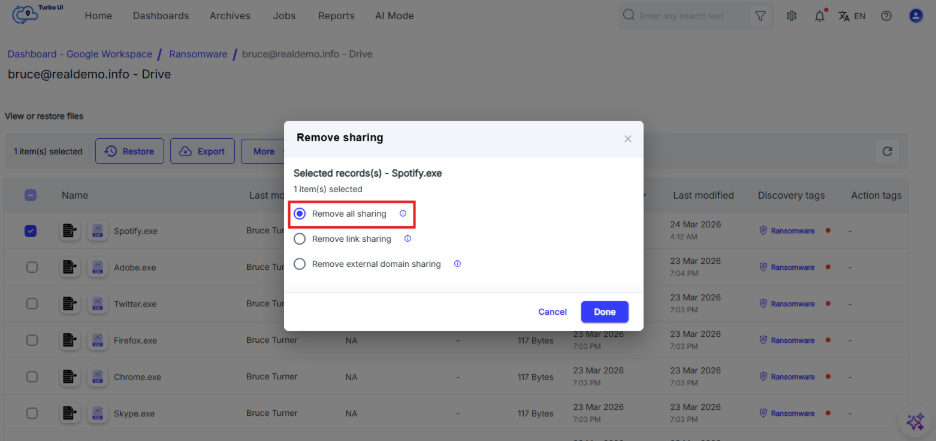
Remove all sharing will revoke all sharing permissions for the file, allowing only the file owner to retain access.
Step 1: Log in to the SysCloud backup application using your admin credentials.
Step 2: Access the ransomware section on the dashboard
Navigate to the Dashboard and locate the ransomware section, where the number of ransomware-encrypted and ransomware files is displayed.
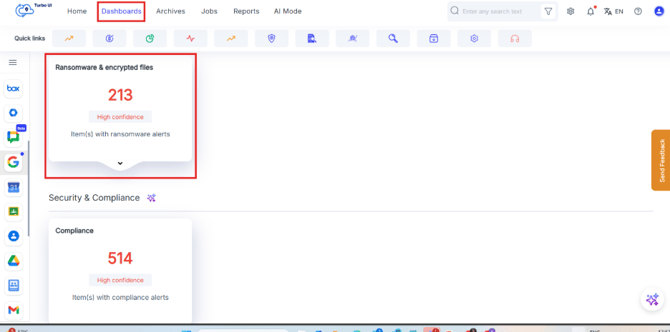
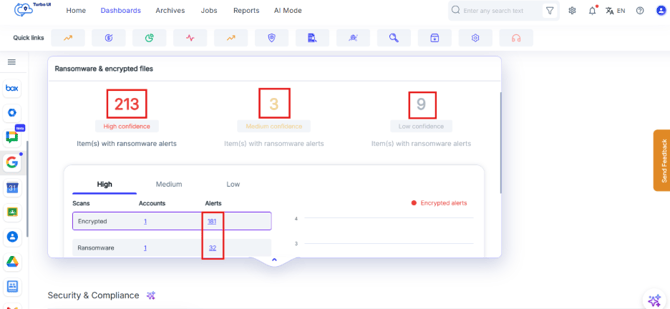
Step 3: View the ransomware results
Click on the displayed numbers in the ransomware section. You will be redirected to the results page. On the Results Page, you can click 'Users' to navigate to the Archives Page, where detailed file information is displayed.
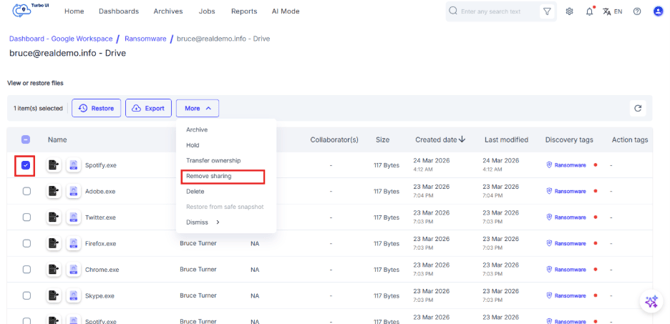
Step 4: On the page, select the affected files or items for which you want to perform the action and click on “Remove Sharing”
Step 5: From the pop-up click on the option “Remove all sharing” and click on Done.