![Untitled design (1)-Aug-01-2022-12-37-27-80-PM.png]](https://help.syscloud.com/hs-fs/hubfs/Untitled%20design%20(1)-Aug-01-2022-12-37-27-80-PM.png?height=40&name=Untitled%20design%20(1)-Aug-01-2022-12-37-27-80-PM.png)
Follow the steps below to restore encrypted violated files from a safe snapshot in the SysCloud backup application.
Only Encrypted violated files can restored from a safe snapshot
Step 1: Log in to the SysCloud backup application using your admin credentials.
Step 2: Access the ransomware section on the dashboard
Navigate to the Dashboard and locate the ransomware section, where the number of ransomware-encrypted is displayed.
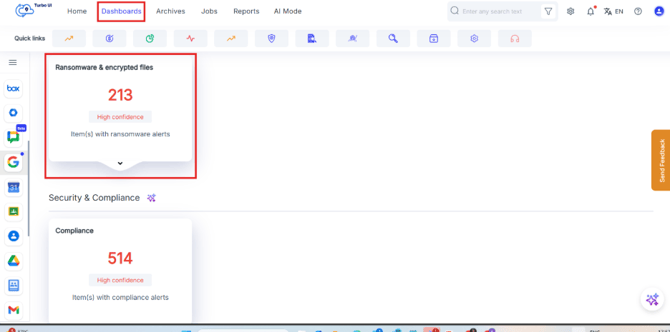
Step 3: View the ransomware results
Click on the displayed numbers in the ransomware section. You will be redirected to the results page. On the Results Page, you can click 'Users' to navigate to the Archives Page, where detailed file information is displayed.
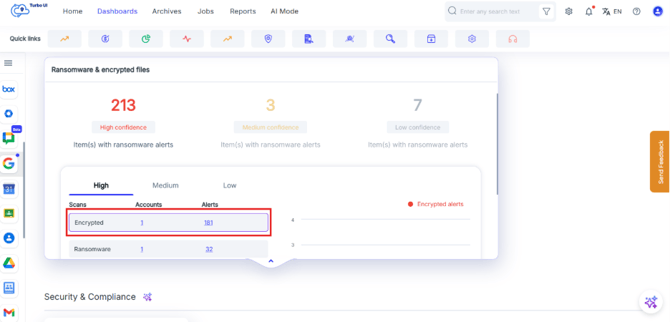
Step 4: On the page, select the affected files or items for which you want to perform the action and click on “Restore from safe snapshot”
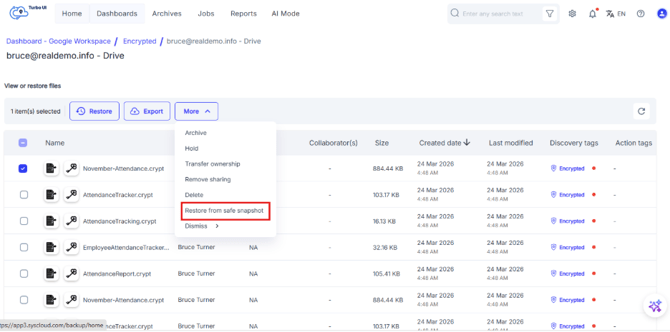
Step 5: In the restore pop-up for Select File(s) to Restore, choose the file(s) you want to restore. You can select from the following snapshot options:
- SysCloud Recommended Files: Safe versions of files identified by the SysCloud algorithm.
- Deleted Files from Last Identified Safe Snapshot: Files that may have been deleted by ransomware or manually removed by the user from Drive.

Step 6: From the options selected you will be shown the snapshot versions, select the snapshot file version you wish to restore and click on Next.
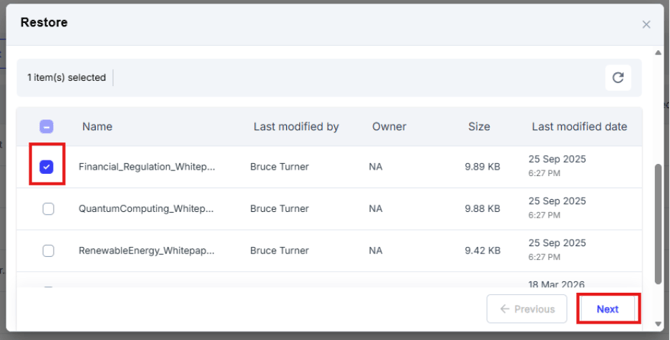
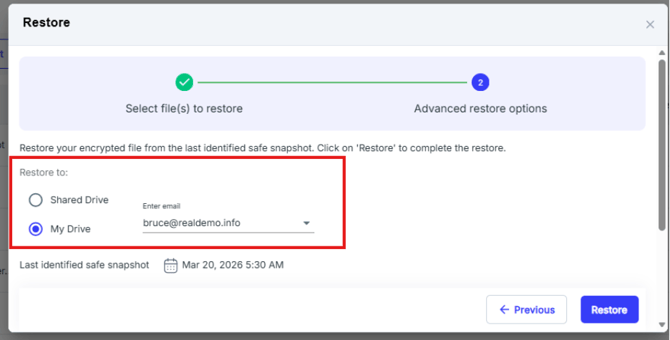
Step 7: On this page, choose where you want to restore the data. The available restore destinations are:
- Shared Drive
- My Drive
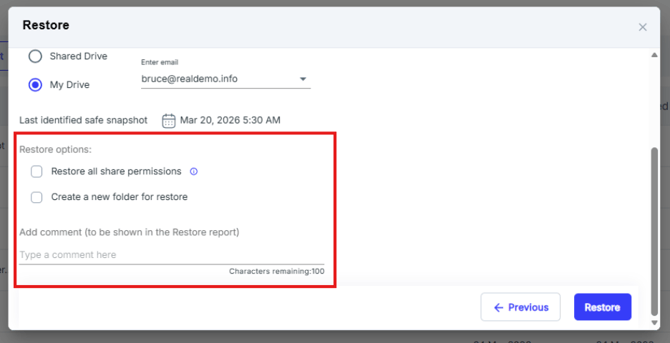
Enter the email ID of the account where you want to restore the data. You can also select the following options, if required:
- Restore with all permissions to retain the original file permissions.
- Create a new folder for restore to place the restored data in a separate folder.
Additionally, you can add comments for the restore operation, which will appear in the restore report.