![Untitled design (1)-Aug-01-2022-12-37-27-80-PM.png]](https://help.syscloud.com/hs-fs/hubfs/Untitled%20design%20(1)-Aug-01-2022-12-37-27-80-PM.png?height=40&name=Untitled%20design%20(1)-Aug-01-2022-12-37-27-80-PM.png)
This article explains how to export Salesforce record from the SysCloud backup application.
Step 1: Log in to SysCloud application using your admin credentials.
Step 2: Navigate to Archives from the main dashboard. The Archives tab displays the list of Salesforce organizations available in the backup archive. Select the organization you want to export the record from.
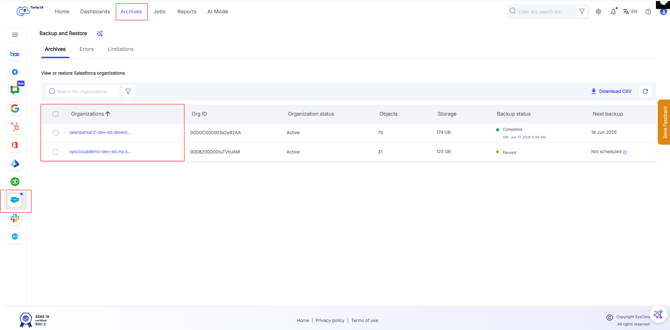
Step 3: Navigate to Objects tab and select the Salesforce object that contains the record.
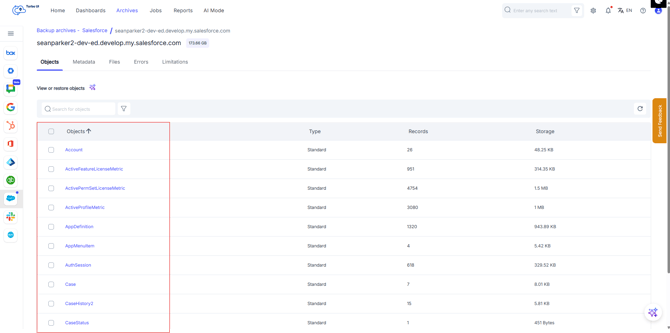
Step 4: From the records list, select the checkbox next to the record that you want to export.
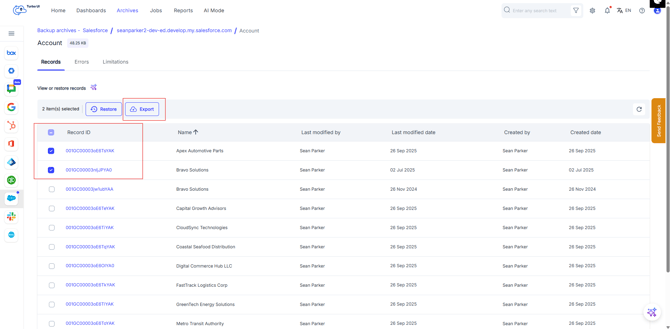
Step 5: In the Export - Salesforce pop-up, review the selected record details.
Step 6: Add comments (if any) to be shown in the export report, and click the “Export” button.
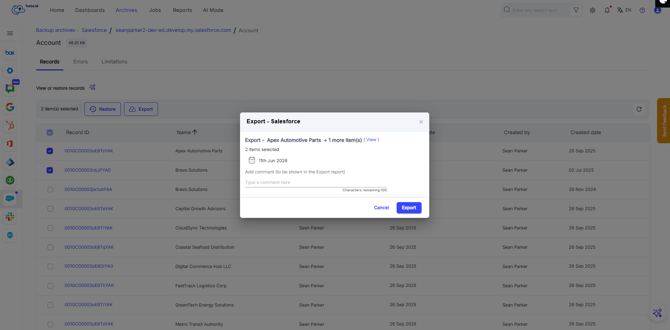
After the export is initiated, go to Reports > Export report to view the export status and download the file after the export is completed.
-
The export download link will be active for 7 days. After the link expires, you must initiate the export again to generate a new download link.
- The exported data is downloaded as a ZIP file. Salesforce record data is exported in CSV format.