![Untitled design (1)-Aug-01-2022-12-37-27-80-PM.png]](https://help.syscloud.com/hs-fs/hubfs/Untitled%20design%20(1)-Aug-01-2022-12-37-27-80-PM.png?height=40&name=Untitled%20design%20(1)-Aug-01-2022-12-37-27-80-PM.png)
You can view backed-up QuickBooks Online data from the QuickBooks Online archive in SysCloud. The archive lets you browse backed-up transactions, lists, and attachables for a selected QuickBooks Online company.
To view backed-up QuickBooks Online data
Step 1: Log in to SysCloud using your admin credentials.
Step 2: Click Archives from the top navigation menu. Select QuickBooks Online from the left-side cloud navigation.
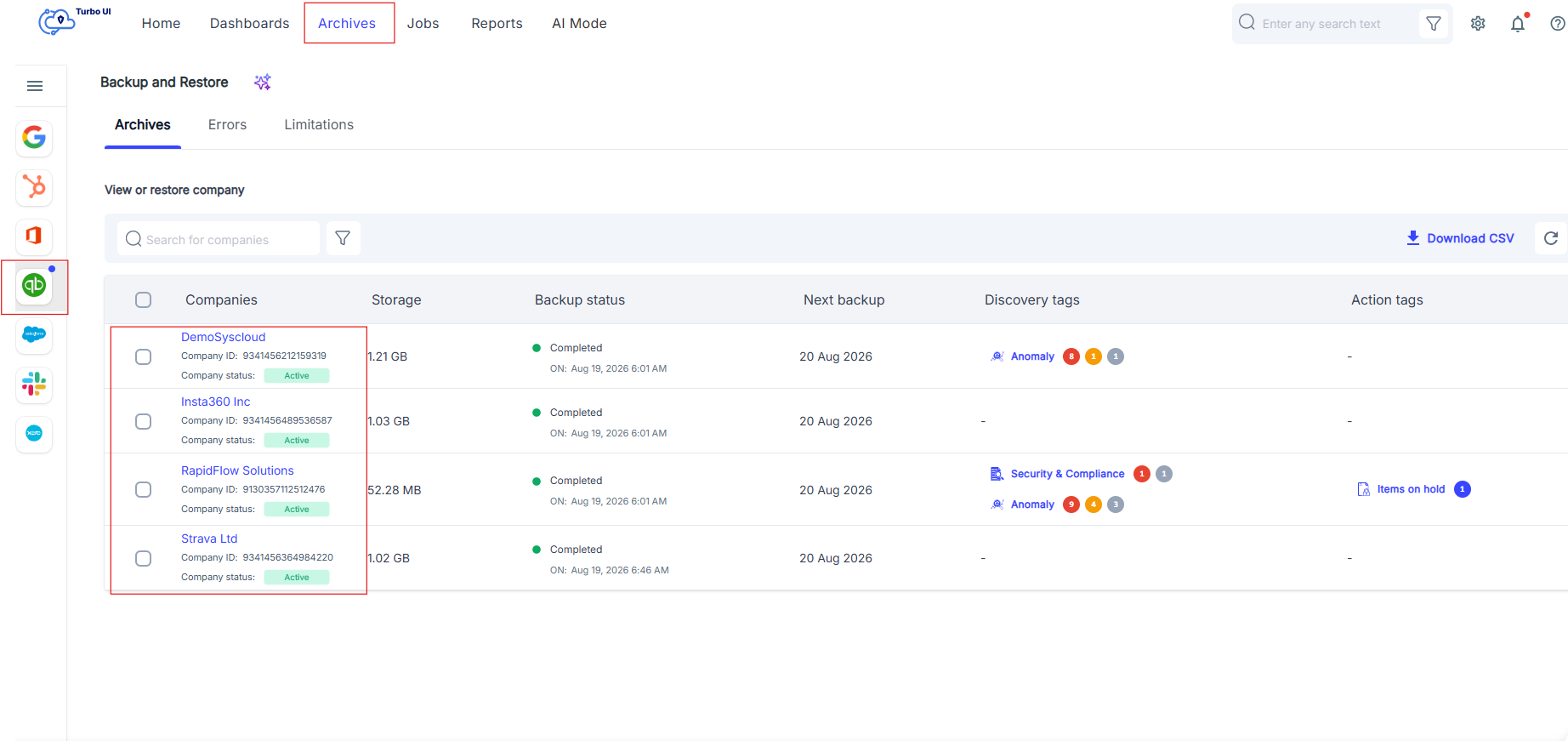
Step 3: On the Backup and Restore page, select the QuickBooks Online company whose backed-up data you want to view. Open the required data category from the company archive.
Available categories include:
| QuickBooks Online data category | Description |
| Transactions | View backed-up transaction types such as bills, bill payments, invoices, payments, deposits, journal entries, and other supported transaction records. |
| Lists | View backed-up list records such as accounts, customers, vendors, items, terms, tax codes, classes, and departments. |
| Attachables | View backed-up attachments associated with QuickBooks Online records. |
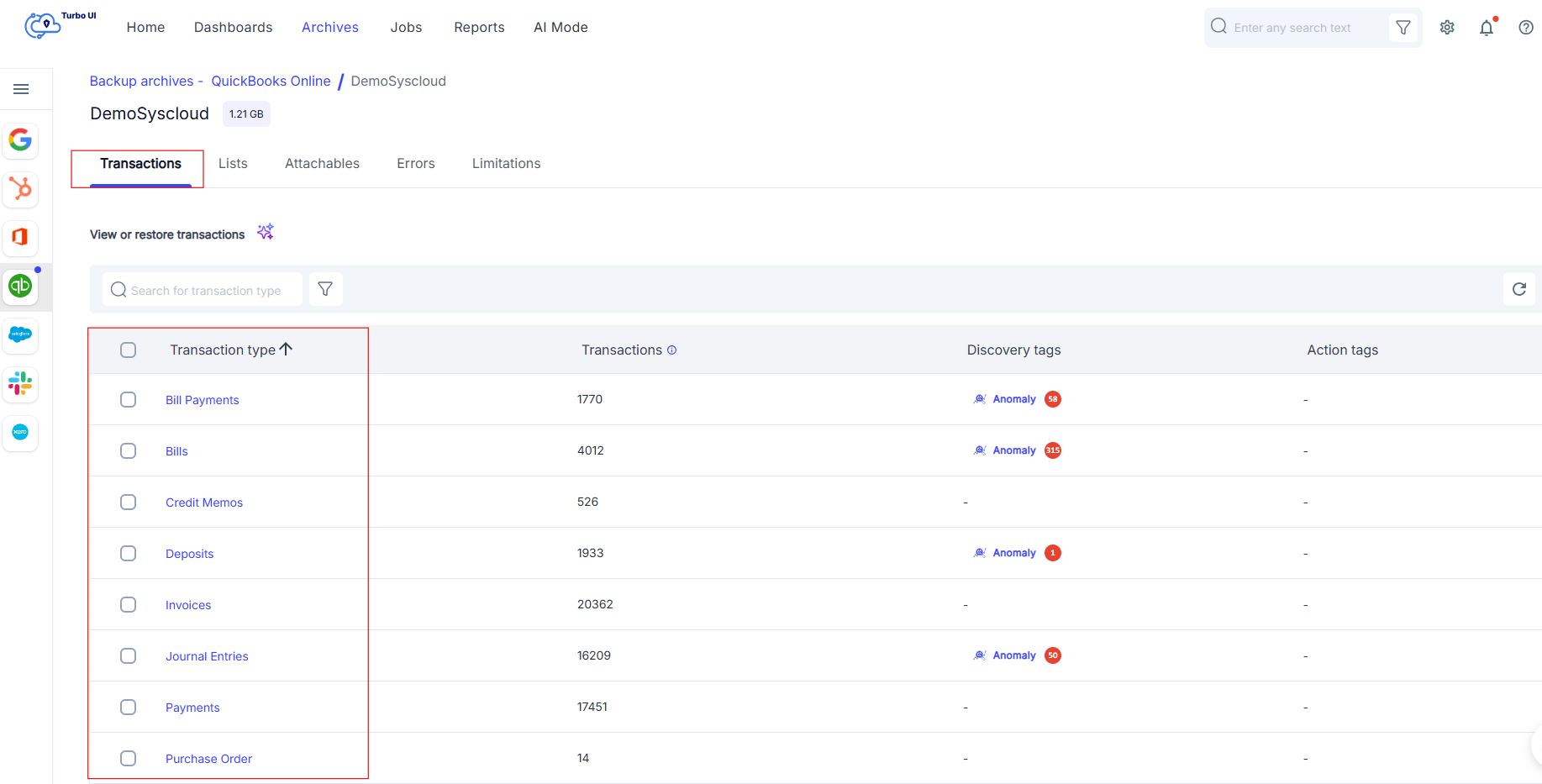
Step 4: Review the backed-up items displayed in the table. You can use the search bar or available filters to narrow the results.
Step 5: Click the item ID to open the item details page and review the backed-up metadata, line-item details, associated records, and attachments, if available.

Step 6: To view data from a specific backup point, use the snapshot selector or version history option, if available.
- Transactions, lists, and attachables are shown in separate tabs for easier navigation.
- Version history is available only when multiple backed-up versions of an item exist.
- From the archive view or item details page, you can perform supported actions such as Export and Restore, based on the selected item and enabled add-ons.