![Untitled design (1)-Aug-01-2022-12-37-27-80-PM.png]](https://help.syscloud.com/hs-fs/hubfs/Untitled%20design%20(1)-Aug-01-2022-12-37-27-80-PM.png?height=40&name=Untitled%20design%20(1)-Aug-01-2022-12-37-27-80-PM.png)
You can view backed up Xero data from the Xero archive in SysCloud. The archive lets you browse backed up records for a selected Xero organization, such as accounting data, contacts, transactions, and attachments, based on the data backed up by SysCloud.
To view backed up Xero data
Step 1: Log in to SysCloud using your admin credentials.
Step 2: Click Archives from the top navigation menu and select Xero from the left-side cloud navigation.
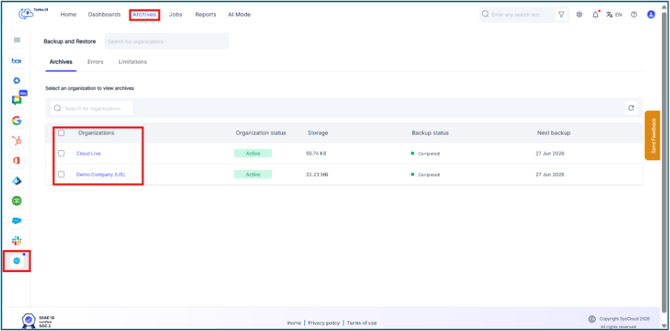 Step 3: On the Backup and Restore page, select the Xero organization whose backed up data you want to view.
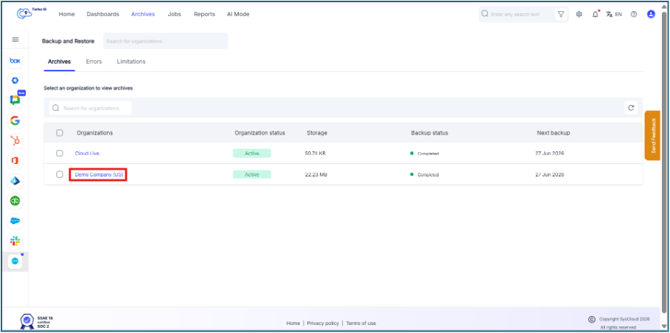
Step 4: Open the required data category from the Xero archive.
Available categories include Transactions, Lists, Files, and Attachments. The selected tab displays the supported Xero data types available in the backup archive.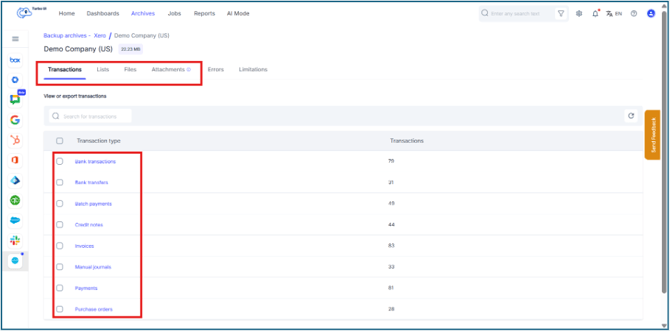
Step 5: You can also verify/change the snapshot from the snapshot filter at the top right of the table and select the required object type to view the backed-up records.
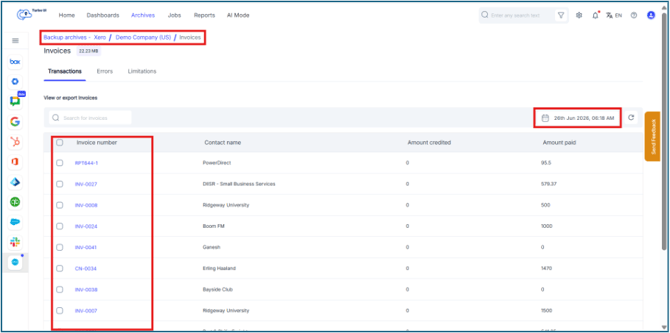
For example, to view backed up invoices, open the relevant Xero data category and select Invoices.
Step 6: Review the backed-up records displayed in the table. You can use the search bar or available filters to narrow the results.
Step 7: Click the required record to open the item details page and review the backed-up metadata, field values, linked records, and attachments, if available. To view data from a specific backup point, use the snapshot selector.
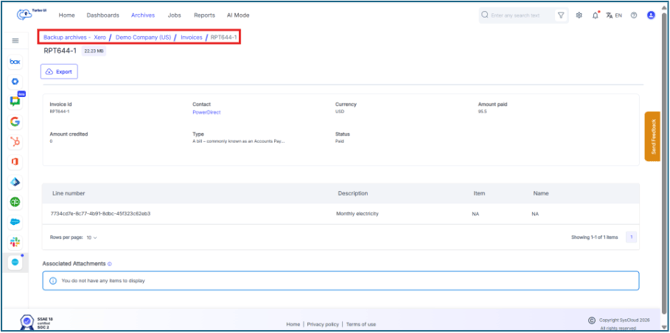
- The Xero data displayed in Archives depends on the data backed up by SysCloud for the selected organization.
- From the archive view or item details page, you can perform supported actions such as Export, based on the selected Xero data type.