![Untitled design (1)-Aug-01-2022-12-37-27-80-PM.png]](https://help.syscloud.com/hs-fs/hubfs/Untitled%20design%20(1)-Aug-01-2022-12-37-27-80-PM.png?height=40&name=Untitled%20design%20(1)-Aug-01-2022-12-37-27-80-PM.png)
This article explains how to view backed-up Box user archives, folders, and files in the SysCloud backup application.
Steps to view backed-up Box data
- Log in to the SysCloud backup application.
- From the top navigation menu, click Archives.
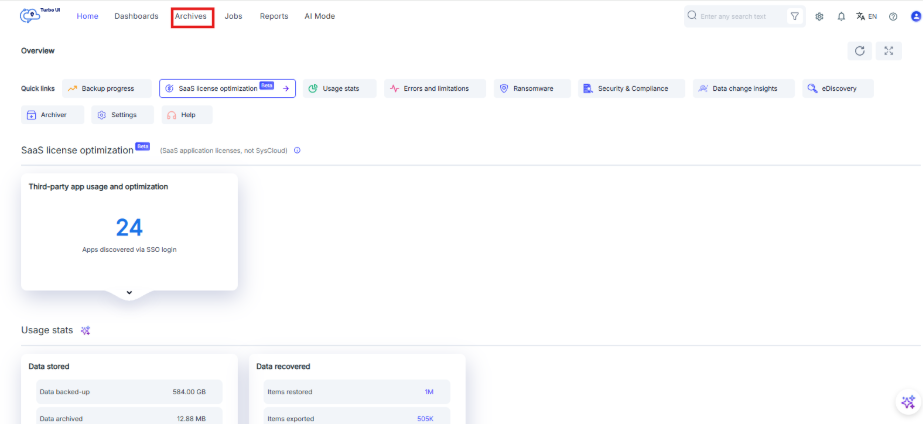
- From the left-side cloud navigation bar, select Box.

- Select the required Box account.

- Click the Box user whose backed-up data you want to view.

- The user’s Box archive opens. You can view the backed-up folders and files from this page. To browse folders, use the left-side folder navigation panel.

- To view files or folders inside a selected folder, check the main archive view.

- To perform a keyword or filtered search of file(s) and folder(s):
- Try searching using keyword search in the search bar, and press Enter key
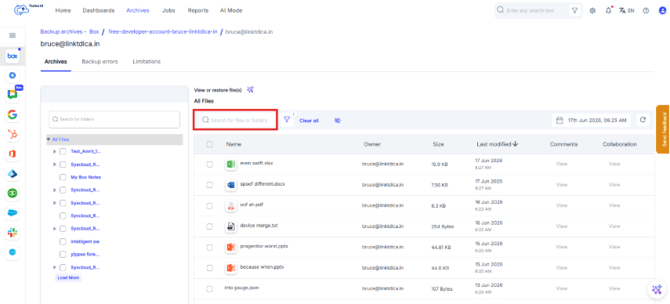
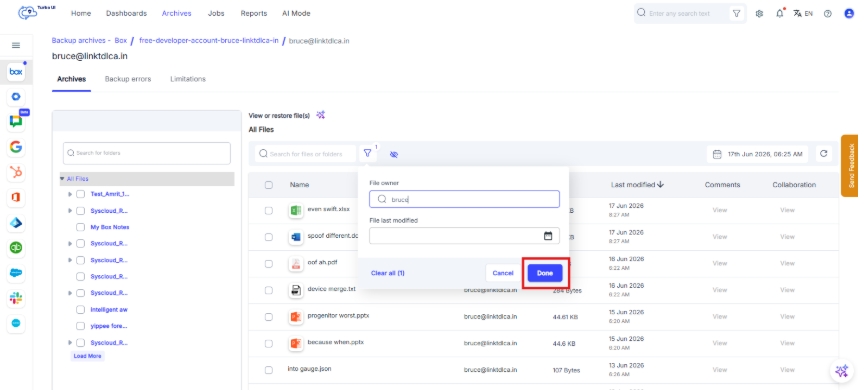
- For Filtered search, Click on filter icon.

- In the filter menu, use the following filters to drill down the search:
- File owner: Performs search and lists file(s) owned by a specific owner
- File last modified: Performs search and lists file(s) last modified between a certain range of dates.
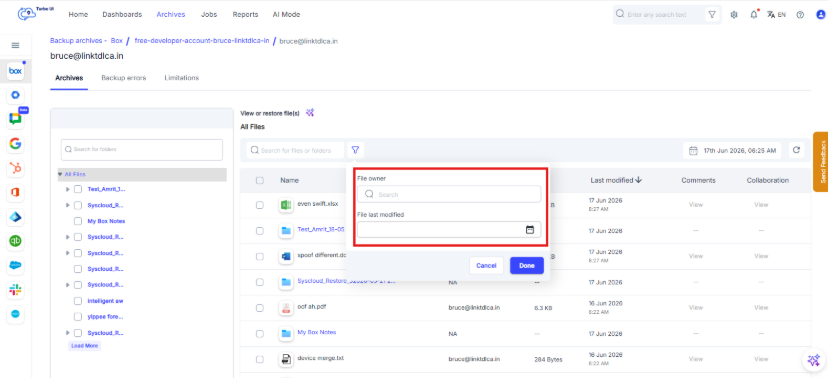
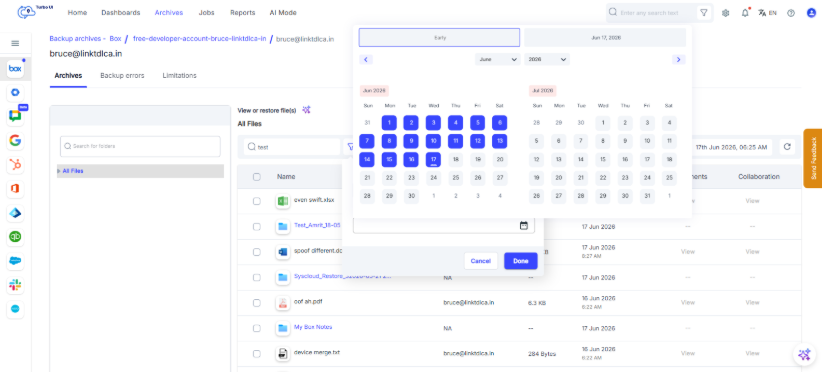
- Click on Done.
- Try searching using keyword search in the search bar, and press Enter key
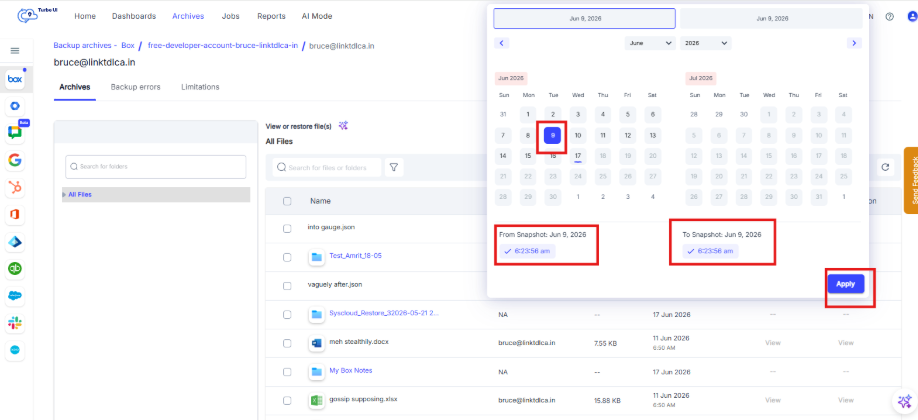
- Use the snapshot date and time selector to view the user’s Box data from a specific backup point.

The snapshot date represents the date and time when SysCloud captured the backed-up data. When you select a snapshot, SysCloud displays the files and folders as they existed at that backup point.
Why snapshot date is important
The snapshot date helps you view previous versions of backed-up Box data.
Use the snapshot date selector to:
- View data backed up on a specific date and time.
- Click on the snapshot date and then you can select the range of dates to view files and folders across the range of snapshots, perform restore, export actions.
- Locate a file or folder as it existed at a particular point in time.
- Perform point-in-time export or restore by selecting the required snapshot before starting the action.
For example, if a file was modified or deleted in Box after a backup was captured, you can select an earlier snapshot to view, export, or restore the file version available at that time.
The files and folders displayed in the Box archive depend on the selected snapshot date and the data available in the backup archive.