![Untitled design (1)-Aug-01-2022-12-37-27-80-PM.png]](https://help.syscloud.com/hs-fs/hubfs/Untitled%20design%20(1)-Aug-01-2022-12-37-27-80-PM.png?height=40&name=Untitled%20design%20(1)-Aug-01-2022-12-37-27-80-PM.png)
- Log in to the SysCloud Application with your account credentials.
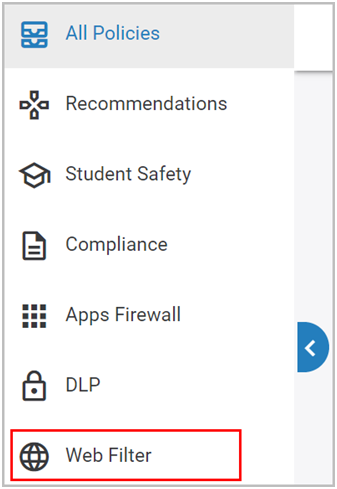
- Click “Web Filter” on the left-hand pane.
- Click on the policy card.
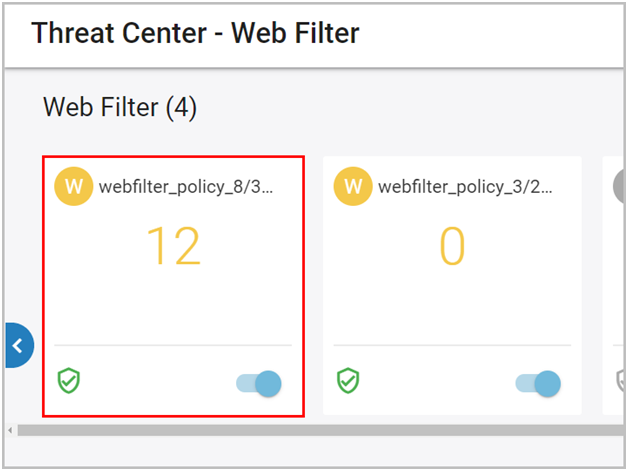
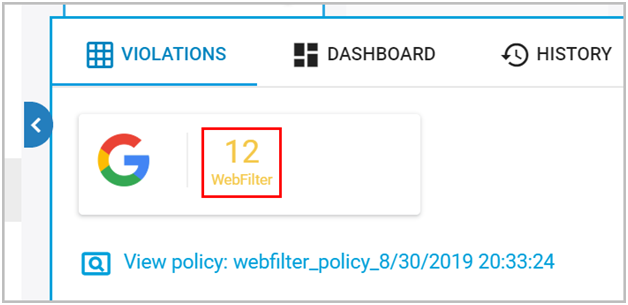
- Click on the number to view the violation details.
For the Flagged Web Activities, the following information will be displayed:
- Violation: The URL of the flagged violation
- Site: The domain name of the website flagged for violation
Note: If the domain name belongs to either a restricted category or matches a restricted keyword, the website will be flagged
- Category: The category or keyword that matched the violation
- Owner: The name of the user who had violated the Web Filter policy
- Date: The date and time of the flagged violation
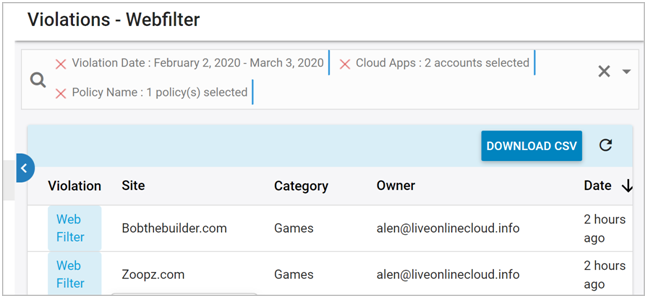
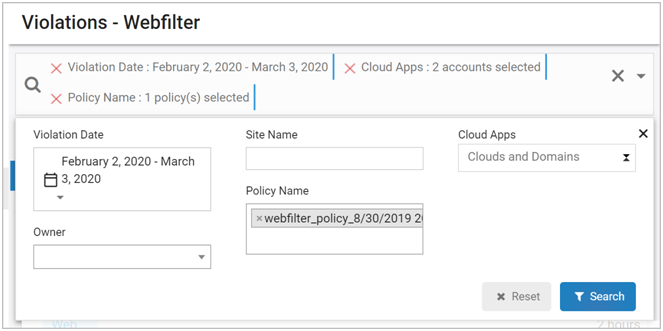
You can also filter and view the flagged violations:
- Violation Date: Filter the flagged activities that occurred on a particular date
Note: You can choose any of the following options:
- The current day
- The current month
- The previous day
- The previous week
- Custom range
- Site Name: Filter the flagged activities based on the name of a site
- Cloud Apps: Filter the flagged activities for a particular domain (if you have multiple domains)
- Owner: Filter the flagged activities of a particular user
- Policy Name: Filter the flagged activities of a specific Web Filter policy