![Untitled design (1)-Aug-01-2022-12-37-27-80-PM.png]](https://help.syscloud.com/hs-fs/hubfs/Untitled%20design%20(1)-Aug-01-2022-12-37-27-80-PM.png?height=40&name=Untitled%20design%20(1)-Aug-01-2022-12-37-27-80-PM.png)
Yes, SysCloud gives administrators complete control to include or exclude specific file types when configuring backups. This flexibility helps reduce unnecessary storage usage by excluding non-critical or large media files.
Below is a detailed overview of what can be included or excluded during backup configuration:
Google Workspace
Gmail
- You can exclude certain categories of emails from being backed up.
- Supported exclusions:
- Junk emails
- Deleted items
Google Drive
- Choose to include either all Drive documents or only files from My Drive.
- You can include:
- Files from the Recycle Bin
- Specific folder types such as Videos, Audio, and Images
- You can exclude specific file types (especially large media files) to optimize storage:
- mp4, avi, wmv, mov, flv, vmdk, iso
Shared Drives
- You can include:
- Items from the Recycle Bin
- Specific folder types such as Videos, Audio, and Images
- You can exclude large media files such as:
- mp4, avi, wmv, mov, flv, vmdk, iso
Microsoft 365
Outlook
- You can exclude email data types that are not essential for backup.
- Supported exclusions:
- Junk emails
- Deleted items
OneDrive
- You can include specific folder types such as Videos, Audio, and Images.
- You can exclude large file formats that may consume excessive storage:
- mp4, avi, wmv, mov, flv, vmdk, iso
SharePoint
- You can include specific folder types such as Videos, Audio, and Images.
- Use the exclusion settings to remove unnecessary file types from backup, such as:
- mp4, avi, wmv, mov, flv, vmdk, iso
Teams
- You can include specific folder types such as Videos, Audio, and Images.
- Option to exclude large media file types like:
- mp4, avi, wmv, mov, flv, vmdk, iso
By configuring these options in SysCloud, IT admins can ensure backups are aligned with business needs—protecting critical data
How to Configure Include/Exclude Settings in the SysCloud Application
- Enter your admin credentials and Login with SysCloud application.
- Start configuring the cloud account you want to back up.
- In the configuration flow, go to Step 4: Select Apps to Configure.
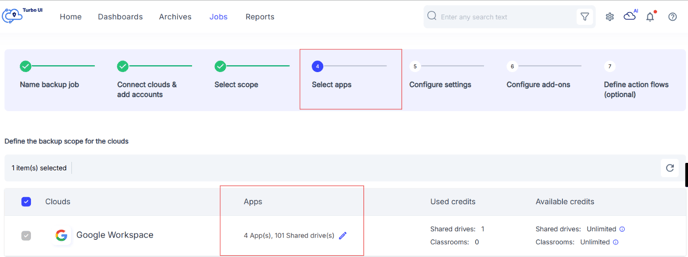
- Find the application you want to configure and click the pencil icon next to it.
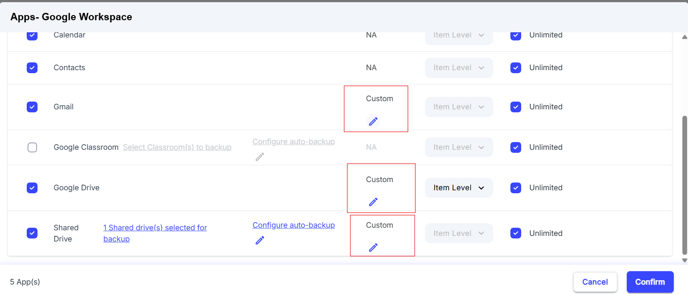
-
You will see options to include or exclude specific data types such as folders, categories, or file formats.
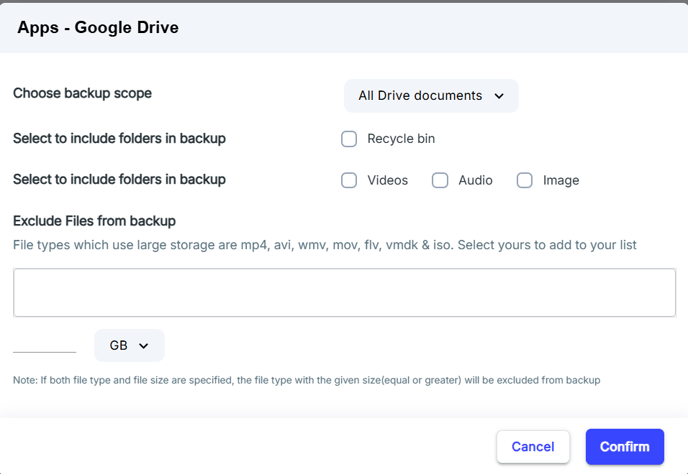
-
Select the data types you want to include or exclude.
-
Click Save to apply the settings.