![Untitled design (1)-Aug-01-2022-12-37-27-80-PM.png]](https://help.syscloud.com/hs-fs/hubfs/Untitled%20design%20(1)-Aug-01-2022-12-37-27-80-PM.png?height=40&name=Untitled%20design%20(1)-Aug-01-2022-12-37-27-80-PM.png)
- Log in to the SysCloud Application with your account credentials.
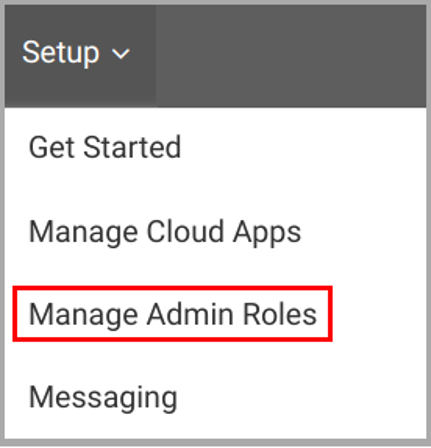
- Click “Setup”→“Manage Admin Roles.”
- Click “+ ADD SECURITY ROLE” on the upper right side of the page.
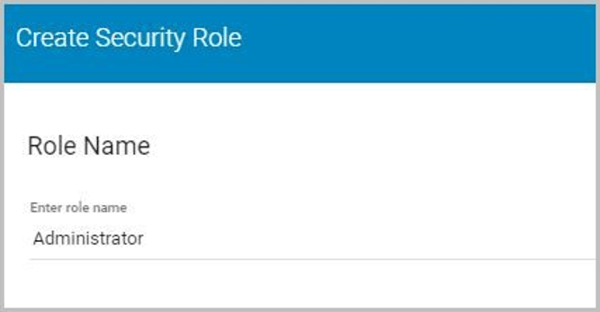
- Type in the name for the admin role and click “Next.”
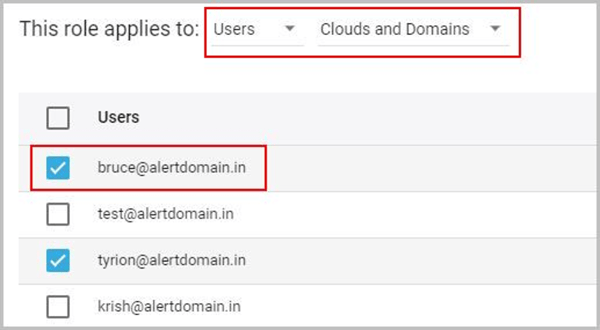
- Choose whether you want to assign the role to users/groups and the clouds and domains.
-
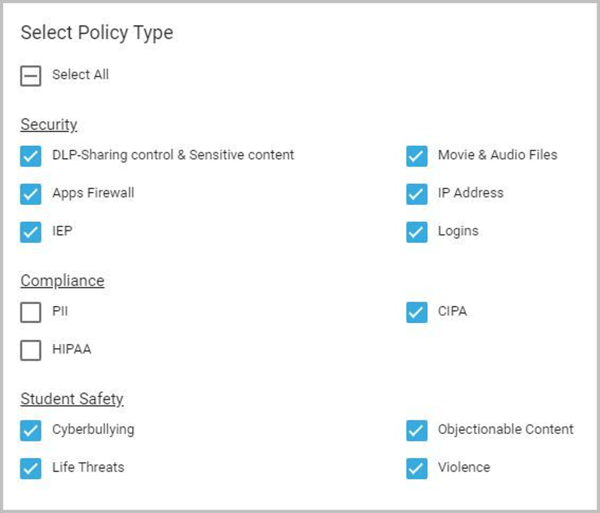
- Select the type of policy and click “Next.”
- Add the scope for the policy: users, groups, org units, or the entire domain, and click “Next”.
Note: If you have multiple domains, you can choose the domain separately.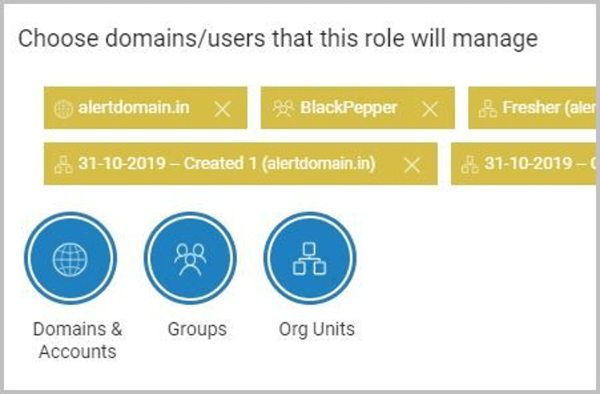
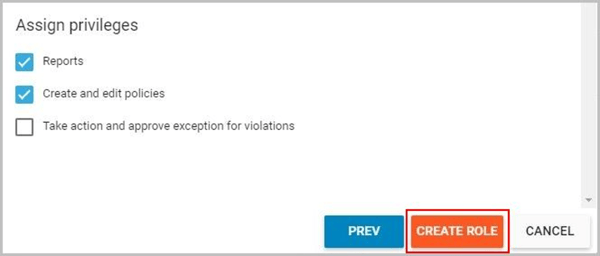
- Choose the role privileges and click “CREATE ROLE.”