![Untitled design (1)-Aug-01-2022-12-37-27-80-PM.png]](https://help.syscloud.com/hs-fs/hubfs/Untitled%20design%20(1)-Aug-01-2022-12-37-27-80-PM.png?height=40&name=Untitled%20design%20(1)-Aug-01-2022-12-37-27-80-PM.png)
- Log in to the SysCloud Application with your account credentials.
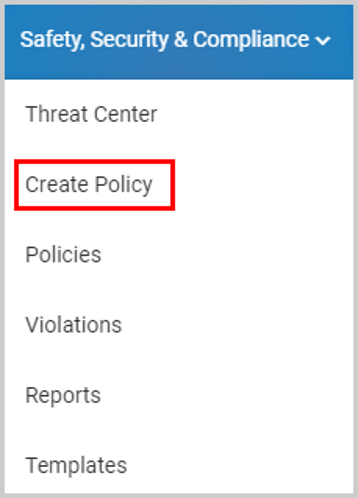
- Click “Safety, Security & Compliance”→“Create Policy.”
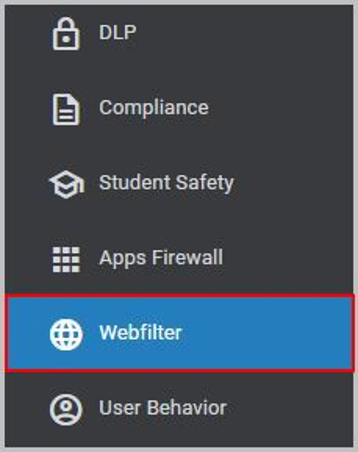
- Click “Webfilter.”
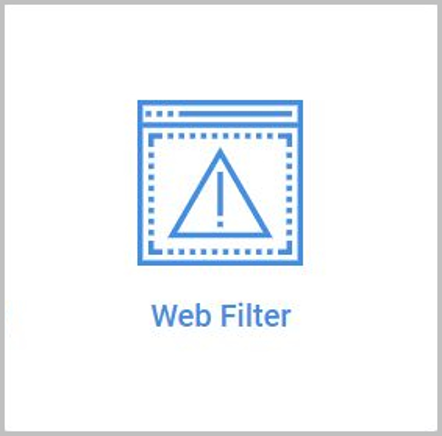
- Select the “Web Filter” policy.
- Give a name for the policy.

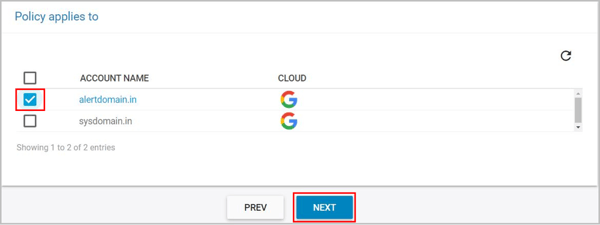
- Select the scope for the policy: Org units or the entire domain, and click “NEXT.”
- Select the categories of URLs to be restricted for the users and click “NEXT.”
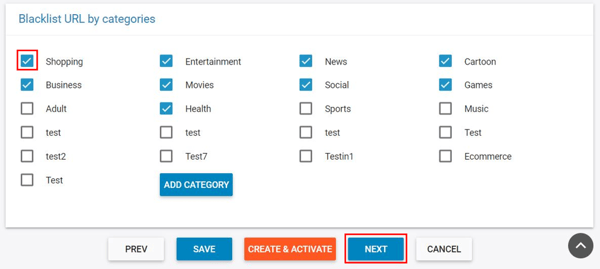
Note: You can also customize the category by hovering over the category name and clicking “Customize.”
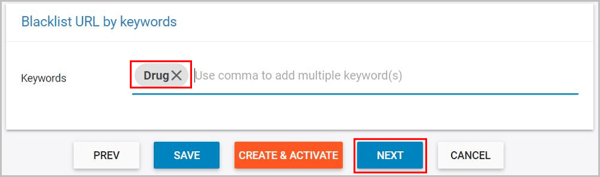
- Add keywords to be included in the web filter – The web filter will check the URLs for the keywords and notify in case of violations.
- Select the course of action for web filter violations:
* Only check if the restricted sites are visited,
* Check if the restricted sites are visited by the user and show warning, or
* Check if the restricted sites are visited by the user and block the website.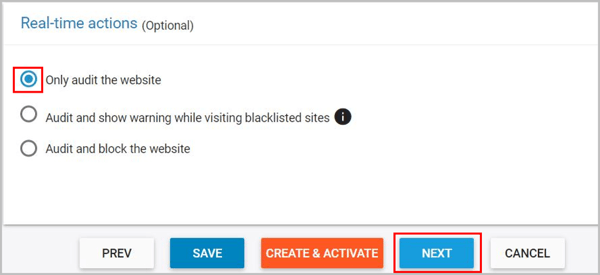
- Choose the team members to be notified in case of policy violations.
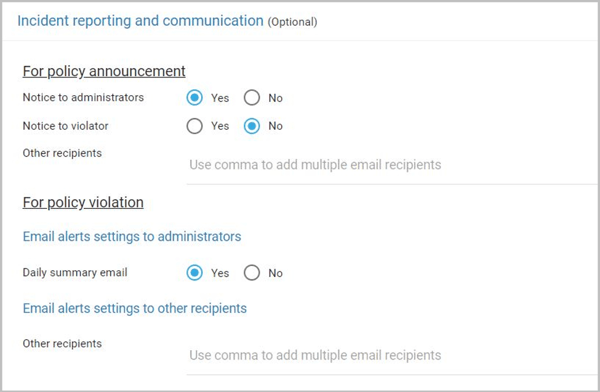
Note: You can also select whether the policy violations need to be included in the daily summary email. - Click “CREATE & ACTIVATE.”
