![Untitled design (1)-Aug-01-2022-12-37-27-80-PM.png]](https://help.syscloud.com/hs-fs/hubfs/Untitled%20design%20(1)-Aug-01-2022-12-37-27-80-PM.png?height=40&name=Untitled%20design%20(1)-Aug-01-2022-12-37-27-80-PM.png)
SysCloud allows administrators to quarantine files that trigger compliance alerts, such as those containing confidential or sensitive data. Quarantining a file transfers it to an admin account for secure isolation and review.
Follow the steps below to quarantine files:
Navigate to Security & Compliance
- Click on the Dashboards tab in the top menu.
- In the Quick links section, select Security & Compliance.

- Choose the policy (e.g., Confidential Data) under the High, Medium, or Low alert tabs.
- Click the alert count to view the list of users with flagged items.
Select the file to quarantine
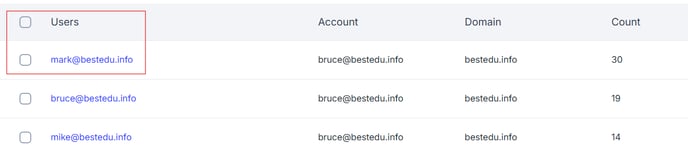
- Click on a user to view their flagged files.
- Select the checkbox next to the user you want to quarantine a file.
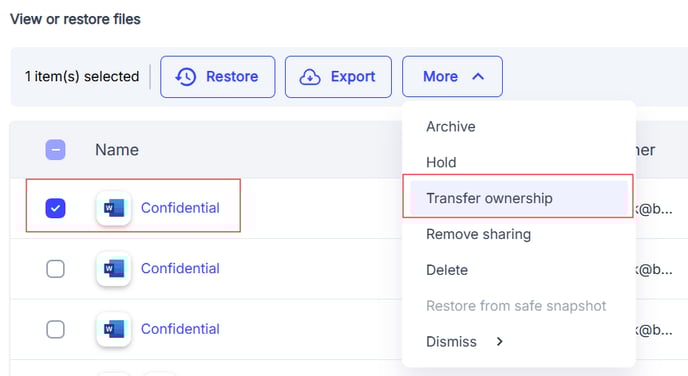
- Click on the More dropdown and choose Transfer ownership.
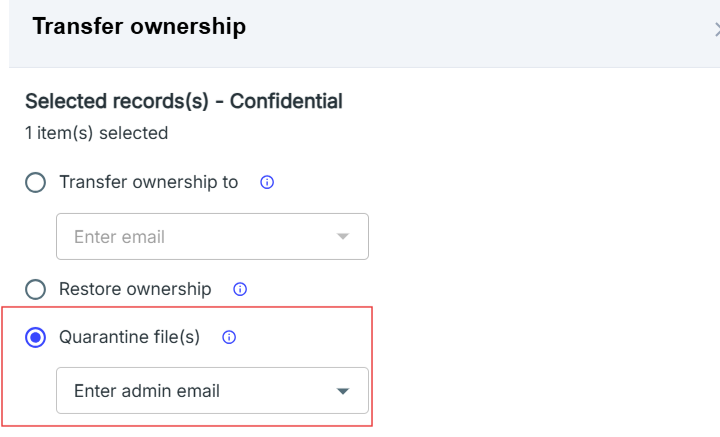
- In the transfer options, choose Quarantine file(s).
- Enter the admin email address where the file should be moved.
- Click Confirm to complete the quarantine action.
- Sharing permissions will remain unchanged except in quarantine cases.
- Bulk transfers are only possible within the same domain.
- Use this action to isolate sensitive files and prevent unauthorized access.