![Untitled design (1)-Aug-01-2022-12-37-27-80-PM.png]](https://help.syscloud.com/hs-fs/hubfs/Untitled%20design%20(1)-Aug-01-2022-12-37-27-80-PM.png?height=40&name=Untitled%20design%20(1)-Aug-01-2022-12-37-27-80-PM.png)
Follow these steps to enable and configure the Ransomware protection add-on:
- Step 1: Create or edit a backup job
- Create a new backup job or edit an existing backup job for your desired cloud application.
- Step 2: Navigate to add-ons
- In the Configure add-ons section of the backup job setup, locate the Ransomware add-on.
- Step 3: Enable ransomware protection
- Select the Ransomware checkbox.
- The list of available clouds for that backup job will be auto populated.
- Step 4: Configure ransomware settings
- Click on Configure next to the Ransomware add-on.
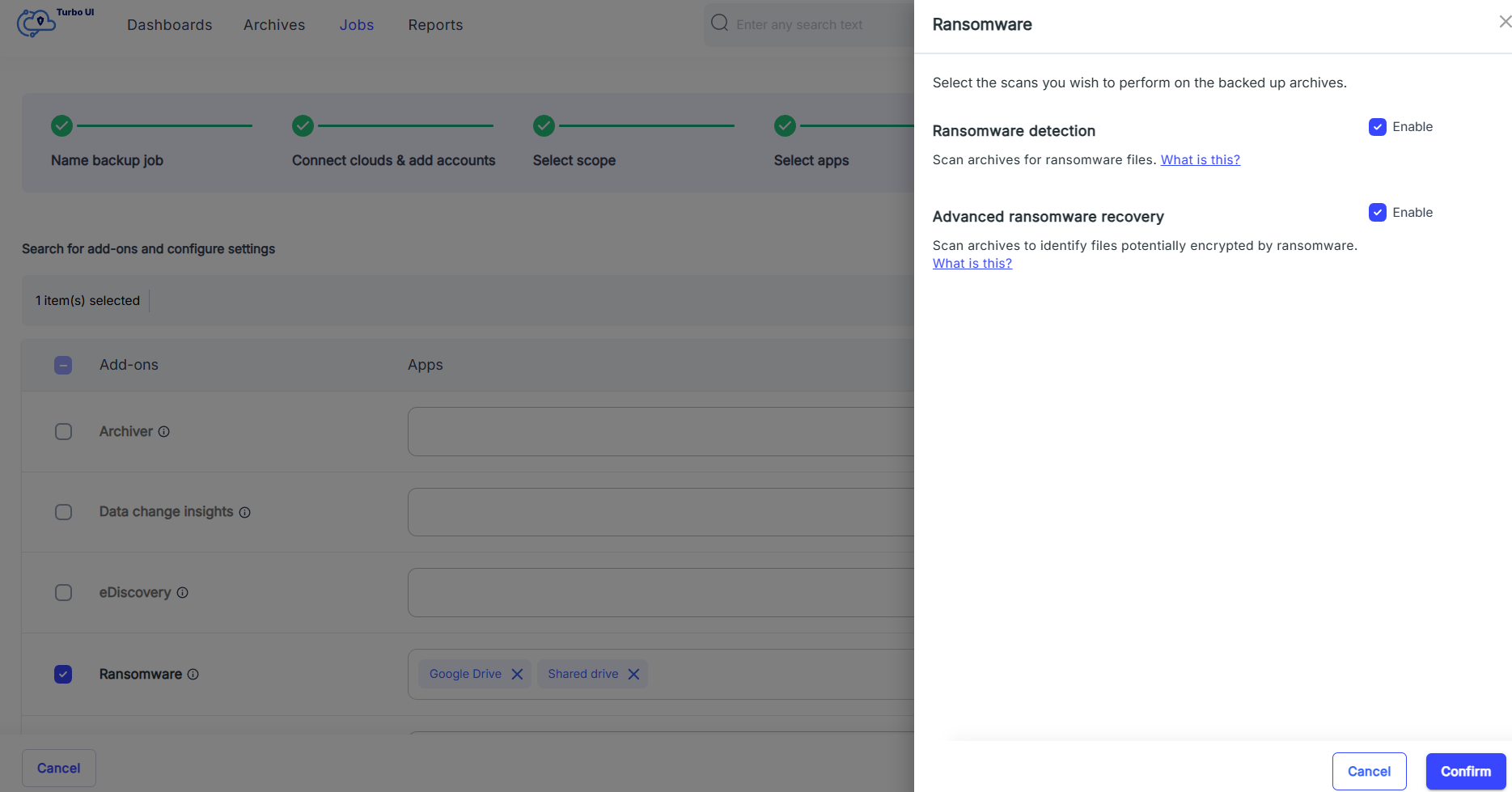
- A side tray will open with the following options:
- Ransomware detection: Enable this to scan backup archives for ransomware files.
- Advanced ransomware recovery: Enable this to identify and recover clean versions of files.
- Step 5: Start backup
- Once the required settings are enabled, click Start backup to begin the process.
Your backup will now be protected with ransomware detection and recovery capabilities.