- Go to the SysCloud login page, login with your admin credentials.
- Once logged in, click on the Archives tab from the left-hand menu.
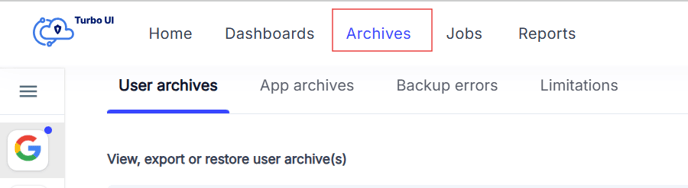
- In the Archives section, locate and click on either Google Drive or OneDrive from the list of backed-up services.
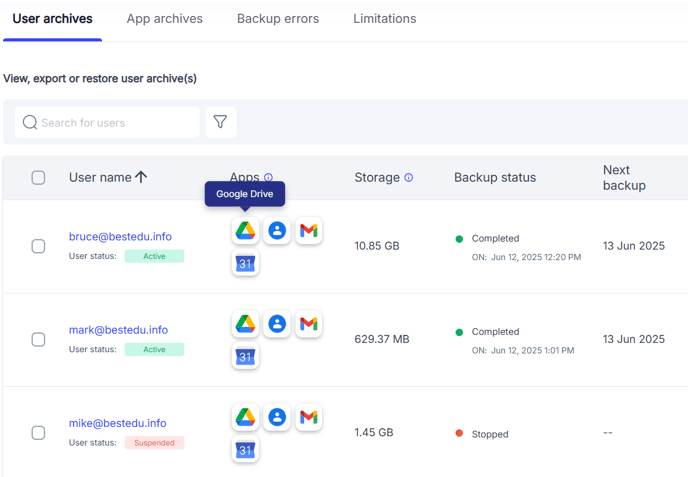
- Click on the Snapshot Date filter option displayed on the screen.
- In the filter settings, choose the starting date and time in the From Snapshot field. Choose the ending date and time in the To Snapshot field.
- If you want to view a specific snapshot, select the same date and time for both fields. If you want to view all versions within a range, select different dates for the two fields.
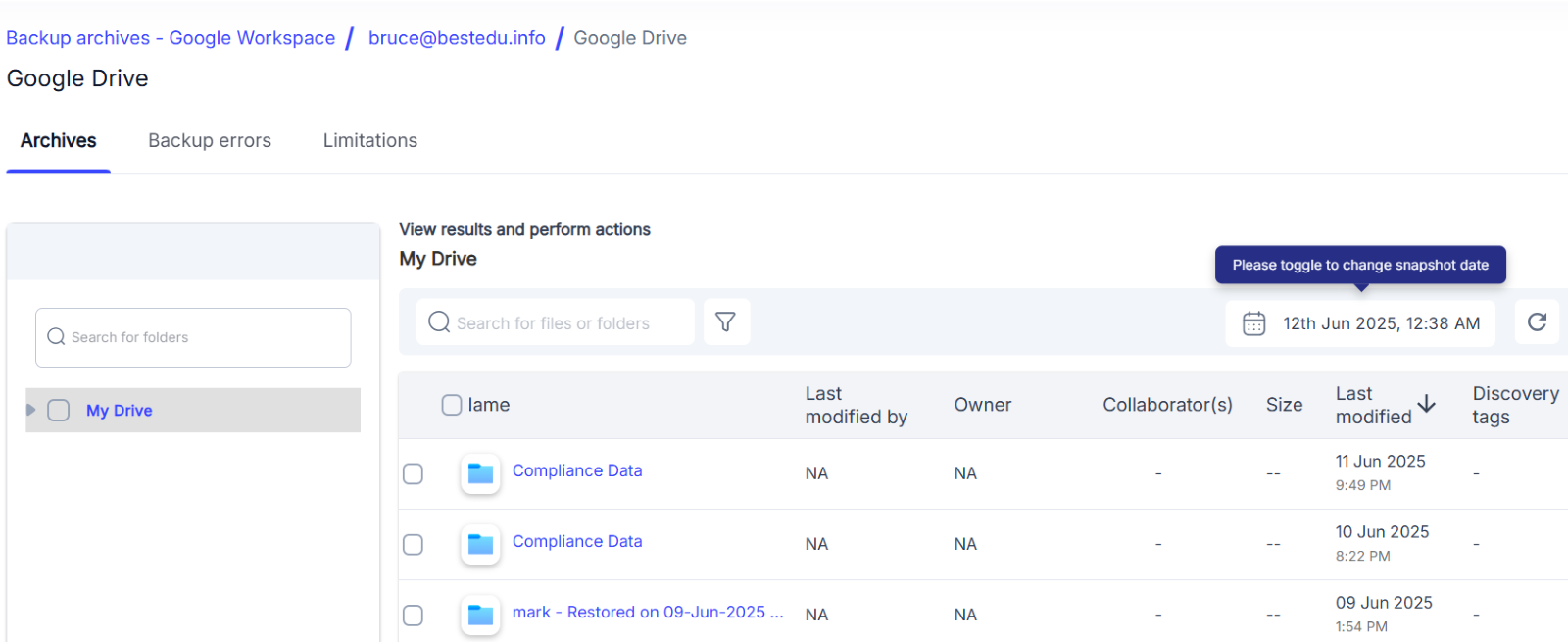
- Click Apply or Search to view the filtered backup data.
- The archive will now show only the files that match the selected snapshot date or date range.
English
![Untitled design (1)-Aug-01-2022-12-37-27-80-PM.png]](https://help.syscloud.com/hs-fs/hubfs/Untitled%20design%20(1)-Aug-01-2022-12-37-27-80-PM.png?height=40&name=Untitled%20design%20(1)-Aug-01-2022-12-37-27-80-PM.png)