![Untitled design (1)-Aug-01-2022-12-37-27-80-PM.png]](https://help.syscloud.com/hs-fs/hubfs/Untitled%20design%20(1)-Aug-01-2022-12-37-27-80-PM.png?height=40&name=Untitled%20design%20(1)-Aug-01-2022-12-37-27-80-PM.png)
To identify items archived, use any of the following approaches -
- Dashboard:
- Open the Archiver quick link from the main dashboard.
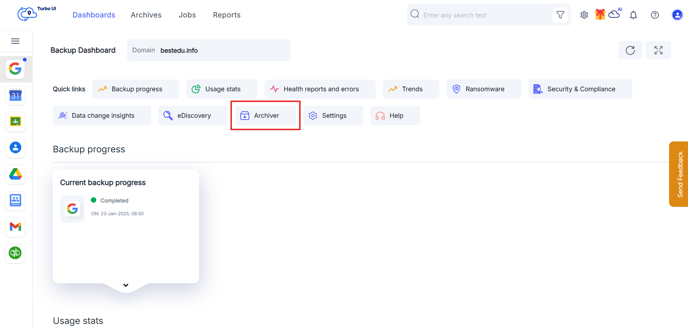
- In the Items archived widget, select the aggregate count to access a consolidated view.
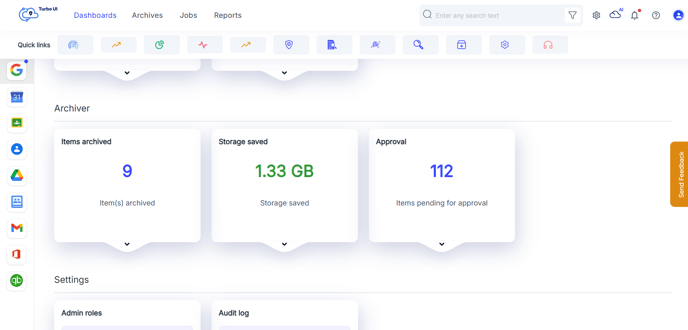
- This view displays an overall summary of archived items across different applications and users.
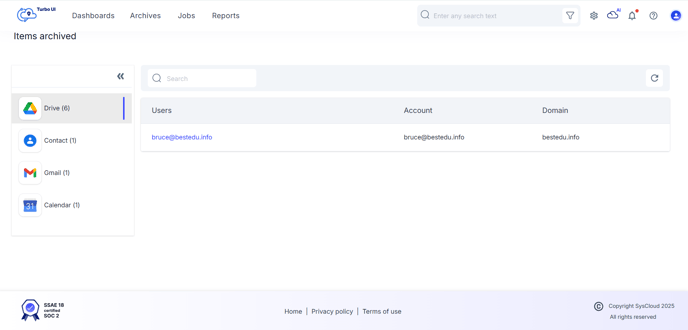
- Select User name to drill down to a specific user or application.
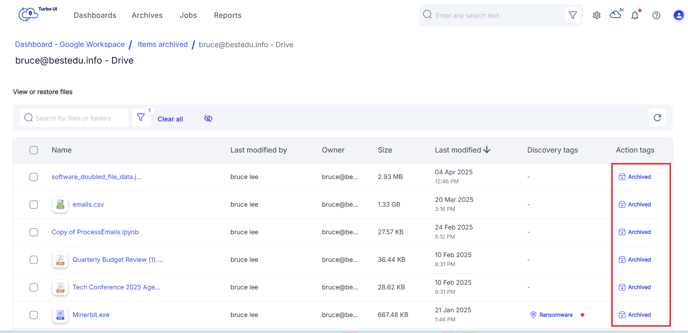
- Archived items are marked with an Archived tag in the resulting list.
- Open the Archiver quick link from the main dashboard.
- Archives
- In User-Level Archives, use the Archived Content filter to locate users and applications with archived data.
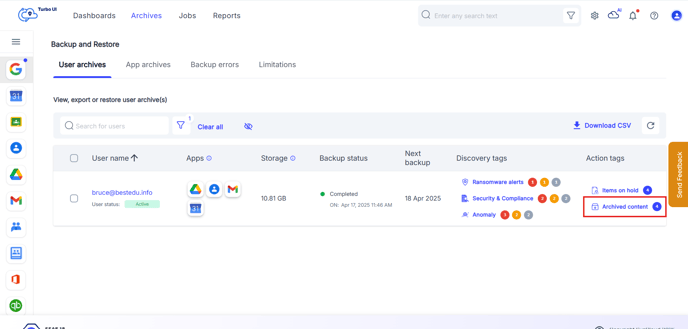
- In App-Level Archives, similarly select Archived Content to see the archived items list.
- Each archived item is labeled with an Archived tag for easy identification.
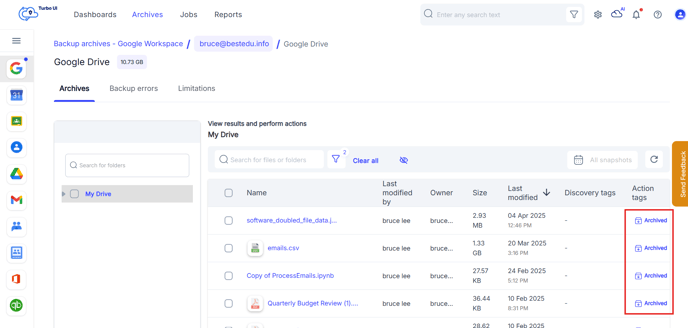
- In User-Level Archives, use the Archived Content filter to locate users and applications with archived data.
Put archived items on hold
- Select the archived items that you want to put on hold.
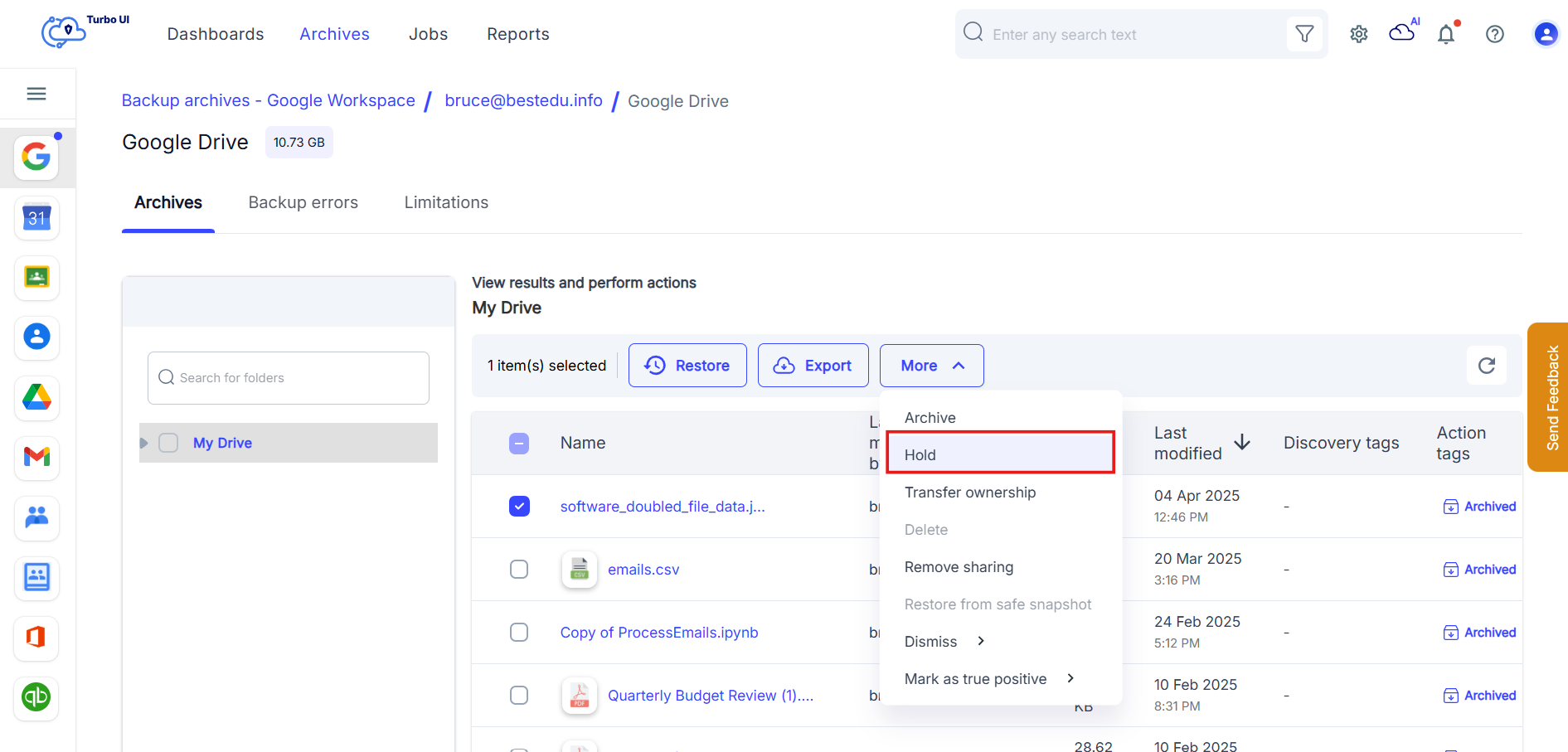
- Click on Hold.
- Provide a new hold name or select an existing hold reference if available.
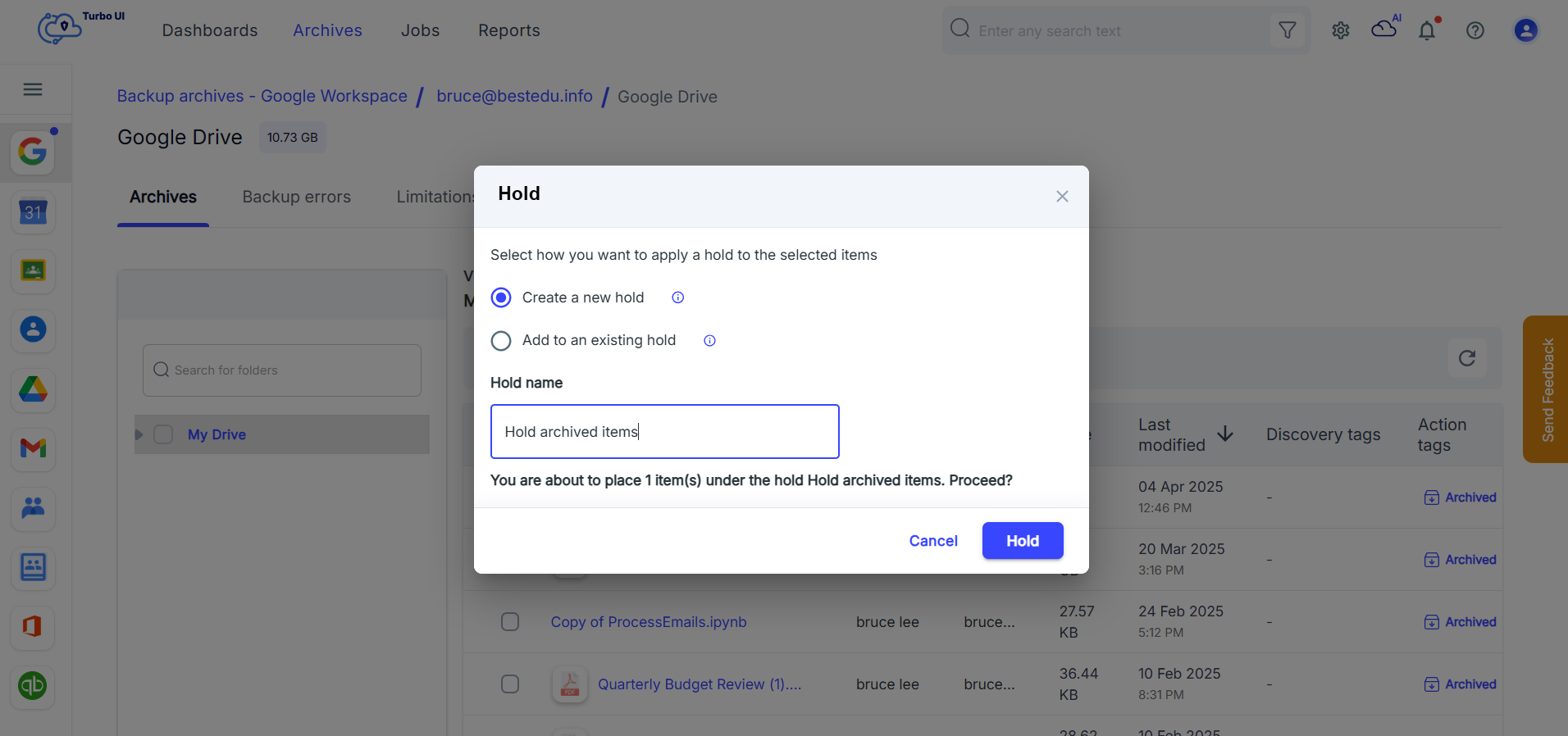
- Confirm the hold action. The status and details of the hold can be reviewed in the Hold Report.