![Untitled design (1)-Aug-01-2022-12-37-27-80-PM.png]](https://help.syscloud.com/hs-fs/hubfs/Untitled%20design%20(1)-Aug-01-2022-12-37-27-80-PM.png?height=40&name=Untitled%20design%20(1)-Aug-01-2022-12-37-27-80-PM.png)
- Log in to the SysCloud Security and Backup Application.
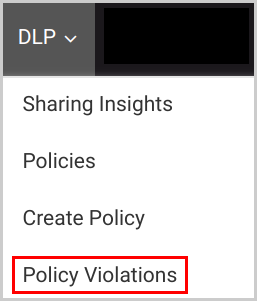
- Based on the type of policy that you violated, click on any of the following options:
- “DLP”→“Policy Violations”
- “Apps Firewall”→“Policy Violations”
- “User Behavior”→“Policy Violations”
- “Compliance”→“Policy Violations.”
- “Web Filter”→“Flagged Activities.”
- Select the service: Drive, Mail, Apps firewall, Sites, Web Filter, or User Behavior.

- Click on the hazard icon under the “Status” column.

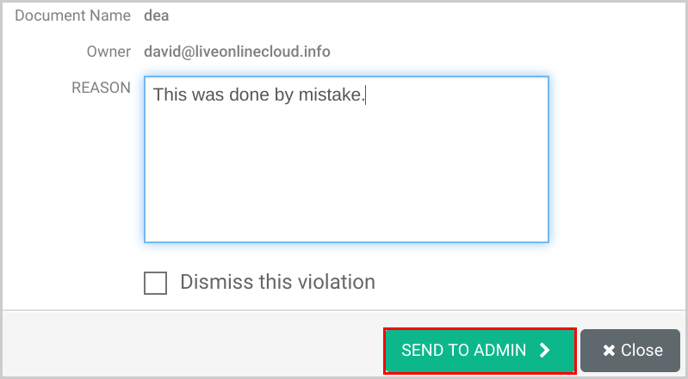
- Type in your reason and click the “SEND TO ADMIN→” option.
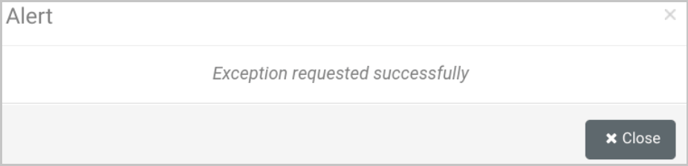
- You will receive a notification alert for the requested exception.
If you are an Office 365 user, click here.