![Untitled design (1)-Aug-01-2022-12-37-27-80-PM.png]](https://help.syscloud.com/hs-fs/hubfs/Untitled%20design%20(1)-Aug-01-2022-12-37-27-80-PM.png?height=40&name=Untitled%20design%20(1)-Aug-01-2022-12-37-27-80-PM.png)
Follow the steps below to restore QuickBooks Online transactions from the SysCloud backup application:
Step 1: Log in to your SysCloud account.
Step 2: Click Archives, and then select QuickBooks Online from the left sidebar.
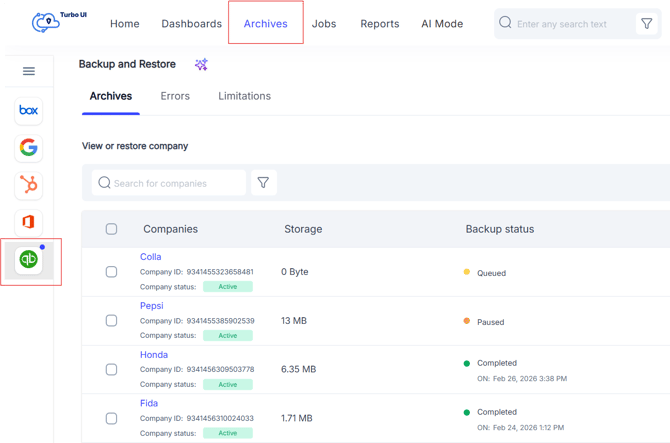
Step 3: Select the company from which the transaction restore will be performed.
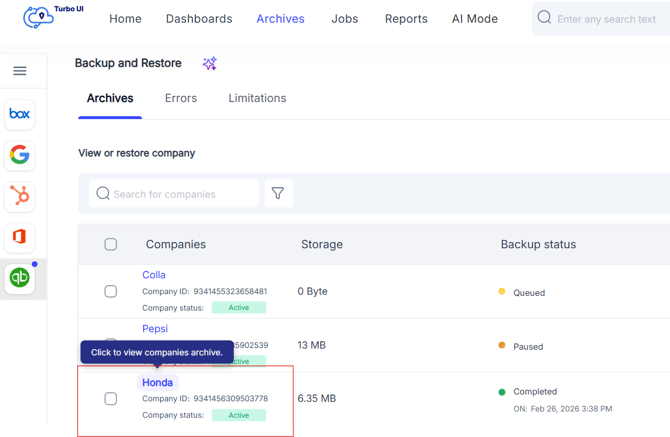
Step 4: Click “Transactions” from the navigation menu on top.
Step 5: Select the transaction that you want to restore. You can restore a single transaction or select multiple transactions at once. Then, click Restore from the action bar on top.
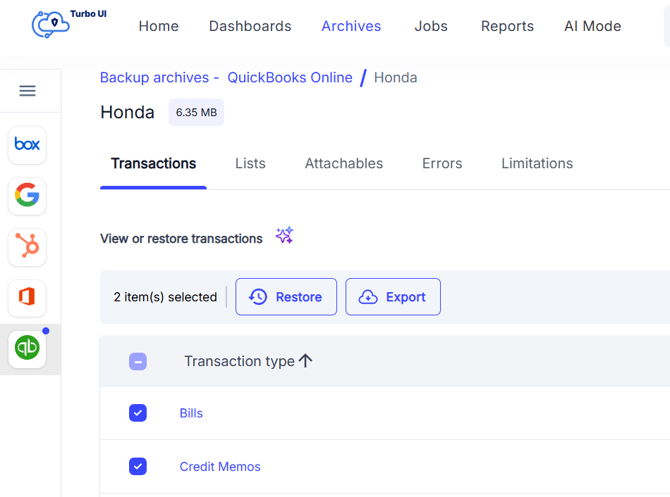
Step 6: In the restore dialog box, choose the required restore option:
-
Overwrite transaction – If the selected transaction already exists in QuickBooks Online, SysCloud replaces it with the version available in the backup snapshot. If the transaction does not exist, SysCloud creates a new transaction with ‘SysCloud’.
Skip transaction if present in QuickBooks Online – If the selected transaction already exists in QuickBooks Online, SysCloud does not replace it. If the transaction does not exist, SysCloud creates a new transaction with ‘SysCloud’.
Create new transactions – SysCloud always creates a new transaction with ‘SysCloud’.
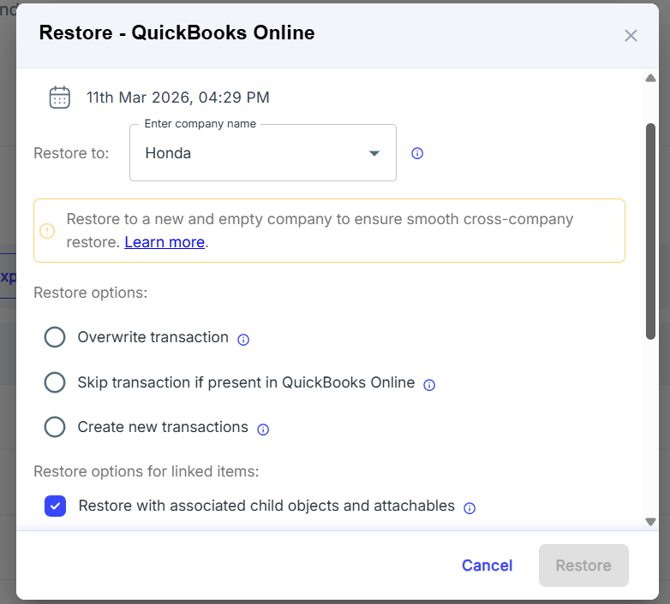
Step 7: Under Restore options for linked items, select Restore with associated child objects and attachments if you want to restore the related child objects and attachments along with the selected transaction.
Step 8: Add comments in the Add comment section if required. The comment will be added to the restore report.
Note:
-
If the document number has reached the QuickBooks Online limit, SysCloud cannot add a suffix and the transaction may be skipped.
-
Only the selected transactions are created, linked customers, vendors, or accounts must already exist in QuickBooks Online.
-
Creating new transactions might impact the balances of associated accounts and may result in unintended spikes.