![Untitled design (1)-Aug-01-2022-12-37-27-80-PM.png]](https://help.syscloud.com/hs-fs/hubfs/Untitled%20design%20(1)-Aug-01-2022-12-37-27-80-PM.png?height=40&name=Untitled%20design%20(1)-Aug-01-2022-12-37-27-80-PM.png)
Turbo UI
Step 1: Log in to SysCloud using your admin credentials.
Step 2: Click on “Archives” and select Microsoft 365 from the Backup and Restore dropdown. Select an account and domain from the list to view your archives.

Step 3: Navigate to the user archives tab and click on a user name to drill down into their archive.
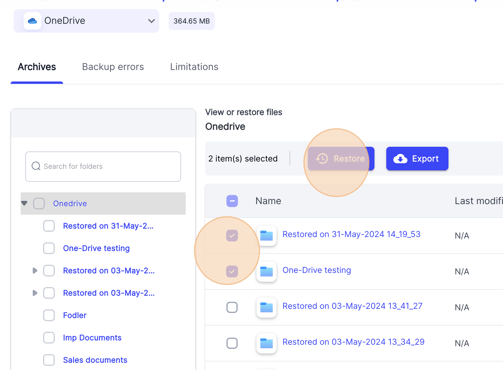
Step 4: Select the app and select the checkboxes next to the folders to restore multiple folders together and click "Restore".
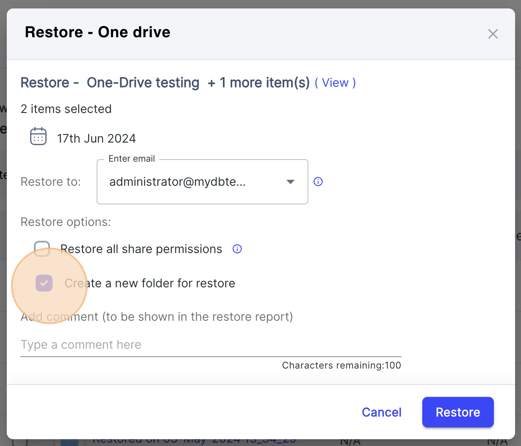
Step 5: In the restore pop-up screen select the checkboxes, "Restore all sharing permission" and "Create a new folder for restore" options to restore folders with sharing permissions and folder structure intact.
Note:
-
- Unless your admin has enabled self-service in the backup settings, you will not have permission to restore folders.
- You can restore only the files owned by you. For the files owned by other users, ask them to reshare the files.