![Untitled design (1)-Aug-01-2022-12-37-27-80-PM.png]](https://help.syscloud.com/hs-fs/hubfs/Untitled%20design%20(1)-Aug-01-2022-12-37-27-80-PM.png?height=40&name=Untitled%20design%20(1)-Aug-01-2022-12-37-27-80-PM.png)
You can restore a specific version of a file from the snapshot selector.
Follow these steps to restore a specific version of a Drive document:
Step 1: Log in to SysCloud using your admin credentials.
Step 2: Click “Archives” and select Google Workspace.
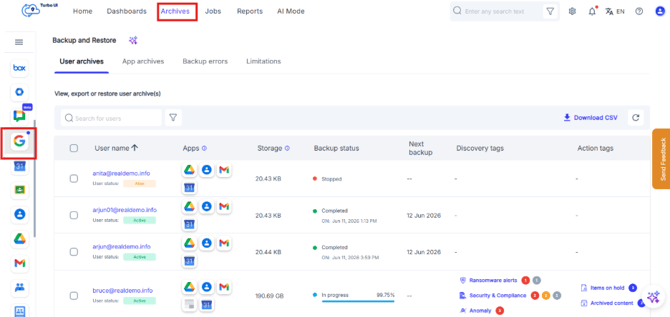
Step 3: Select an account from the list to view your archives.
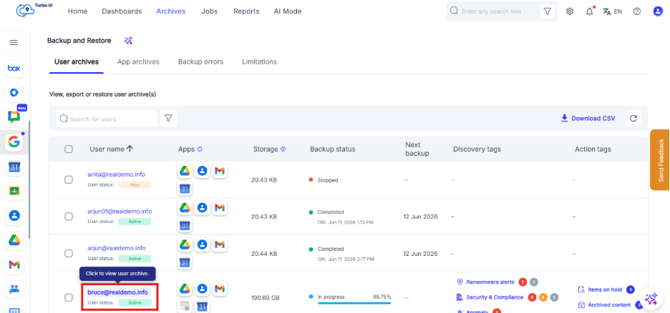
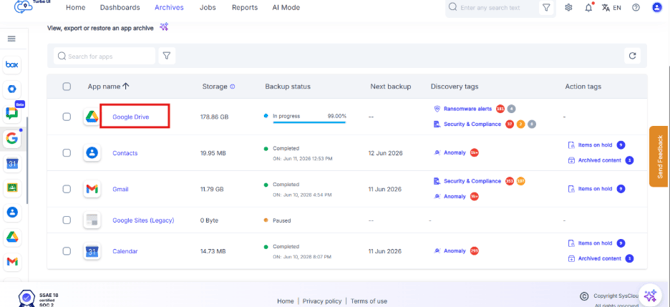
Step 4: Click the App you want to restore.
Step 5: Click on the calendar icon on the top right corner of the archive table and select the date or date range of the snapshot you need from the calendar. If there are multiple versions of the same file on a specific date, you will be able to see various times listed under a specific snapshot. Select the version you require and click "Apply."
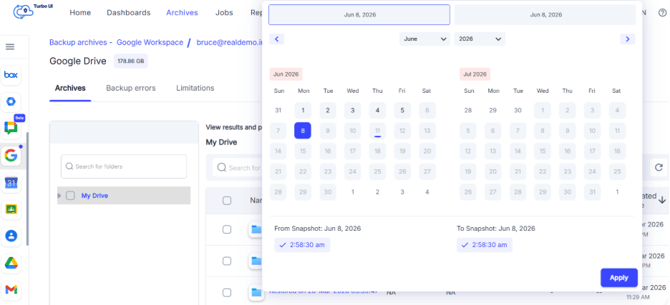
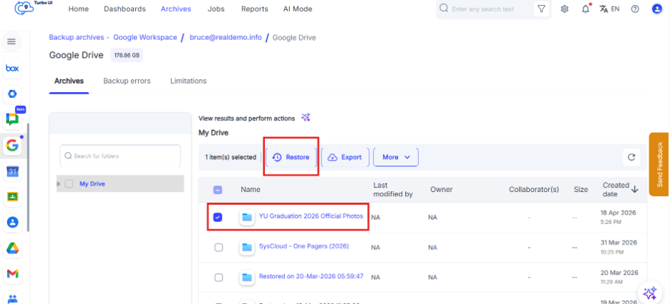
Step 6: The archive will now display the files from the snapshot version that you chose. Select the file(s) and click restore.
Multiple versions of the file will be available for a specific date only if multiple backups were performed on that date. By default, SysCloud creates 1x backup per day. If you need more versions to be backed up for the same day you should perform a manual on-demand backup. Click here to learn how to create an on-demand backup.