![Untitled design (1)-Aug-01-2022-12-37-27-80-PM.png]](https://help.syscloud.com/hs-fs/hubfs/Untitled%20design%20(1)-Aug-01-2022-12-37-27-80-PM.png?height=40&name=Untitled%20design%20(1)-Aug-01-2022-12-37-27-80-PM.png)
Follow these steps to restore multiple items (files/emails/events etc) from the SysCloud Backup Application:
Step 1: Log in to SysCloud using your admin credentials.
Step 2: Click on “Archives” and select Google Workspace
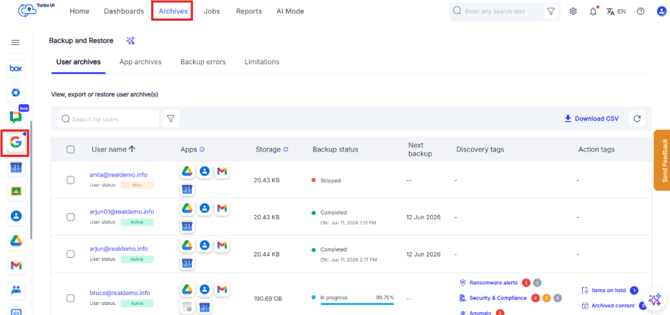
Step 3: Select an account from the list to view your archives.
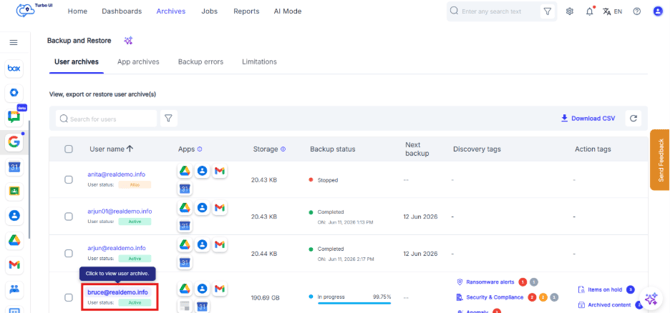
Step 4: Click the App you wish to restore the files from
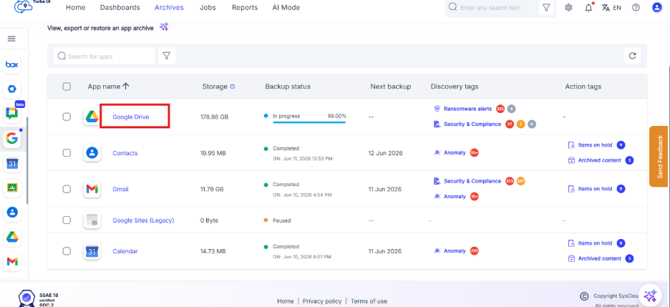
Step 5: Select the checkboxes next to the files to restore multiple files together and click "Restore".
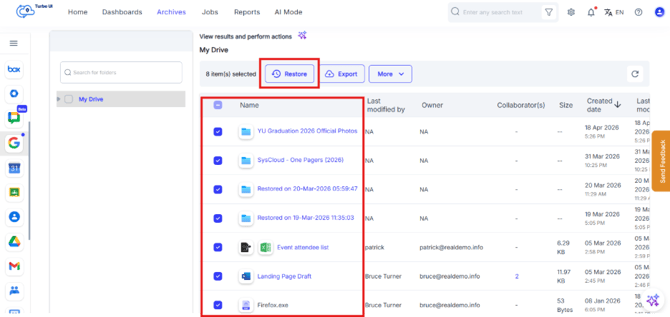
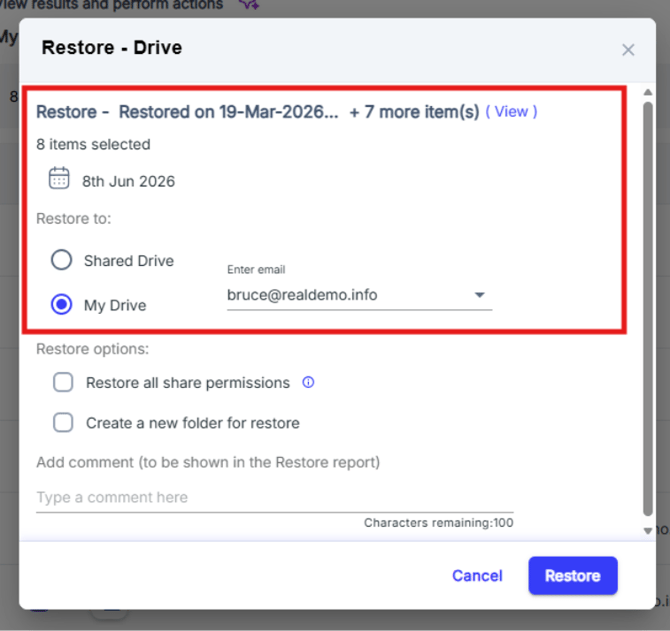
Step 6: In the restore pop-up box, select the snapshot date and time and select an account to restore the data.
- By default, data is restored to the same account from which it was deleted. To perform a crossuser restore, you can select a different account of the same domain. Refer to this article for step by step instructions on how to initiate cross-user restore.
- You can restore the selected items to a Shared Drive by choosing the Shared Drive restore option and selecting the destination Shared Drive. For detailed, step-by-step instructions, refer to the article: How to Restore Files from My Drive to a Shared Drive.
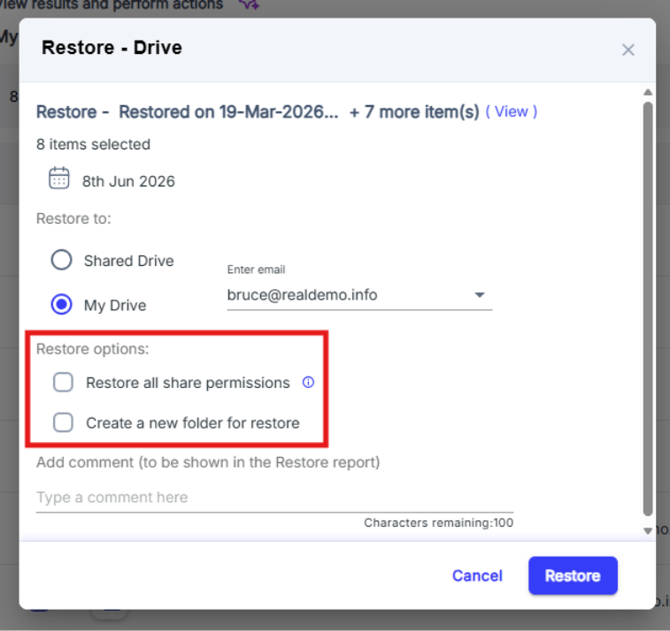
Step 7: In the restore pop-up screen select the checkboxes, "Restore all sharing permission" and "Create a new folder for restore" options to restore files with sharing permissions and folder structure intact.
Restore all share permissions: If this checkbox is enabled the collaborator(s) of the original file will have access to the restored file. Please inform collaborator(s) about the new file
Create a new folder for restore: If this checkbox is enabled, the selected files will be restored as a new folder in your cloud application.
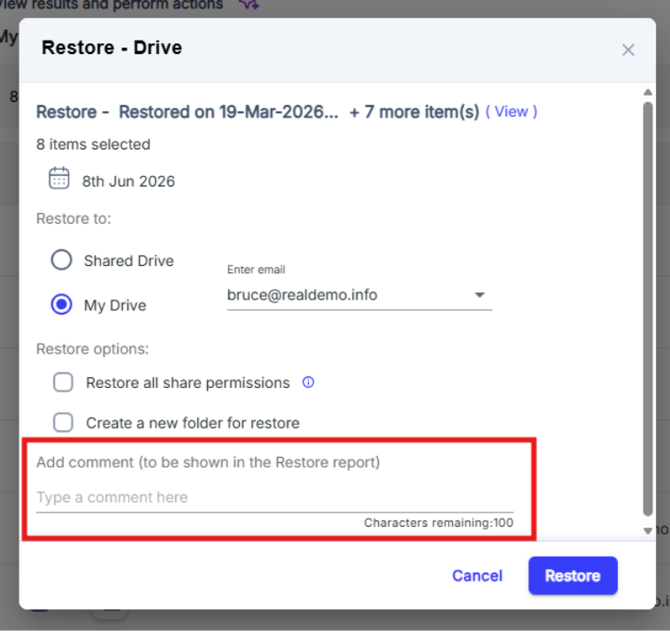
Step 8: Add comments to be shown in the Restore Report (optional) and click on Restore to confirm the restore.
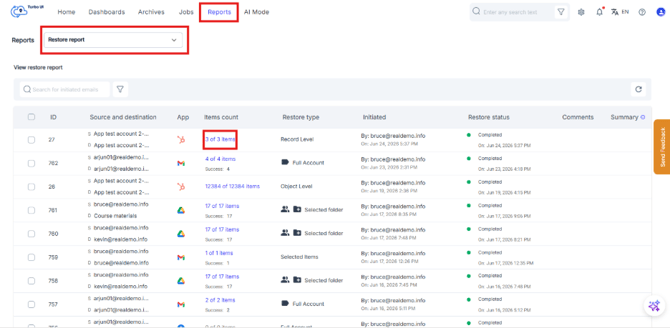
Step 9: You can monitor the restore status from Reports > Restore Reports.