![Untitled design (1)-Aug-01-2022-12-37-27-80-PM.png]](https://help.syscloud.com/hs-fs/hubfs/Untitled%20design%20(1)-Aug-01-2022-12-37-27-80-PM.png?height=40&name=Untitled%20design%20(1)-Aug-01-2022-12-37-27-80-PM.png)
Follow these steps to view the folder structure in a user’s Google Drive backup archive.
Steps
- Log in to the SysCloud backup application using your credentials.
- Go to Archives > Google Workspace > Google Drive.
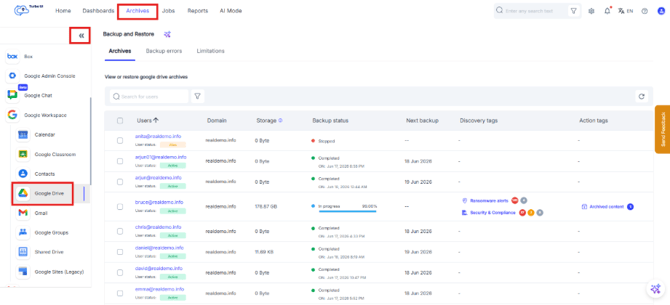
- Select the user whose Google Drive archive you want to view.
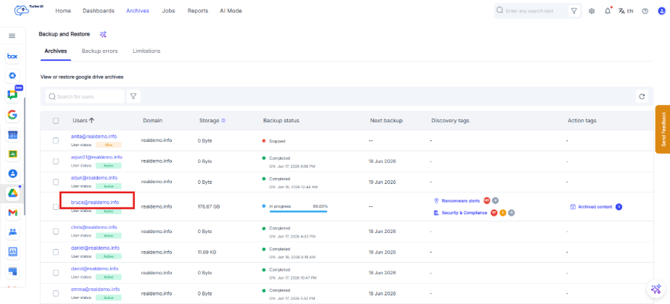
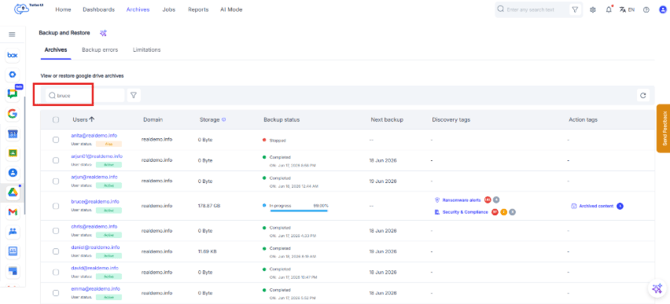
In case of long list of users,
- Use search bar: Type the name of the user and press Enter
- Use filters like Account name, Domain name, User status, Backup status, etc. like in the top section.
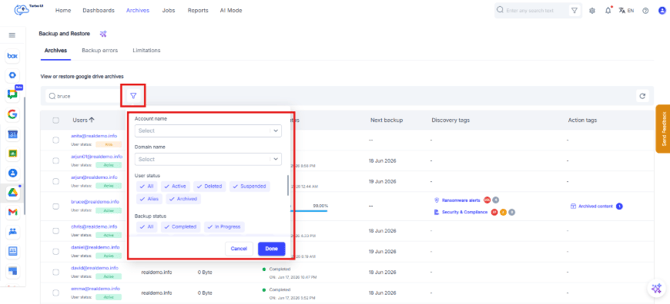
- Use search bar: Type the name of the user and press Enter
- In the user’s Google Drive archive, use the left folder navigation panel to browse My Drive folders.
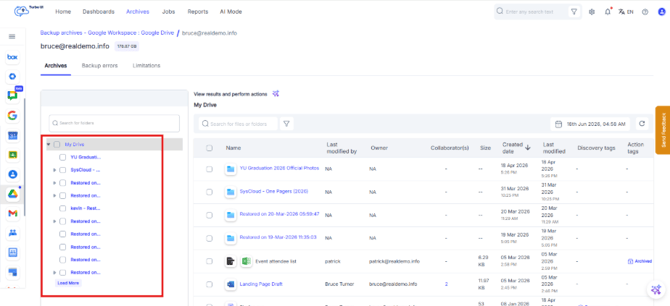
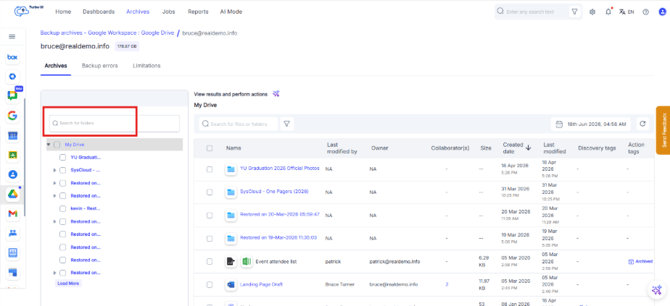
- Use the search bar in the left panel to search for folders.
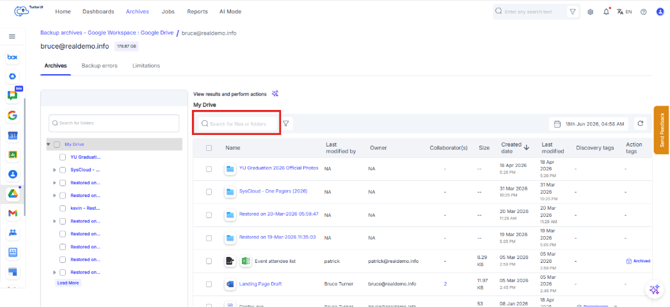
- Use the main search box to search for files or folders within a folder selected from left navigation panel.
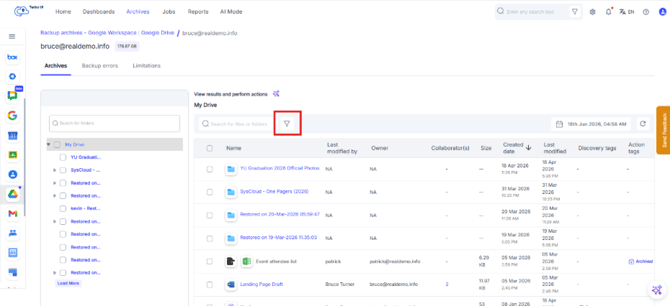
- Click the filter icon to filter the archive using available options such as file name, file owner, document ID, created date, or other Drive metadata. Read How to Filter the Drive (Google Drive or OneDrive) Data in the Backup Archives? For more information.
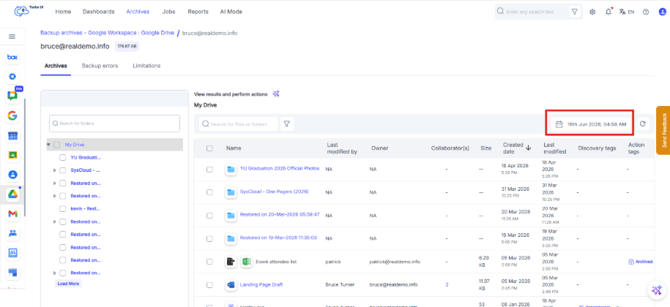
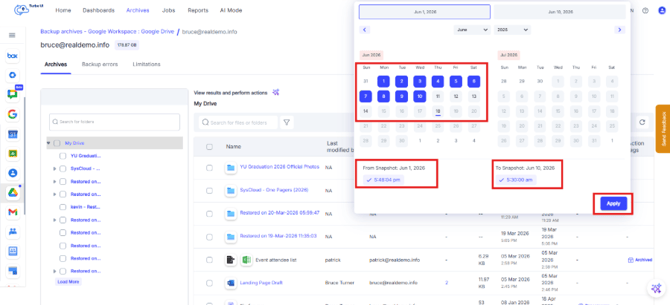
- The Snapshot Date on the top right shows that archive view currently appearing on the screen is of which date. To view files and folders from a specific backup point in time or for a range of dates, Click on the above snapshot date.
To compare the archive view for a range of dates, From & To can be selected. For a specific point in time, both From & To dates should be same. Click on Apply.
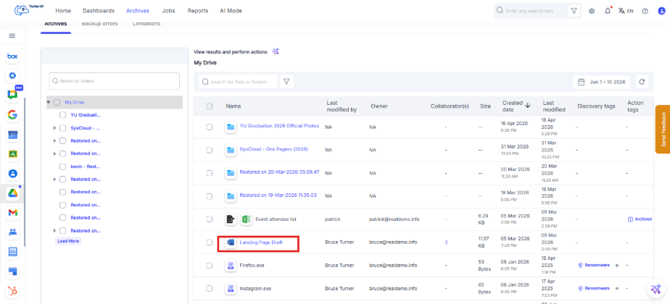
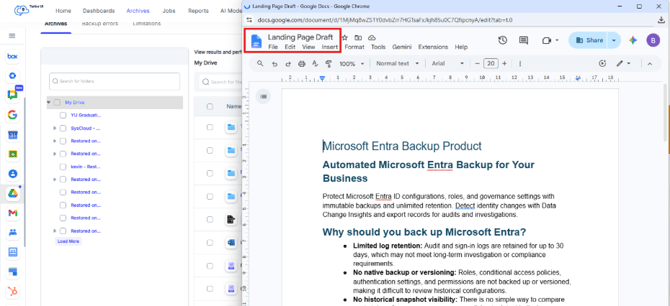
- Click a file or folder name to open or preview the item, where supported.
The preview will open in a new window.
The main archive panel displays file metadata such as file name, owner, collaborators, size, created date, last modified date, discovery tags, and action tags.
Google Drive will be available in the archives only if it was selected in the backup job and backup data is available for the selected user.